The member manual
Every tool, step by step, with a picture of each screen. The details in the pictures are made up for the examples.
Updated 9 October 2026. New chapters are added as new apps arrive.
Getting started
From your welcome email to your own portal, in four steps.
Your welcome email
Every request is read and approved personally. When yours is, an email arrives from info@closingtable.ca with the date your free week runs to and where to sign in.
Sign in with the same email address the welcome was sent to.
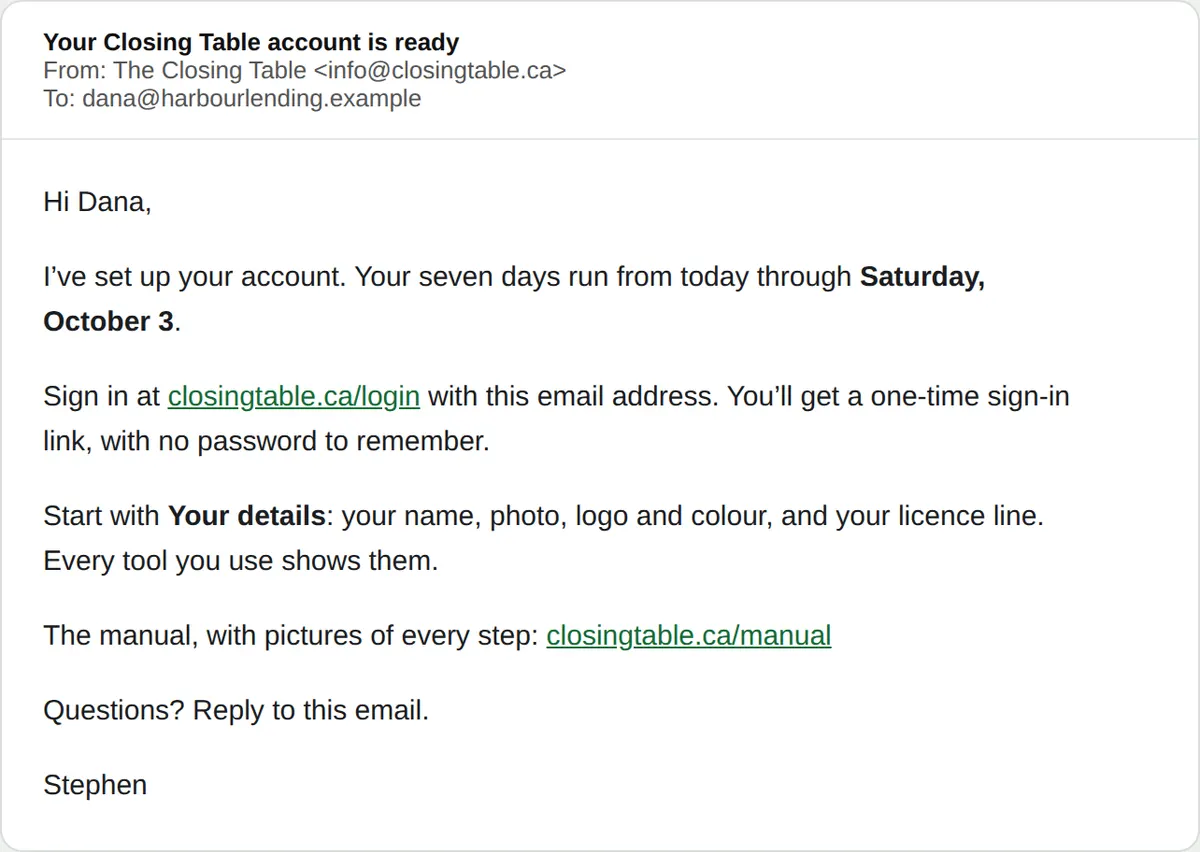
The welcome email: account ready, the last day of the free week, and where to sign in. Sign in — no password
Go to closingtable.ca/login, type your email and press Send my sign-in link.
Open the email called “Your sign-in link” and tap the button. The link works once and expires, so ask for a new one any time.
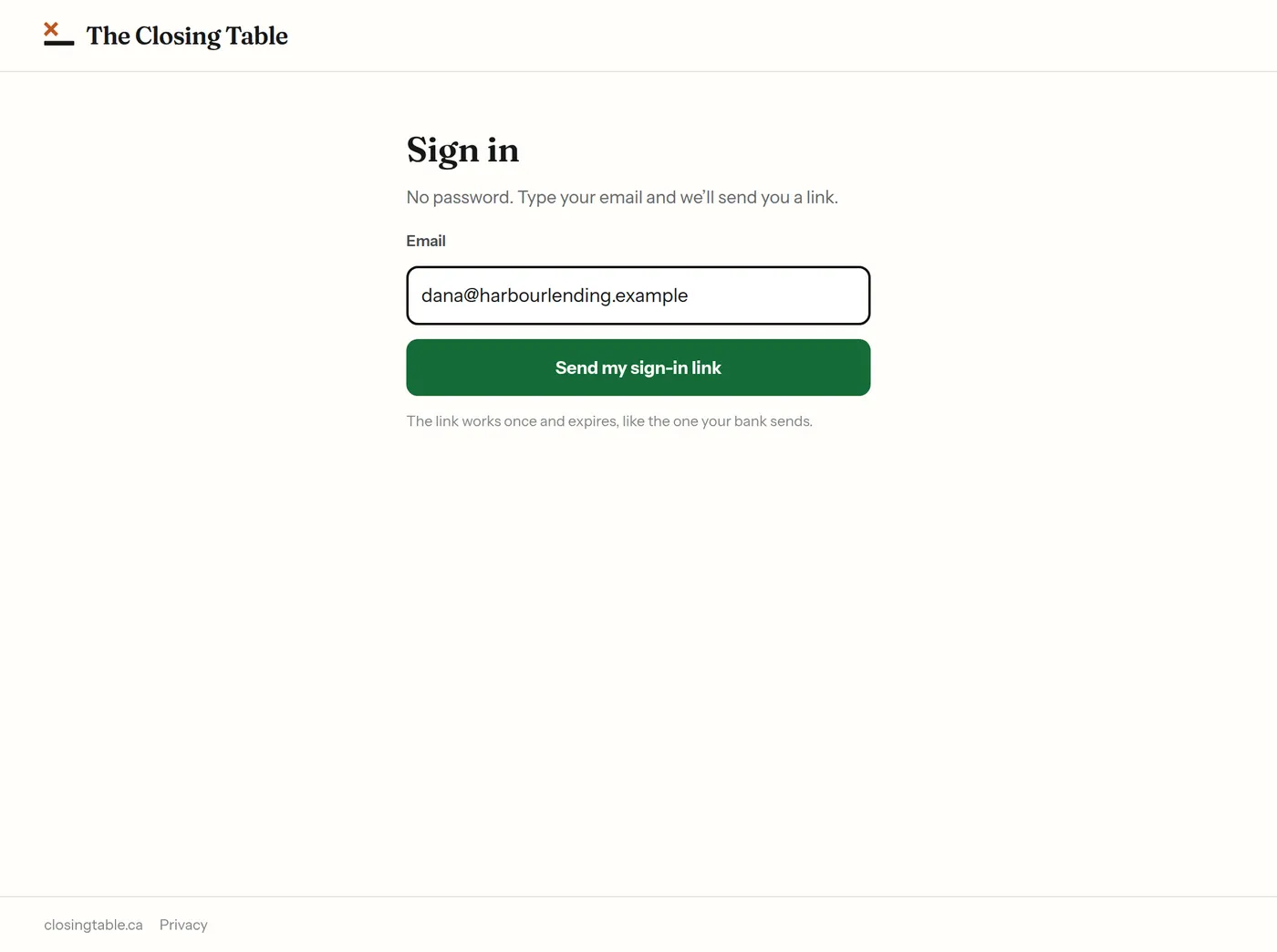
The sign-in page, with an email address typed in and the Send my sign-in link button. Read and accept your agreement
The first time you sign in, your agreement opens. Read it, then press I have read and agree.
You can read it again any time under Your agreement on your portal home.
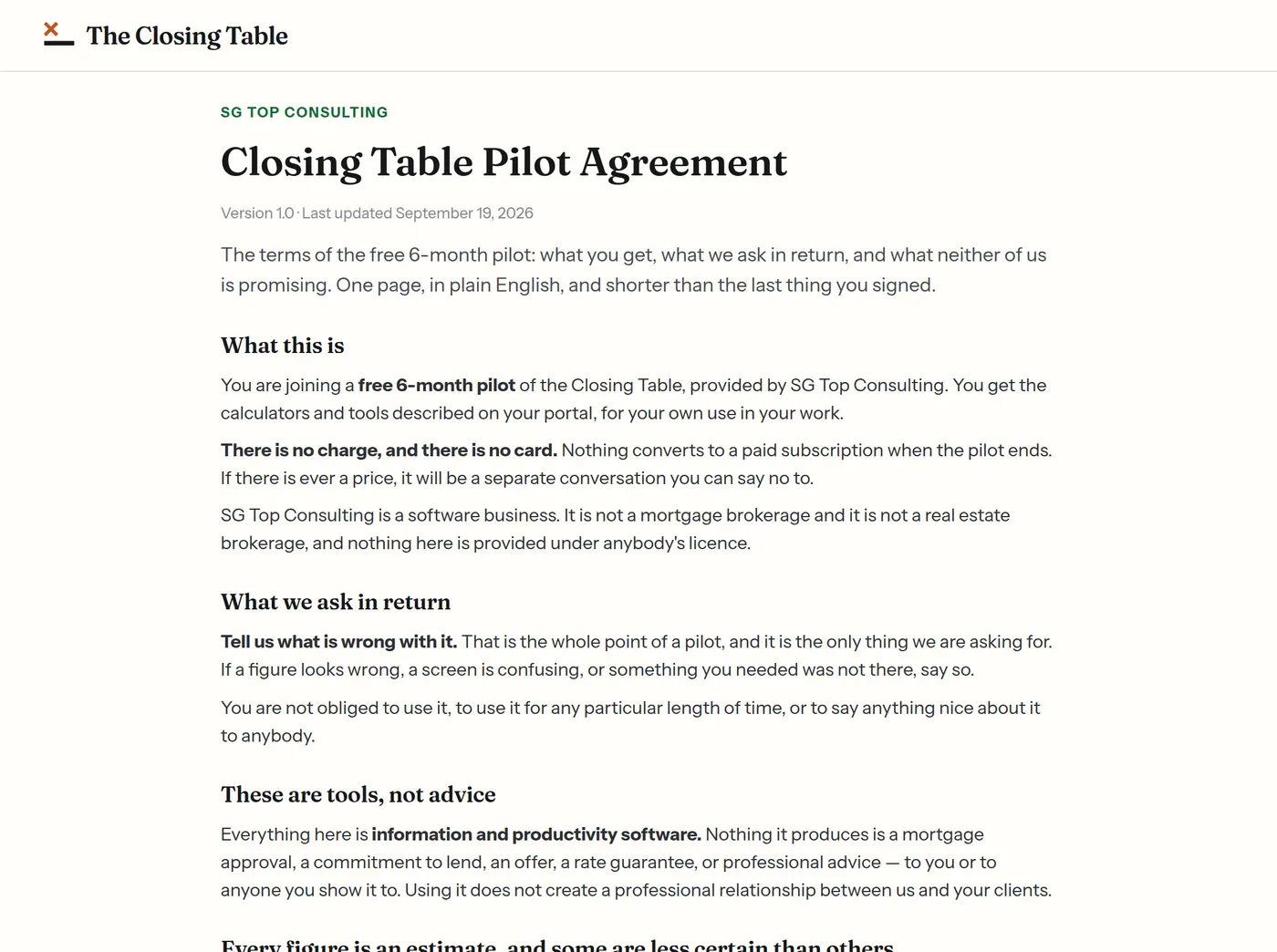
The member agreement, shown once on first sign-in. Your portal home
The strip at the top counts down your free trial. Start with Your details — every tool reads them, so an app is only switched on once they are in.
Further down: your calculators, your apps, and Share — Articles to share and the Social kit. At the foot, Account holds the manual, your agreement, Billing and Get help.
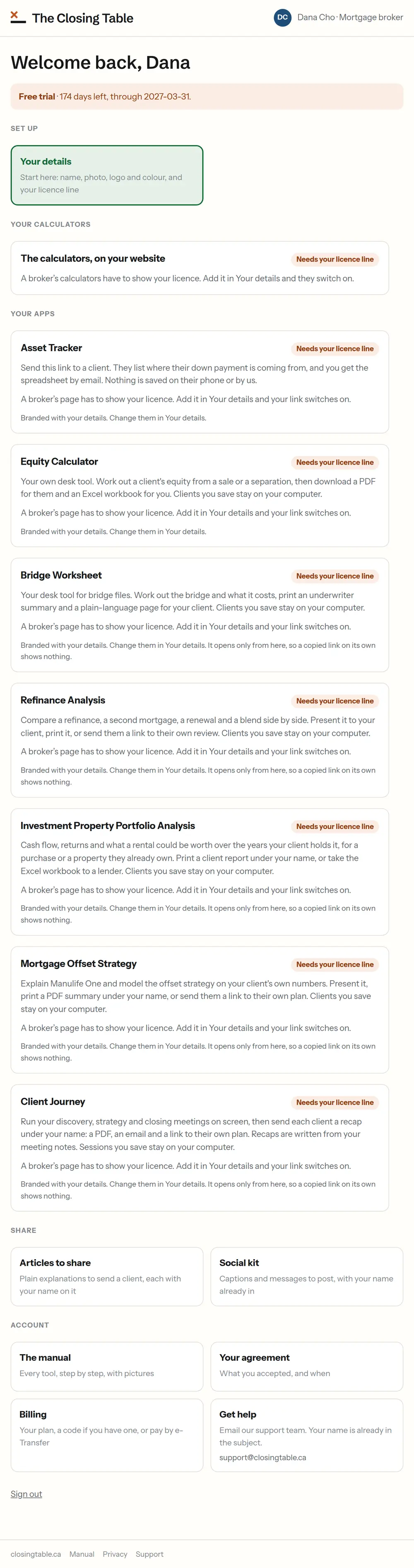
The portal home for a new broker: the free-trial strip, Your details marked Start here, the calculators and apps waiting for the licence line, Share, and the Account row with Billing and Get help.
Your details
Set them once. Every calculator, report and app shows them.
Fill in who you are and how clients reach you
Open Your details from your portal home. Add your name, your brokerage or firm, your phone, the email clients should see, and your booking link if you have one.
The preview on the right shows exactly how a calculator and a report will look with your details.
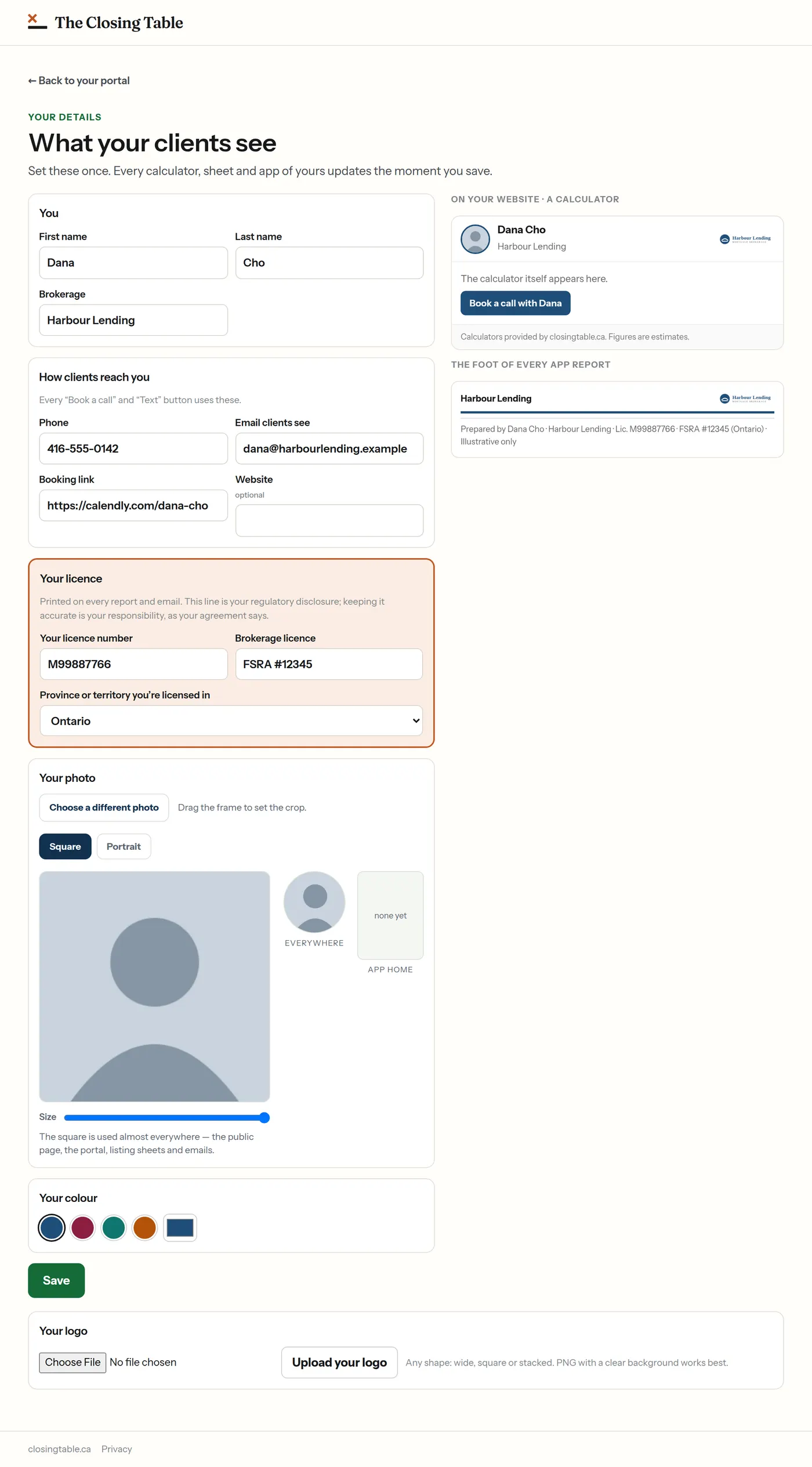
The Your details page filled in, with the live preview on the right, the licence section, the photo and the colour. Mortgage brokers: your licence line
Your licence number, your brokerage's licence and your province print on every report and email. It is your regulatory disclosure, so it is required — the apps stay switched off until it is filled in.
Financial advisors: your dealer's compliance line
Under Your dealer's compliance line, type the line your dealer requires, in your dealer's exact wording. It prints on every illustration and report, and keeping it accurate is your responsibility, as your agreement says.
It is required — the Mortgage Investment Planner stays switched off until it is filled in.
Photo, colour and logo
Choose a photo and drag the frame to set the crop. Pick a colour — it is used on your apps and reports.
Your logo uploads on its own with Upload your logo, below the Save button. Any shape works; a PNG with a clear background looks best.
Save
Press Save. The change reaches every one of your tools straight away — there is nothing to republish.
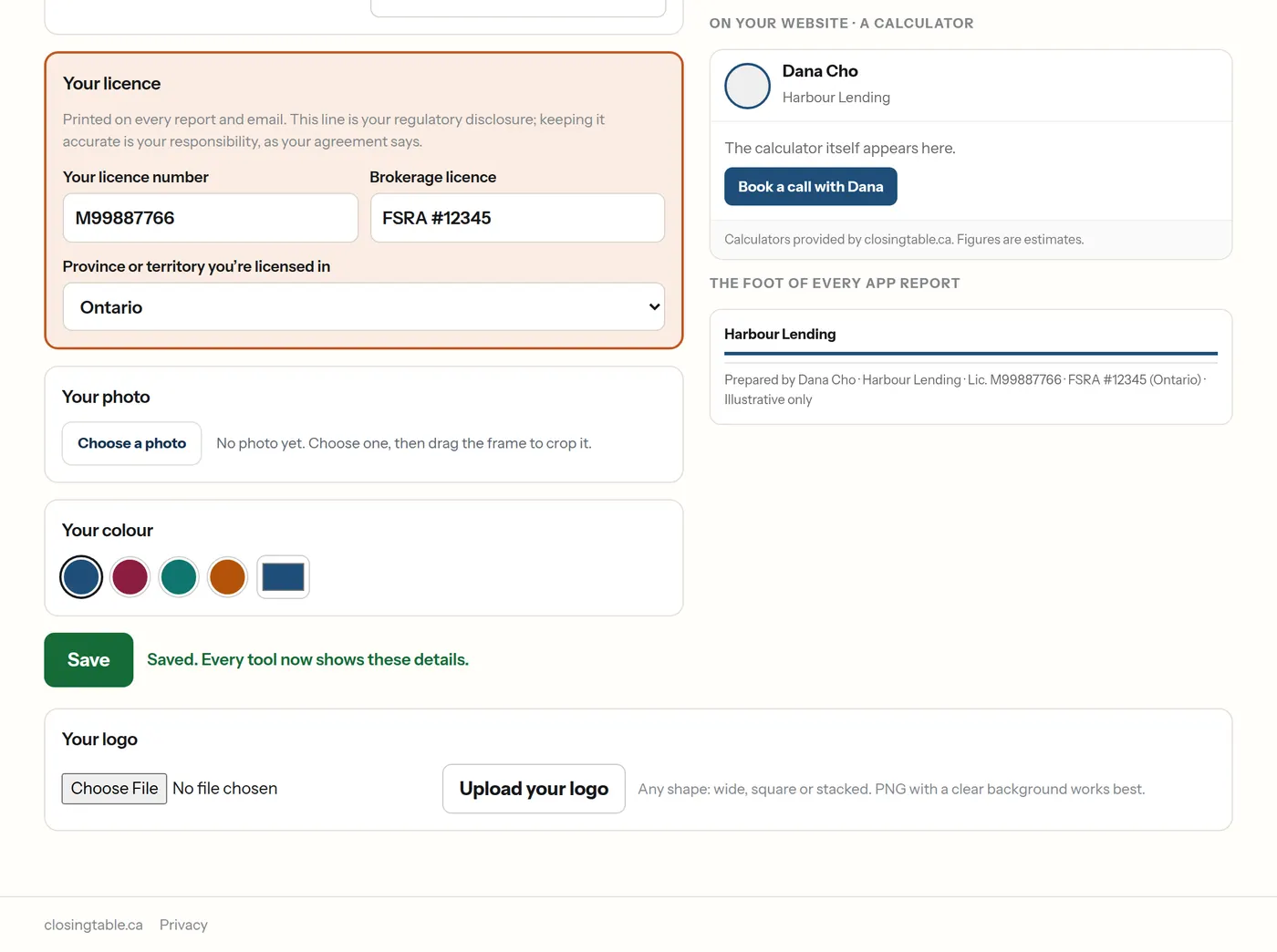
The confirmation after saving Your details. Your apps switch on
Back on your portal home, your apps are listed below the calculators. Everyone gets the calculators, the articles and the social kit; the rest depends on your practice.
An app with a link shows ● On with Copy link and Open it. A desk tool that opens in a new tab shows Open ↗ instead, and only opens from your portal.
Mortgage brokers: seven desk tools
The Asset Tracker, the Equity Calculator, the Bridge Worksheet, the Refinance Analysis, the Investment Property Portfolio Analysis, the Mortgage Offset Strategy and the Client Journey. Each has its own chapter below.
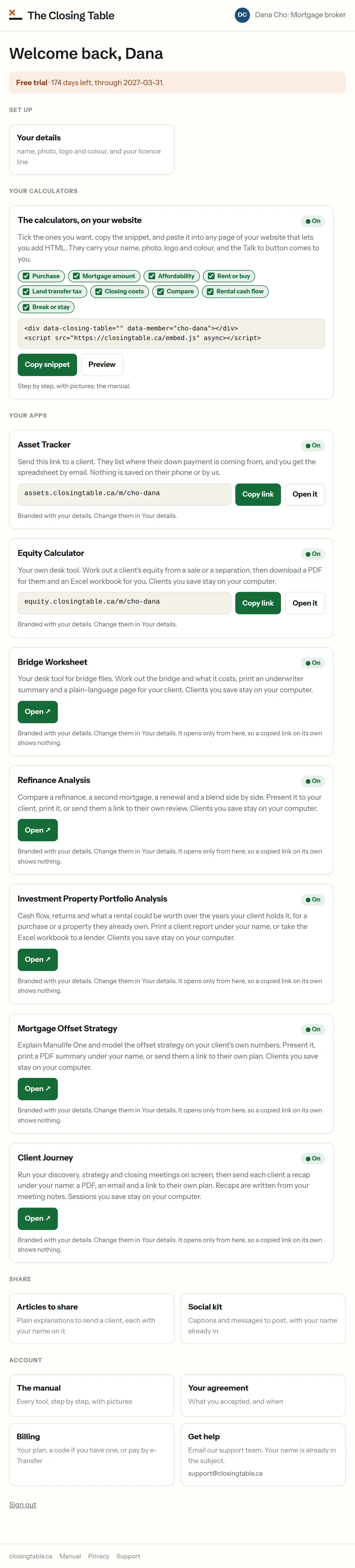
The portal home for a broker: the calculators, all seven apps switched on, Share, and the Account row with Billing and Get help. Financial advisors: the Mortgage Investment Planner
The same portal, with the Mortgage Investment Planner under Your apps. It has its own chapter below.
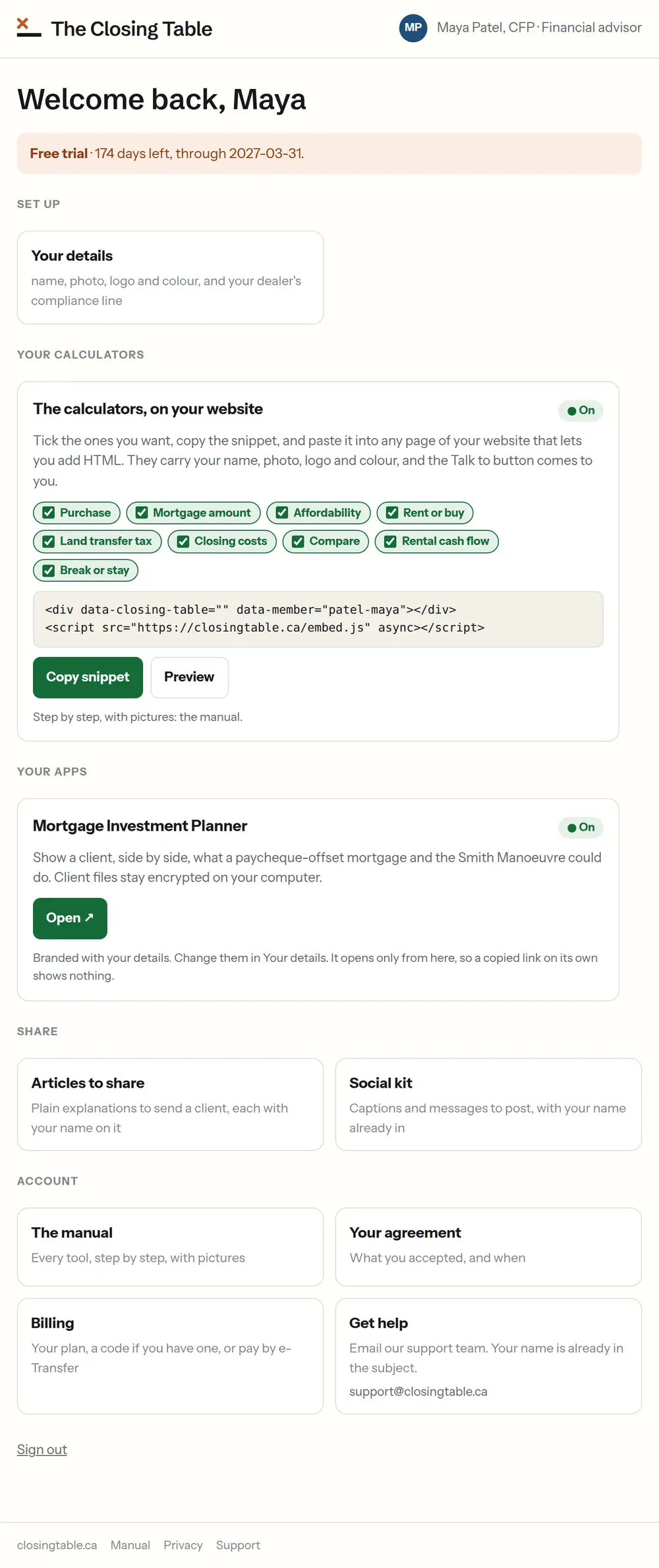
The portal home for a financial advisor: the calculators, the Mortgage Investment Planner switched on with its Open button, Share, and the Account row. Realtors: your client app and open houses
Your client app has its own section with your link and a QR code, and Open house sign-ins has its own section, Open houses, below Share. Each has its own chapter below.
On your phone
The portal works the same on a phone — handy for copying a link into a text message.
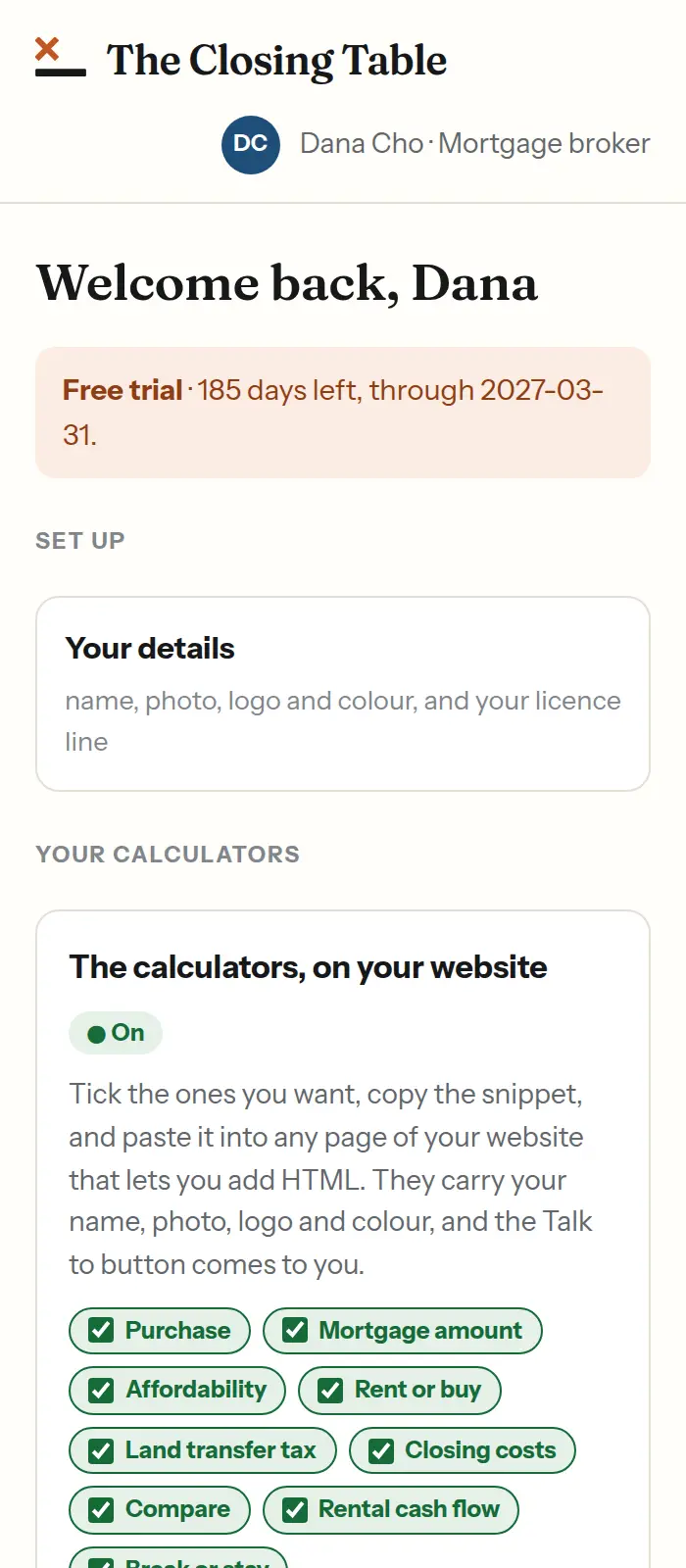
The top of the portal home on a phone.
The calculators, on your website
Nine calculators with your name on them, on any page of your website, from one snippet.
For every planOpen Your calculators on your portal
All nine are ticked. Your snippet is underneath — two short lines with your name already in them.
Brokers: they switch on once your licence line is in Your details.
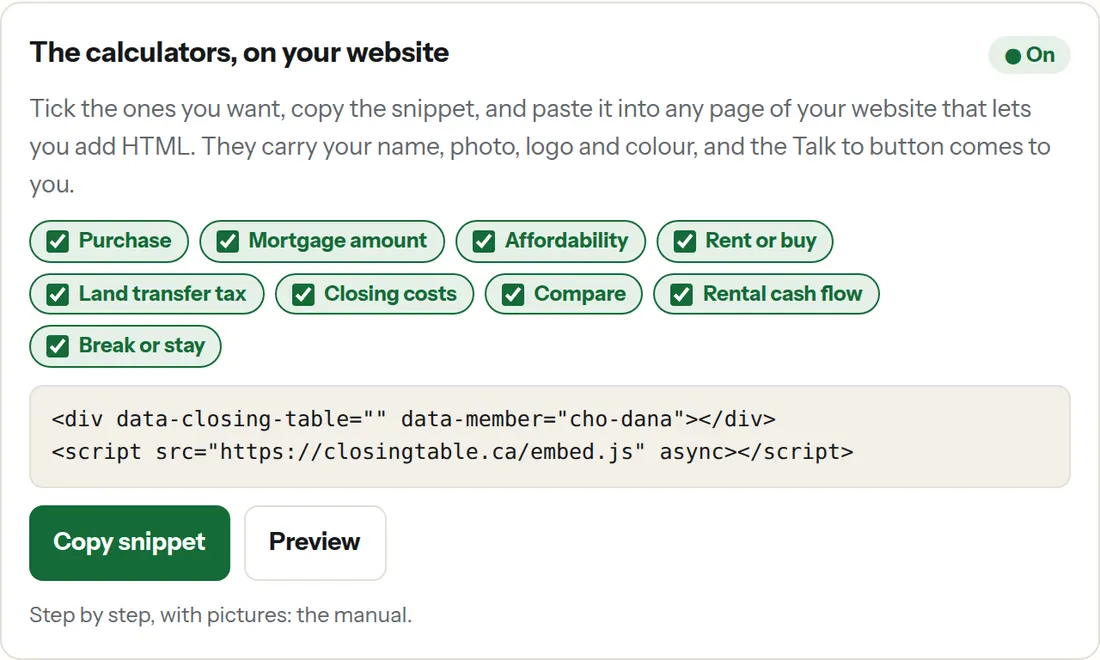
The Your calculators card on the portal: nine ticked calculators, the snippet, and the Copy snippet and Preview buttons. Untick any you would rather not show
The snippet changes as you tick and untick. Preview opens exactly what your visitors will see.
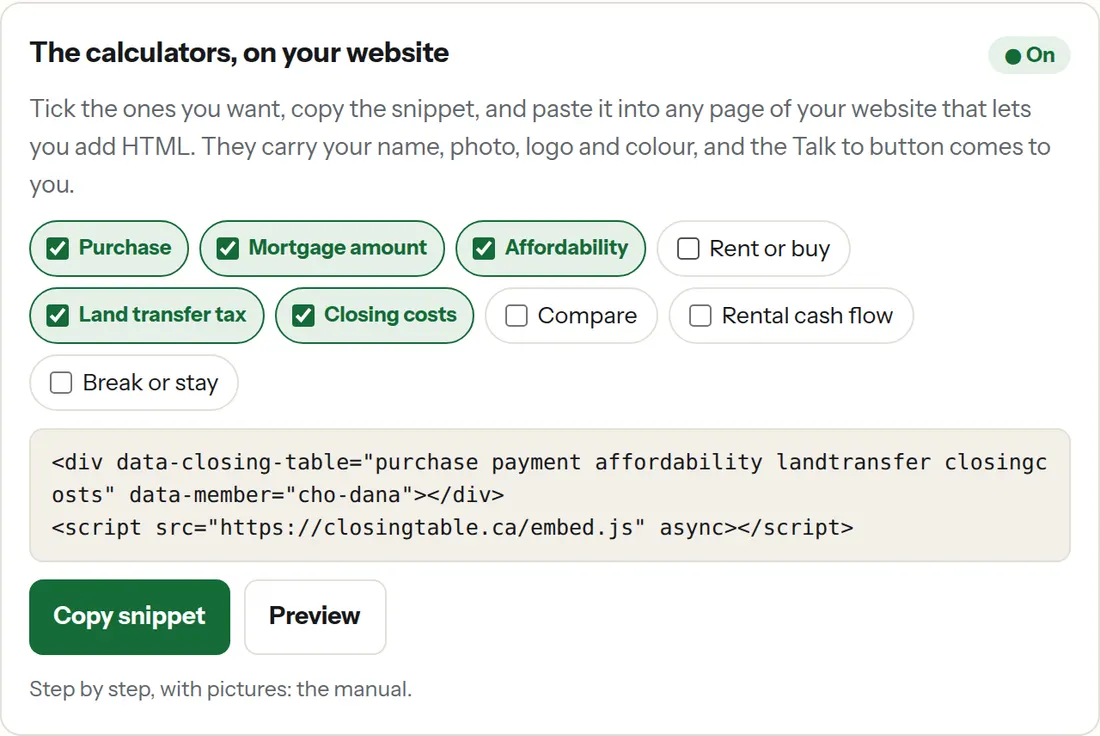
Four calculators unticked, and the snippet now naming the five that are left. Paste it into your website
Press Copy snippet, then add it wherever your website lets you add HTML:
Wix — Add (+) → Embed code → Embed HTML, then paste. Squarespace — add a Code block and paste. WordPress — add a Custom HTML block and paste. Anything else — look for “embed”, “HTML” or “code”.
That is the whole installation. When the calculators improve, your page improves with them; you never touch the code again.
What your visitors see
Your photo, name and brokerage at the top, in your colour, sized to fit your page. The figures follow Canadian rules — fixed rates compounded semi-annually.
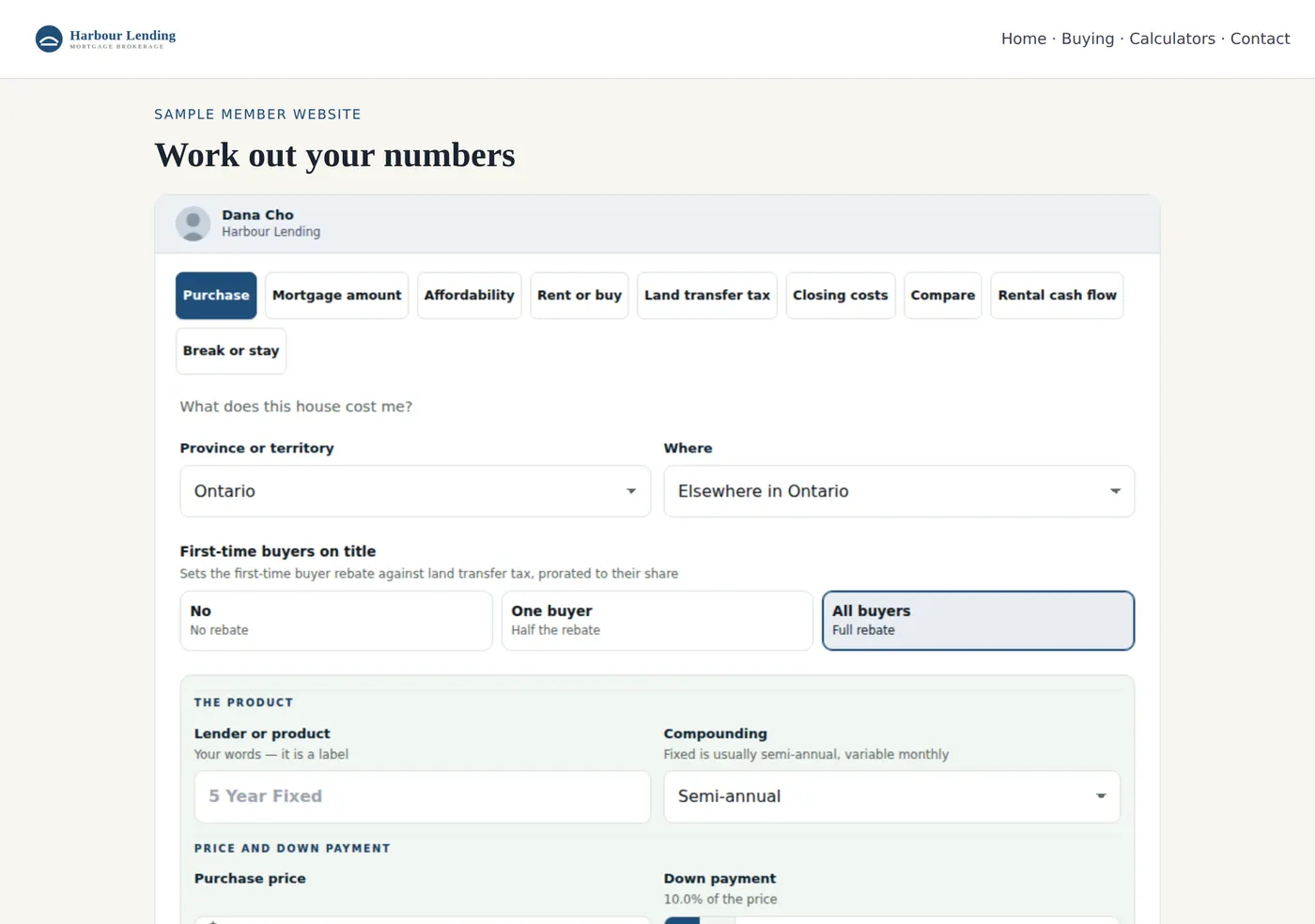
The calculators on a sample member website, headed by the member's photo, name and brokerage. On a phone
The same calculators, one column, on any phone.
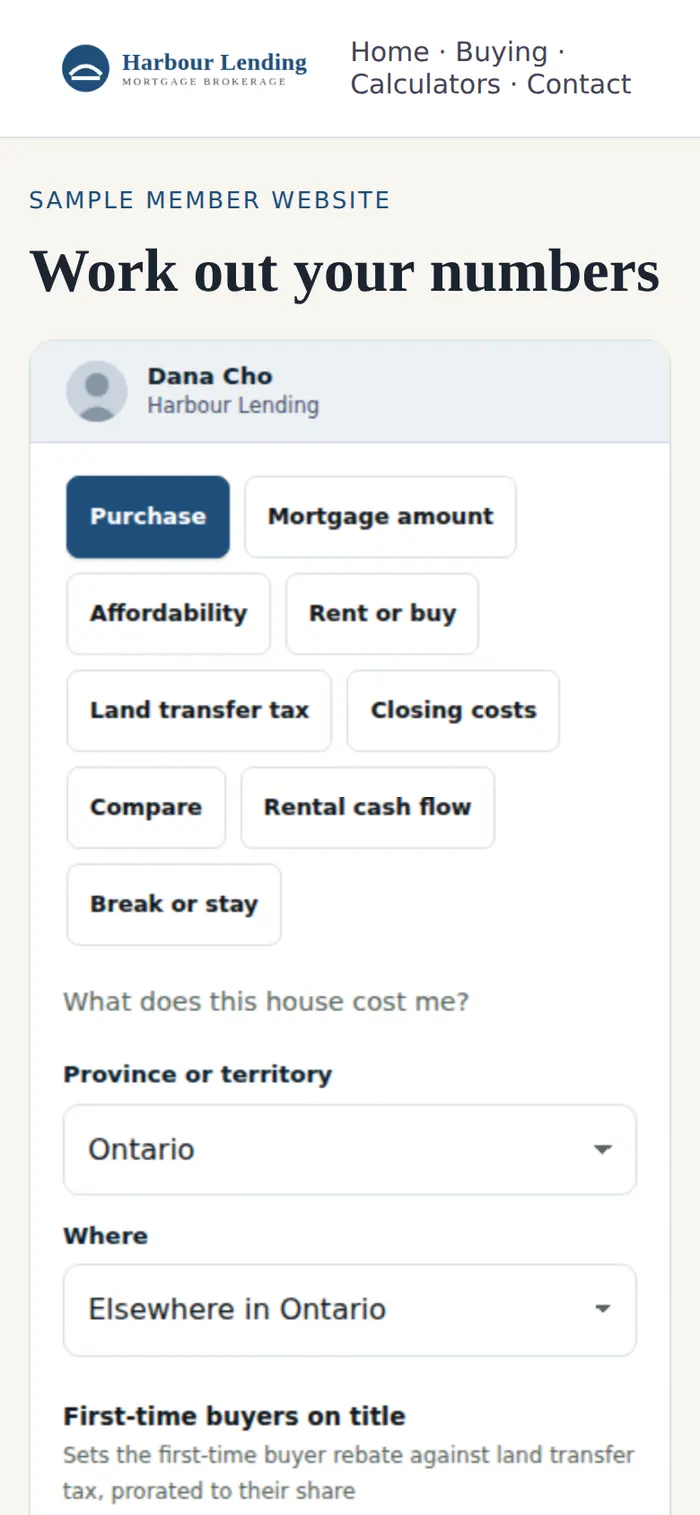
The calculators on the sample member website, on a phone. The Talk to button comes to you
Under every calculator, Talk to [your first name] opens your booking link. No booking link? It opens your email, then your phone.
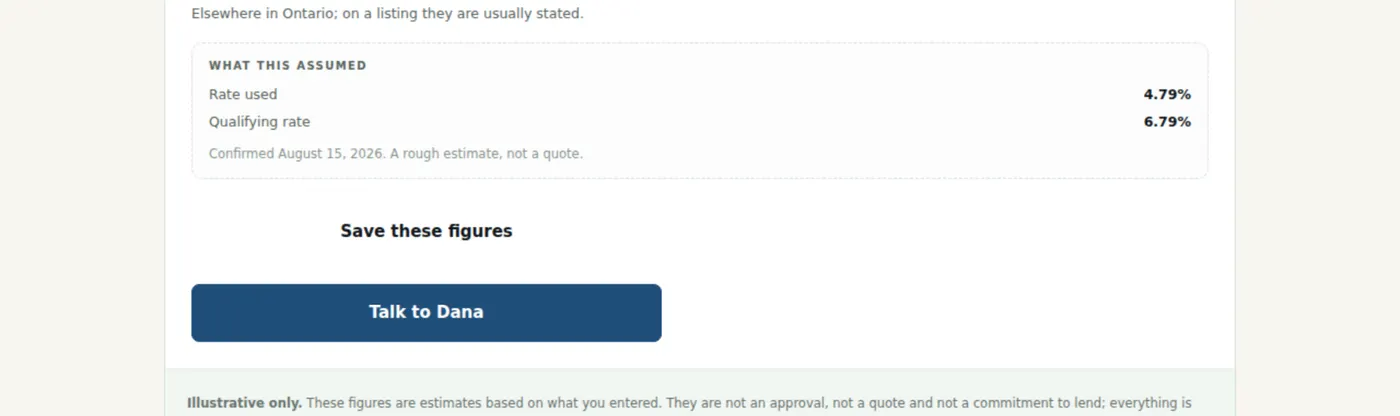
The Talk to Dana button under a calculator. Save these figures — a sheet with your name on it
A visitor can save their figures as a one-page sheet. Your brokerage and logo head it, your contact details sit under it, and — for brokers — your licence line closes it. The only line that is ours: “Calculators provided by closingtable.ca. Figures are estimates.”
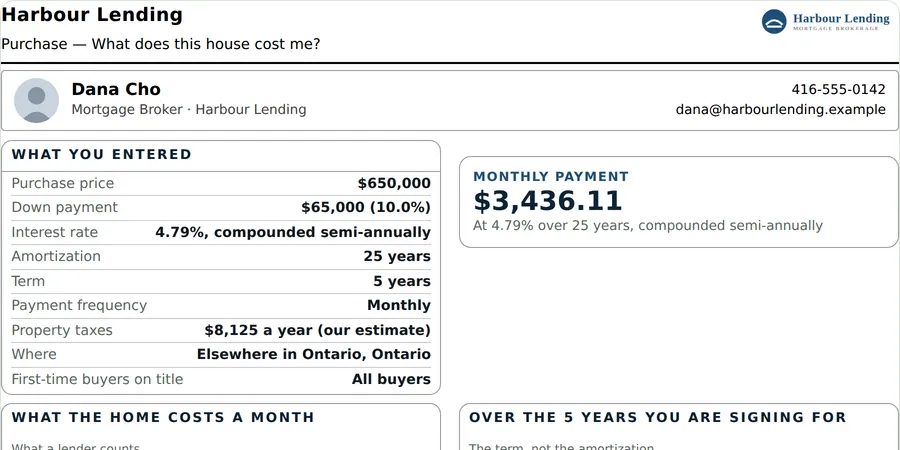
The top of a saved sheet: the member's brokerage, logo, name and contact details. The foot of the sheet
The estimate wording, the member's licence line, and closingtable.ca's one line.
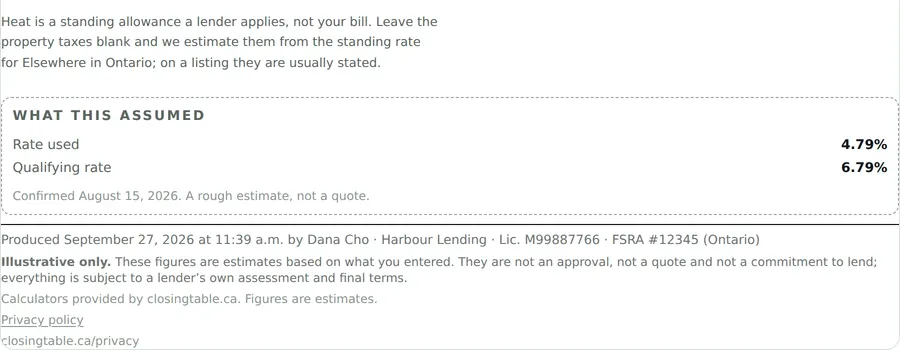
The foot of a saved sheet: produced by the member's licence line, the illustrative-only wording, and Calculators provided by closingtable.ca. Outside Ontario
Purchase, Mortgage amount and Affordability still use Ontario's rules, so members elsewhere get the other six for now. Set your province in Your details.
Your client app
An app your clients keep on their phone, with your name and colours: the calculators, your booking link and your contact card.
For realtorsFind Your client app on your portal
Your link is ready: app.closingtable.ca/your-name/. Copy it, open it, or press Text it to a client.
Meeting someone in person? Let them scan the code with their phone's camera.
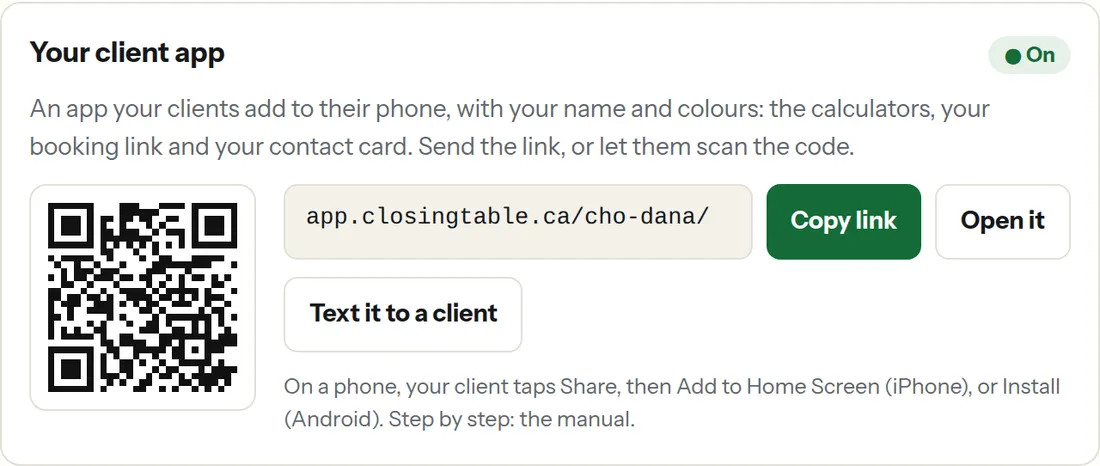
The Your client app card on the portal: a QR code, the link app.closingtable.ca/cho-dana/, and Copy link, Open it and Text it to a client buttons. What your client sees
Your photo, name and brokerage, in your colour. Book, Text and Email come straight to you, and the calculators are one tap away.
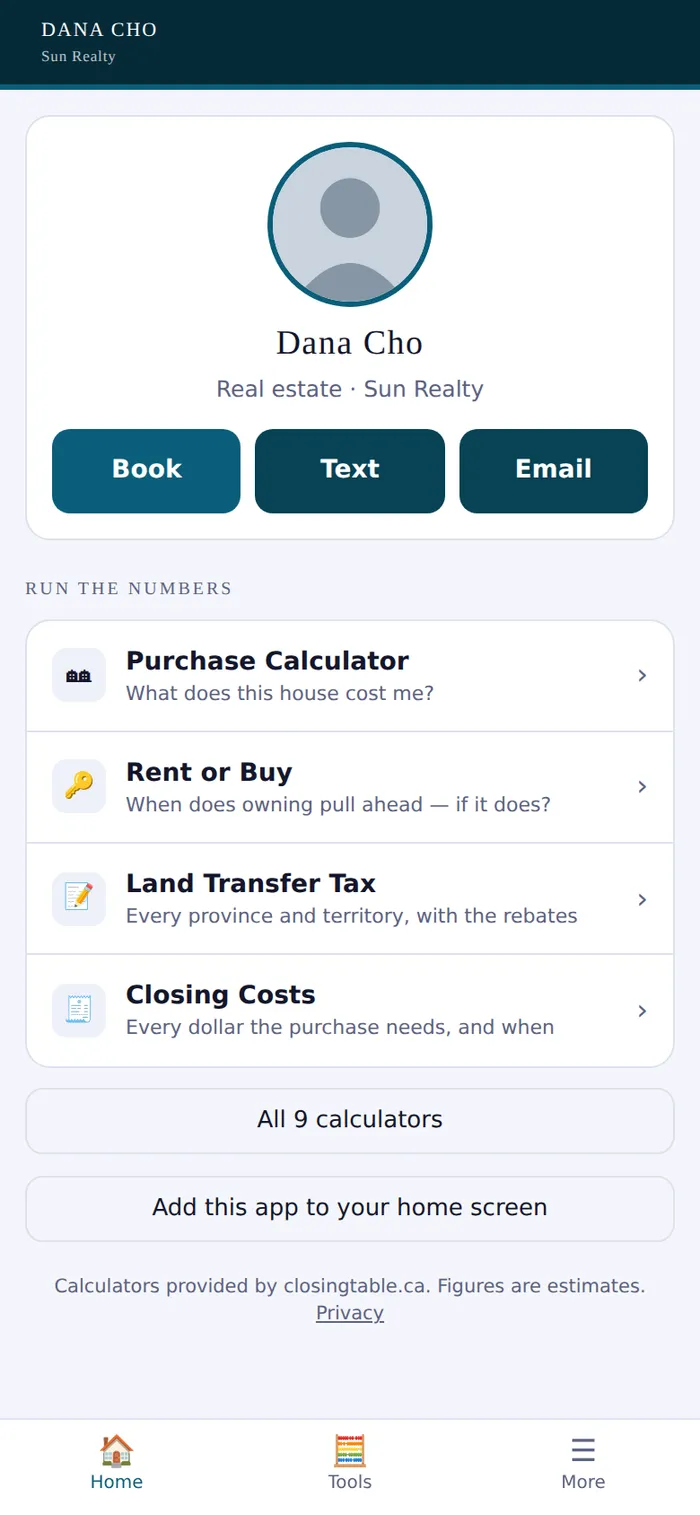
The member's app on a phone: their photo, name and brokerage, Book, Text and Email buttons, and four calculators. They add it to their home screen
iPhone: open the link in Safari, tap Share, then Add to Home Screen. Android: tap Install when it is offered, or the ⋮ menu, then Add to Home screen.
The app shows them these steps itself, so you do not have to remember them. The icon is your first initial, in your colour.
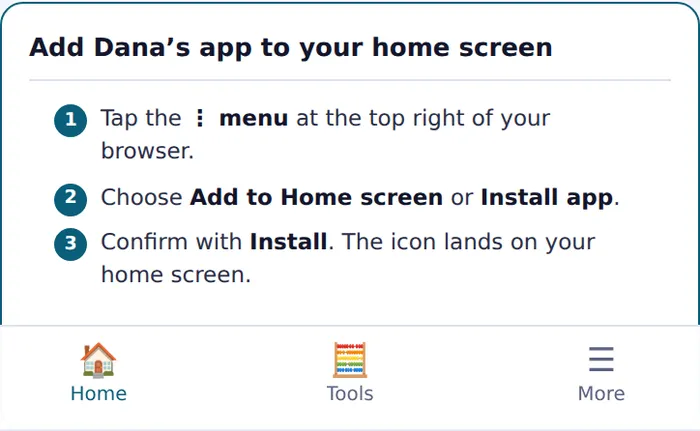
The app's own steps for adding it to the home screen, headed Add Dana's app to your home screen. All nine calculators
The same nine as on your website — six outside Ontario for now. Talk to [your first name] under each one comes to you.
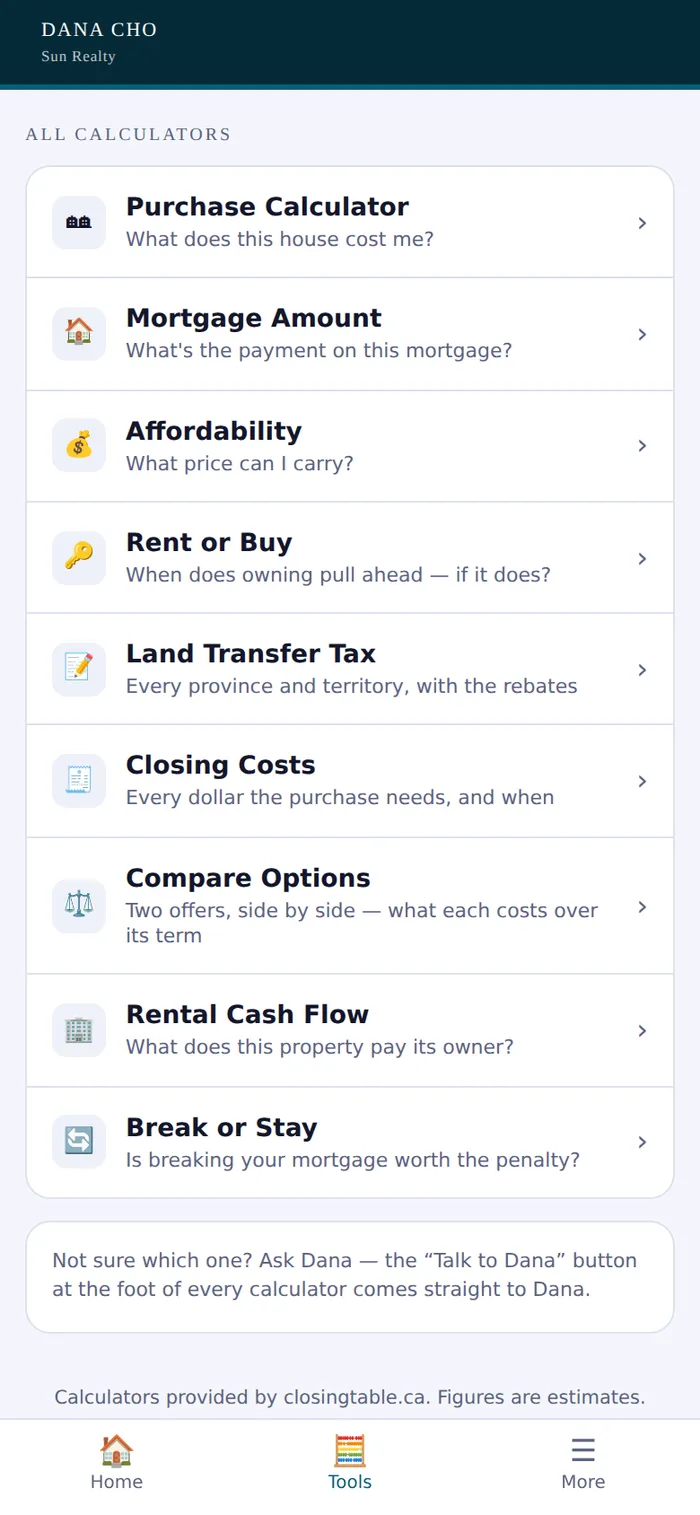
The Tools tab: all nine calculators listed by name. Your contact card, one scan away
Under More, your client can save you to their contacts, or show the code to a friend who is thinking about moving.
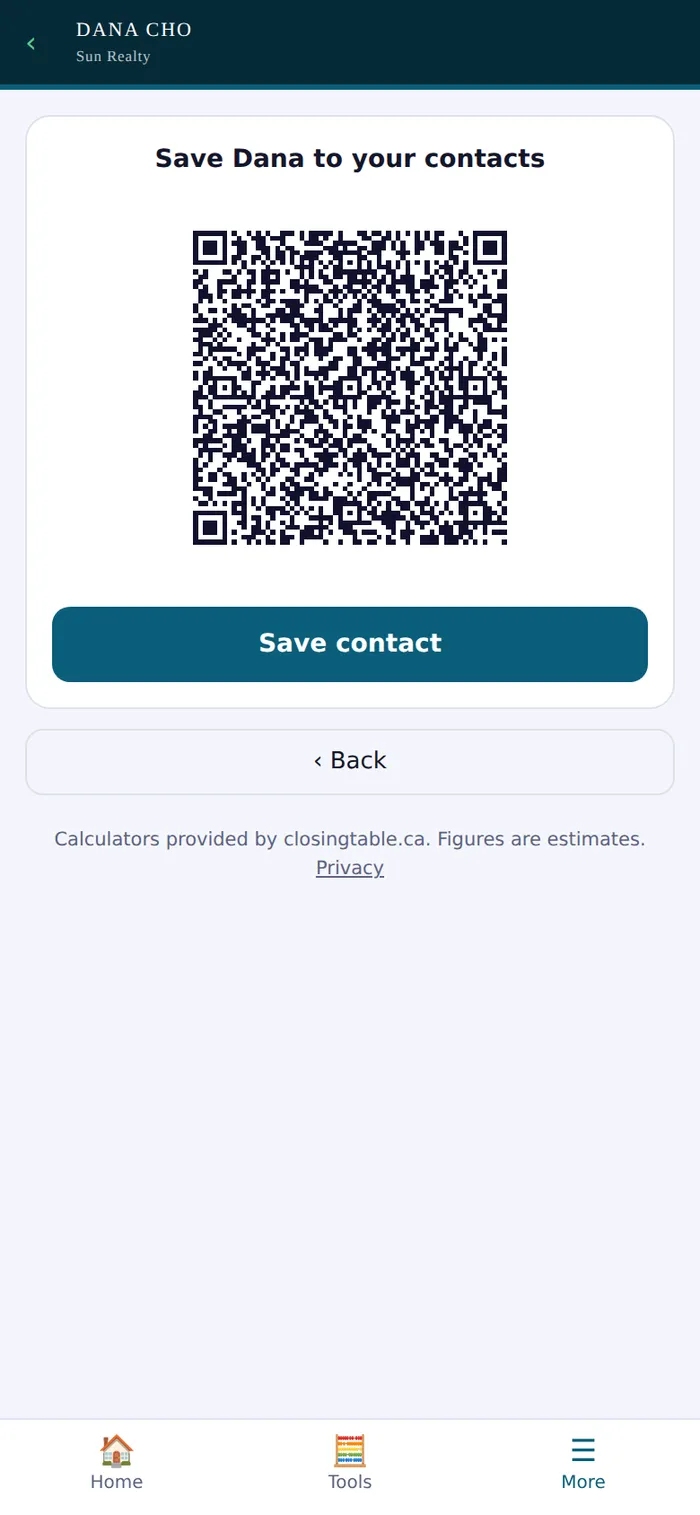
The member's contact card as a QR code, with a Save contact button. Keep your details current
The app reads Your details every time it opens. Change your photo, colour, phone or booking link there and every client's app changes with it.
If your trial or plan ends, the app says it is no longer active. It never shows anyone else's details in your place.
Asset Tracker
Your client lists where their down payment is coming from. You get the spreadsheet by email.
For mortgage brokersSend your link
On your portal home, press Copy link on the Asset Tracker and send it to your client by text or email.
It carries your name, logo and colour. Nothing about the client is saved on their phone or by us.
What your client sees
Your logo at the top, and a short form: their name, an optional email for a confirmation copy, then one card per account the money is coming from.
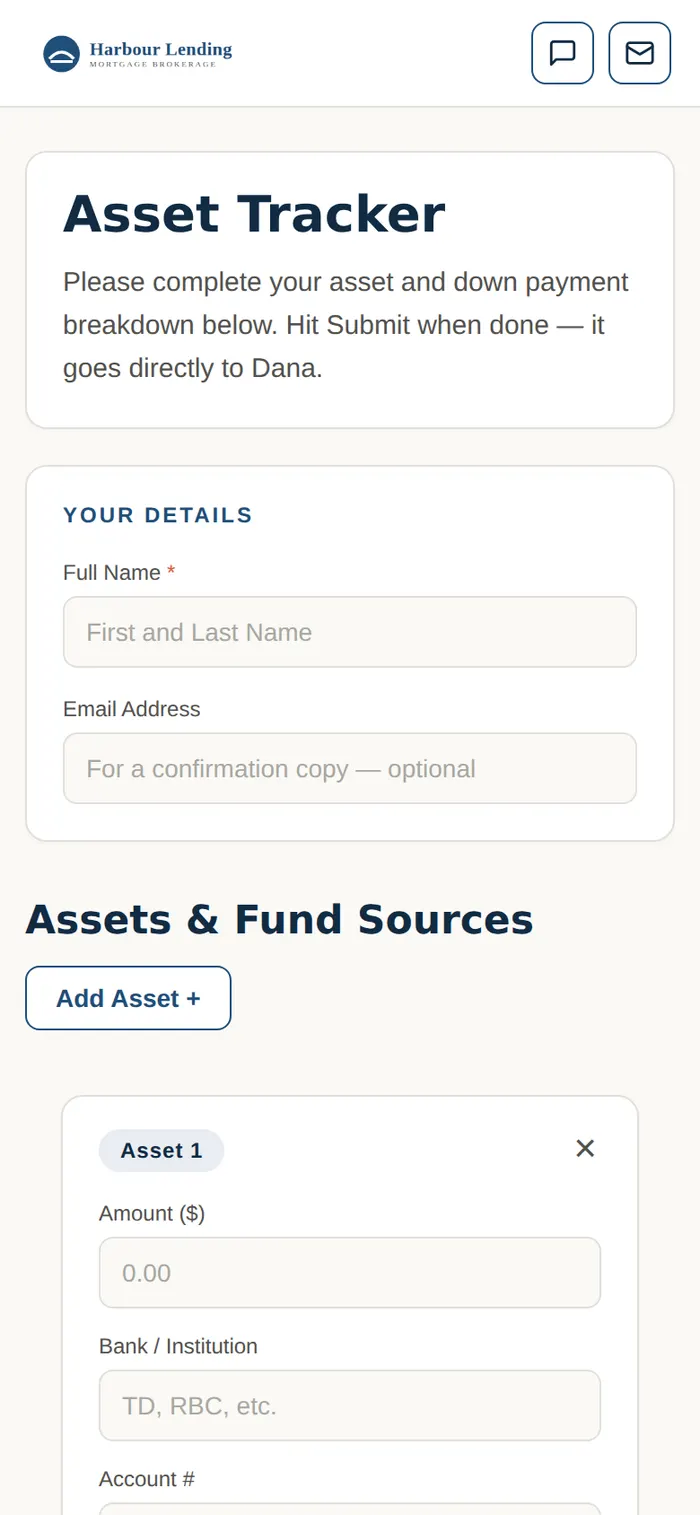
The Asset Tracker as a client sees it on a phone, with the broker's logo at the top. They add each source of funds
For each account: the amount, the bank, the owner, the type and whether it has been held 90 days. Add Asset + adds another.
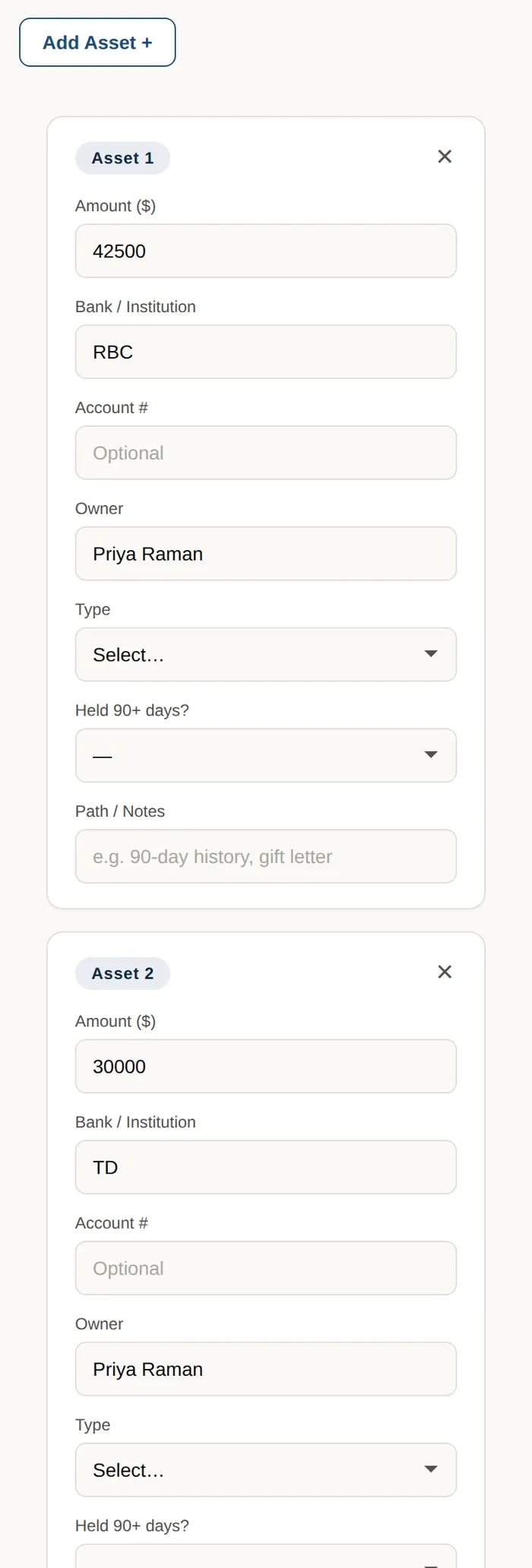
A client adding three sources of funds. They press Submit
The button is named after you — “Submit to Dana” — and a thank-you screen confirms it went.
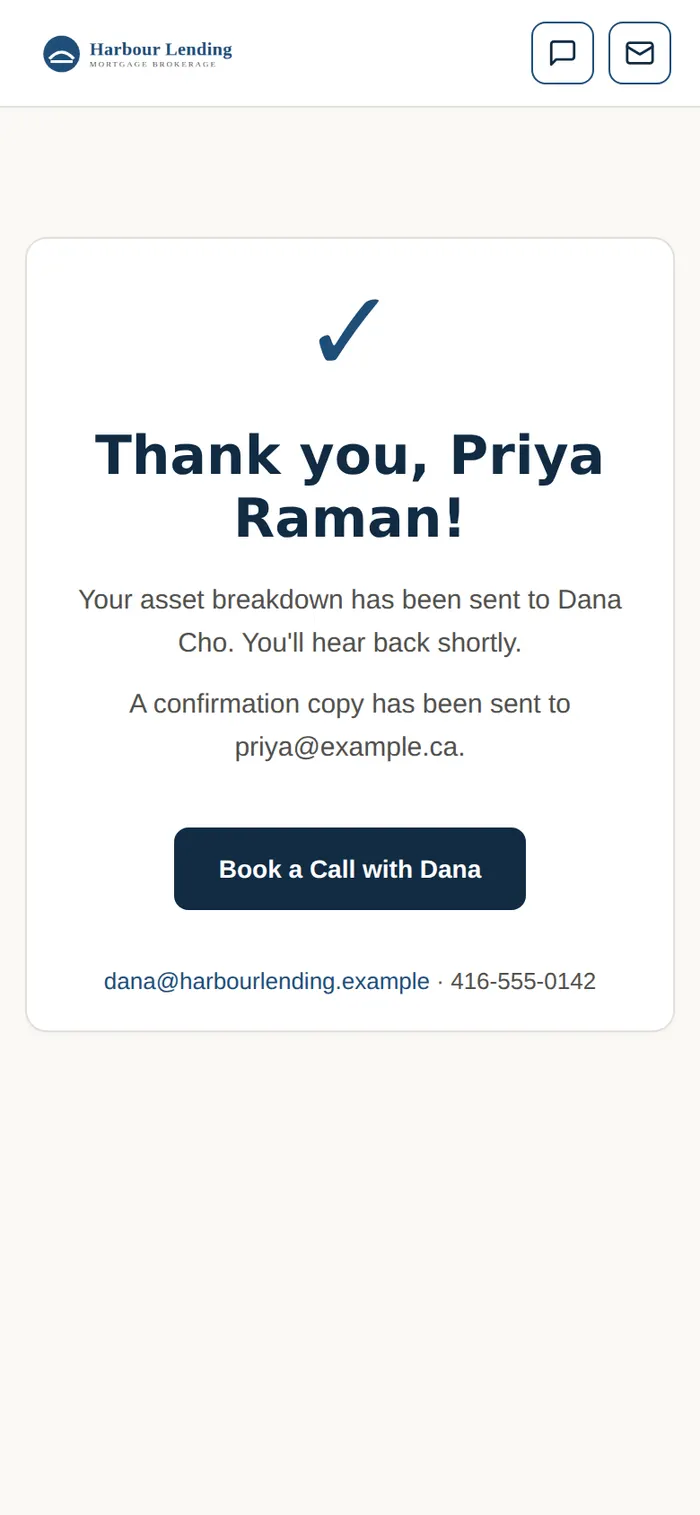
The thank-you screen after the client submits. You get the spreadsheet
An email arrives at your sign-in address with the completed Excel file attached, the number of sources and the total.
It is sent from info@closingtable.ca on your behalf, and your client never sees our name.
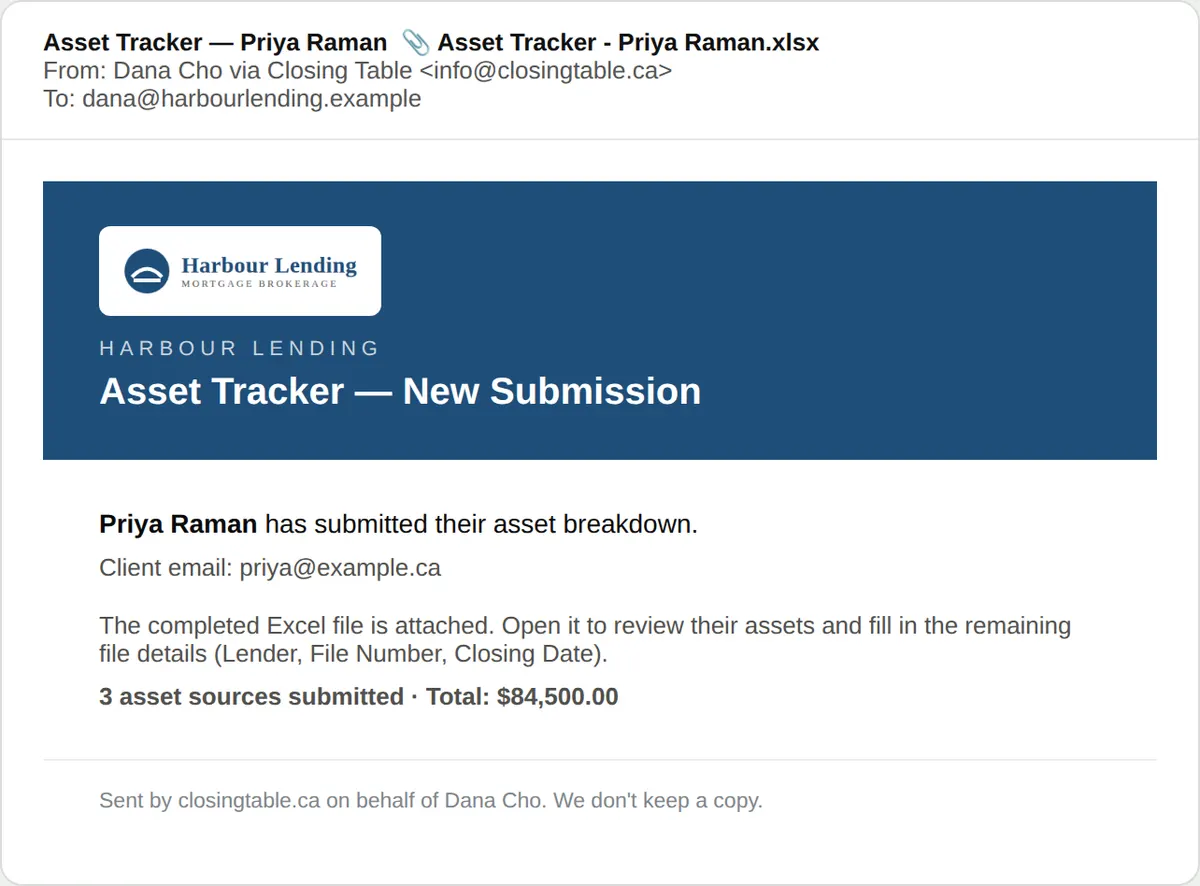
The email the broker receives, with the Excel file attached. Your client's confirmation
If your client gave an email, they get a confirmation in your name and colour, with a Book a call button when you have a booking link.
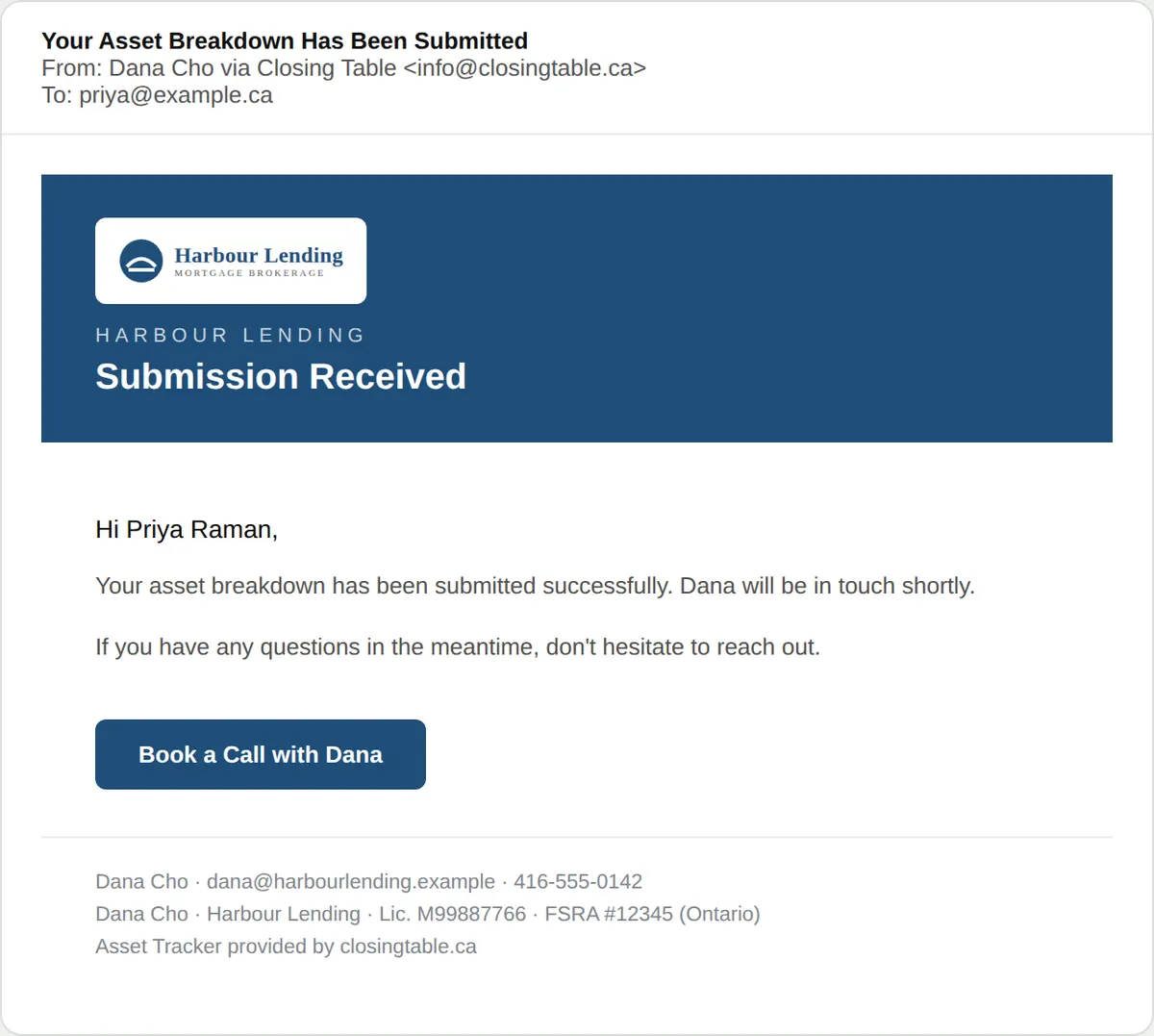
The confirmation email the client receives, in the broker's name.
Equity Calculator
Work out what a client walks away with from a sale or a separation. A PDF for them, a workbook for you.
For mortgage brokers licensed in OntarioOpen it
Press Open it on the Equity Calculator card. It is your own desk tool, with your brokerage and colour across the top — bookmark it.
Its figures use Ontario HST and Ontario land transfer tax, which is why it opens for Ontario-licensed brokers only.
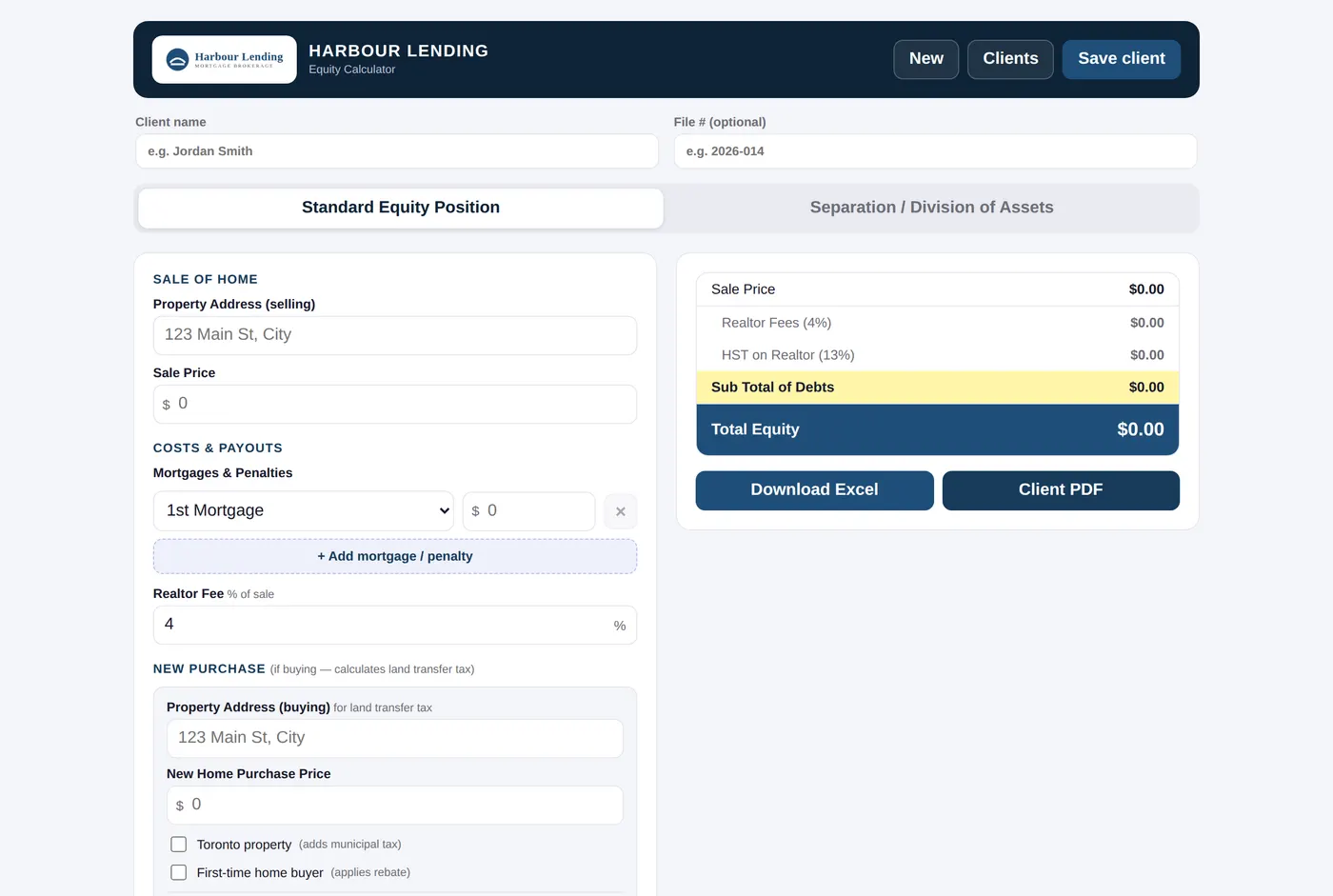
The Equity Calculator opened from the portal, with the broker's brokerage and logo in the top bar. A standard sale
Type the client's name and a file number at the top. Under Standard Equity Position, enter the sale price, each mortgage or penalty paid out, the realtor fee, and the lawyer and closing costs.
Buying next? Add the purchase price and the land transfer tax is worked out for you, with the Toronto and first-time buyer boxes when they apply. The total on the right updates as you type.
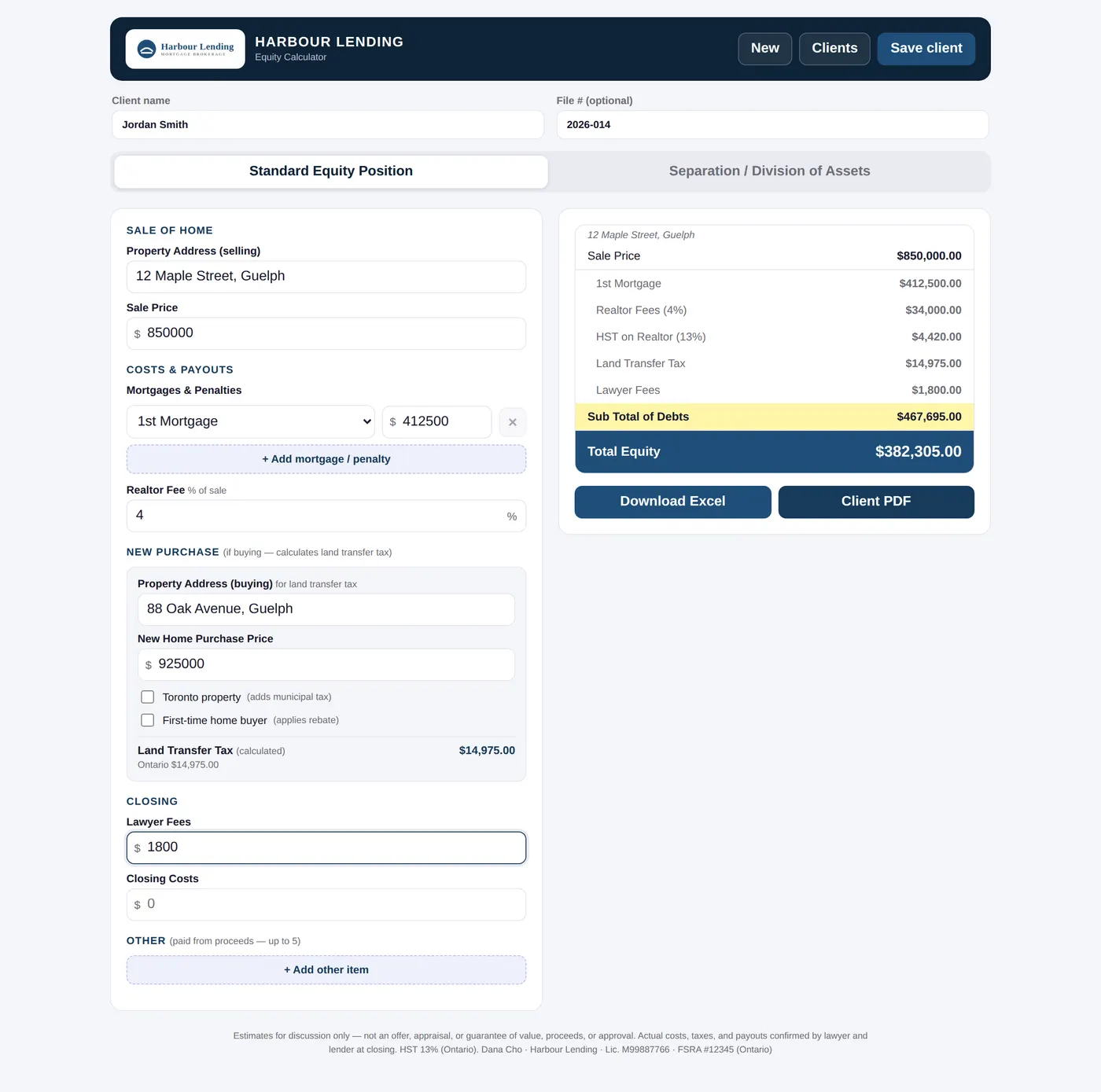
A standard sale filled in, with the running total on the right. A separation
Switch to Separation / Division of Assets for a sale that is being split. Set your client's share, joint debts and an equalization payment, and see what is left for their next down payment.
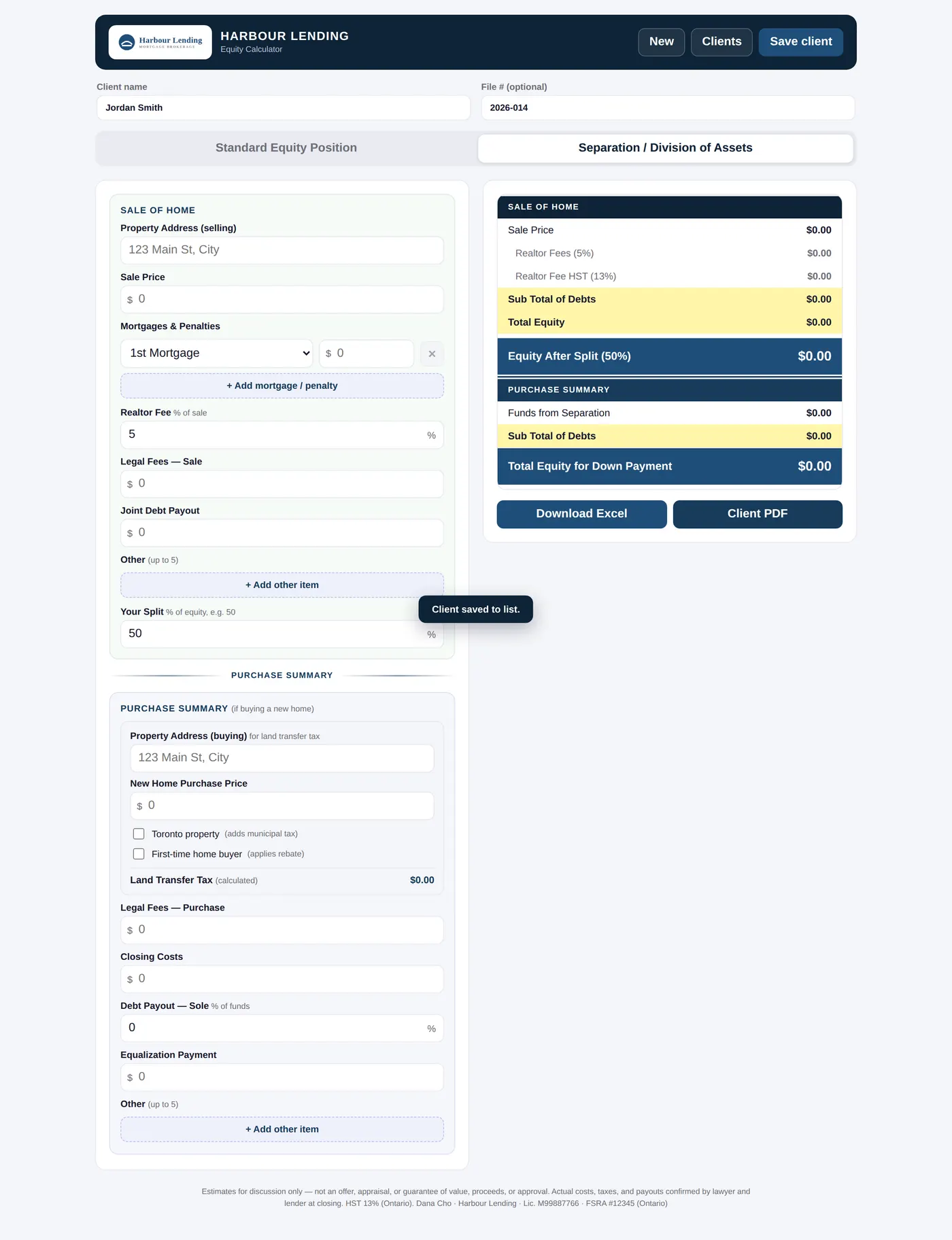
The Separation tab: the sale, the split, and the purchase summary. Download the PDF and the workbook
Client PDF makes a one-page summary for your client, in your name, colour and logo, with your licence line at the foot. Download Excel makes the full workbook, with live formulas, for your file.
Attach them to your own email — nothing is sent from the calculator.

The Download Excel and Client PDF buttons. What your client gets
The PDF: the headline figure, every cost line, and your photo and contact details.
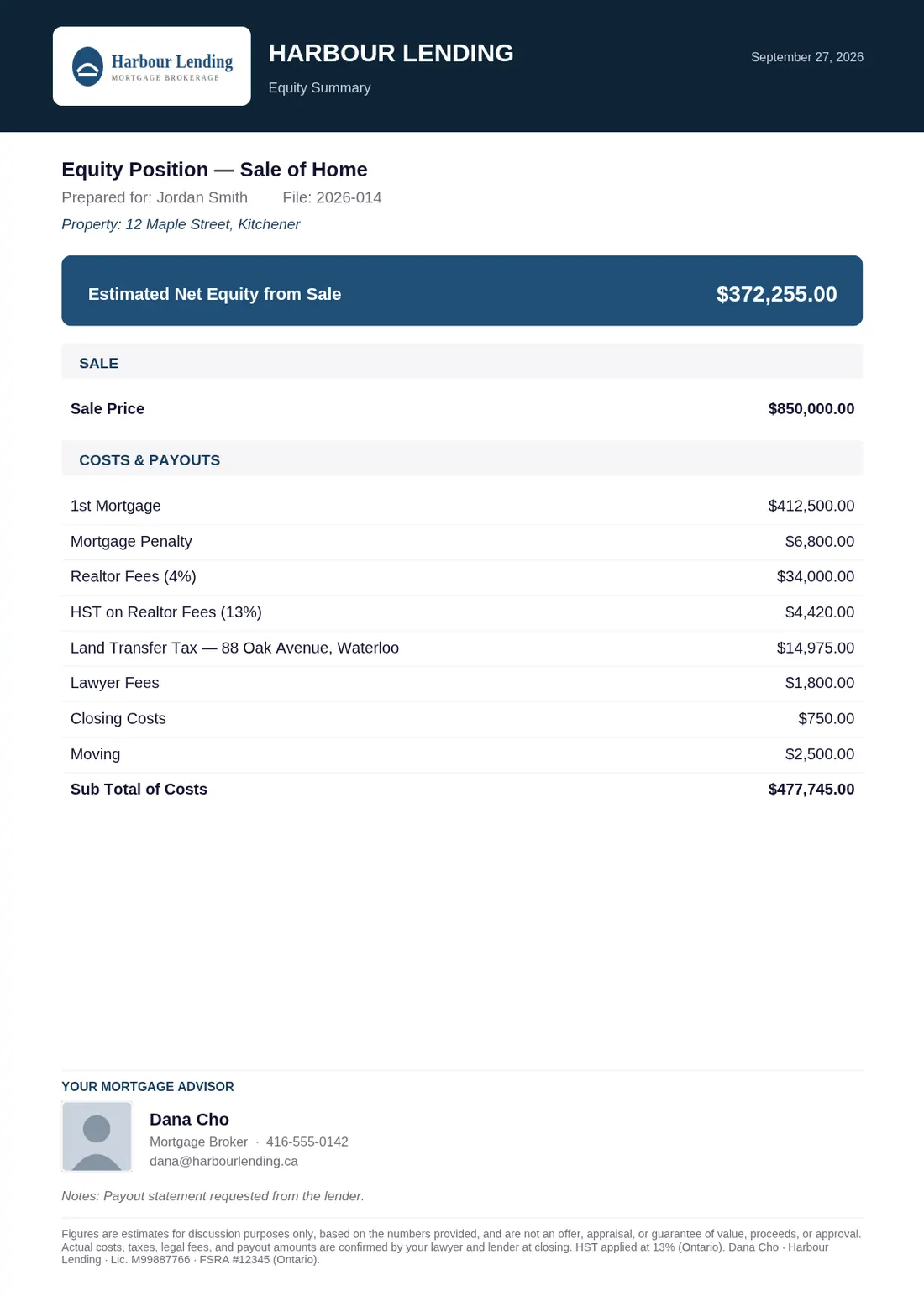
The client PDF, branded with the broker's logo, photo, colour and licence line. Save a client and come back later
Save client keeps this client on this computer. Clients opens your list — search by name or file number, and Open to pick up where you left off.
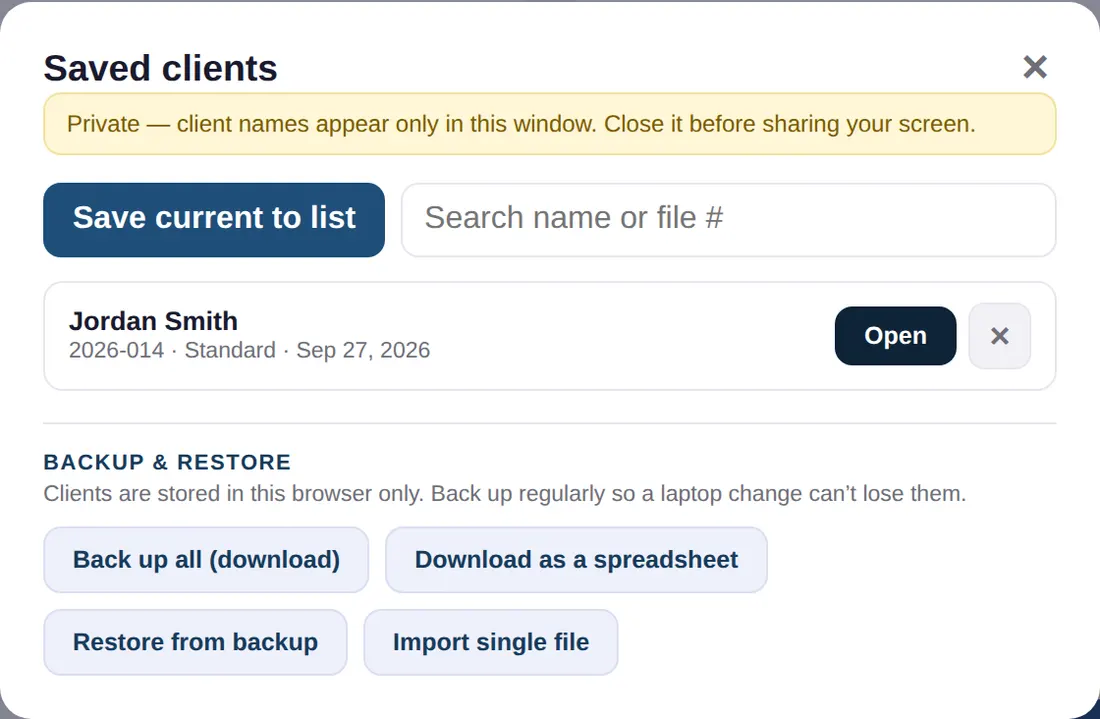
The saved clients list, with backup and restore below.
Bridge Worksheet
Work out a bridge loan and what it costs, then print an underwriter summary and a plain-language page for your client.
For mortgage brokers licensed in OntarioOpen it from your portal
Press Open on the Bridge Worksheet card. It opens in a new tab with your brokerage, logo and colour across the top.
It only opens from here. A copied link on its own asks the person to open it from their portal, which keeps your clients' files private. You stay signed in to it for 12 hours.
Its figures use Ontario and Toronto land transfer tax, which is why it opens for Ontario-licensed brokers only.
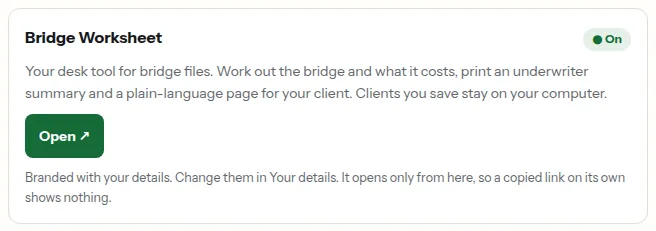
The Bridge Worksheet card in the portal, with its Open button. Your saved clients
The first screen lists the files you have saved. New Client starts one. Manage Lenders shows the lender panel: the same verified lenders as everyone, and any you add yourself.
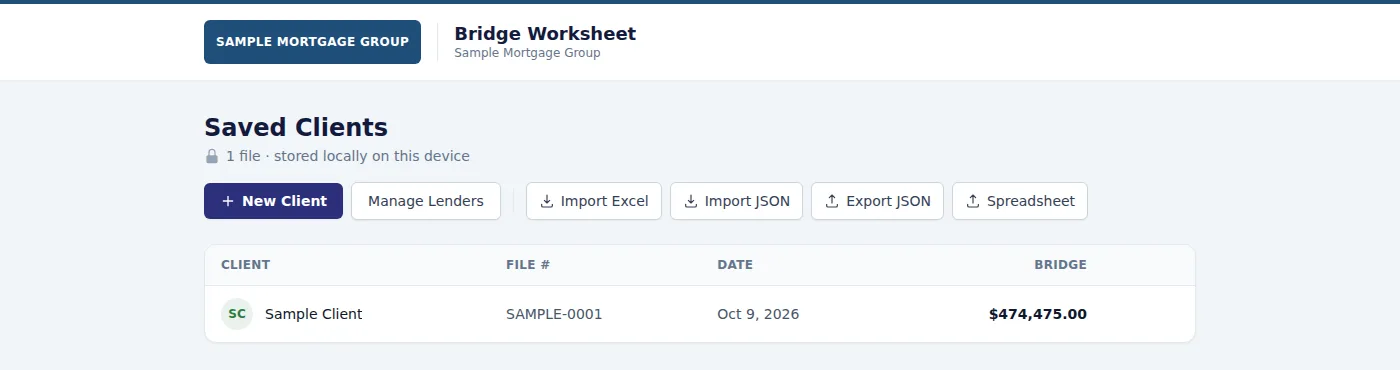
The saved clients list, with your brokerage in the header. Fill in a file
Type the client and file details, pick a lender, then fill in the sale, the purchase, any HELOC and the closing costs. The bridge, its term and its cost update on the right as you type, with every check that passes or needs a look.
A new file puts your name in Broker for you, as in the picture.
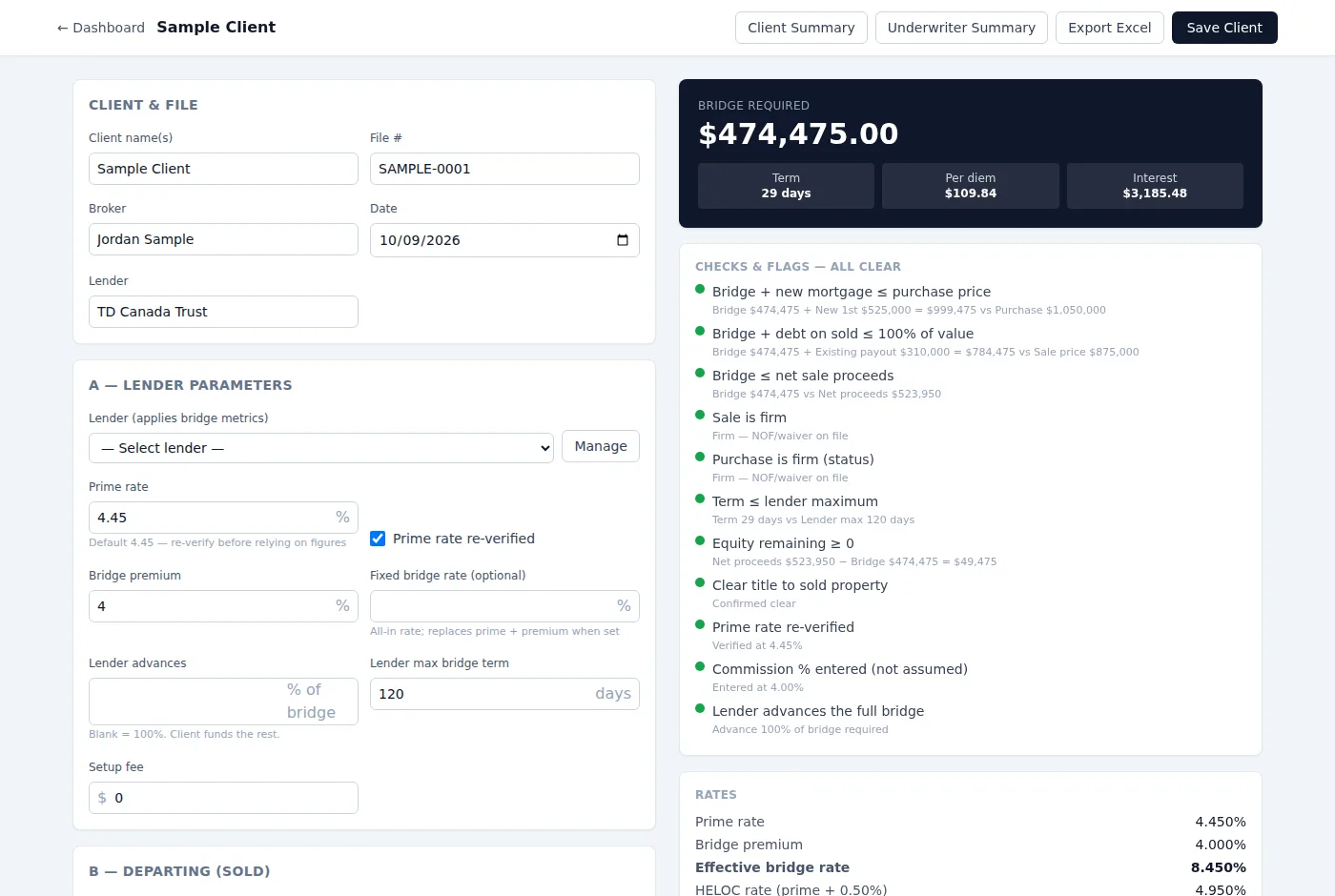
A file being filled in, with the broker's name in Broker, and the bridge and the checks on the right. The underwriter summary
Underwriter Summary is the one-page sheet for the lender: the bridge math, both properties, the cost and every check, under your logo. Export PDF (Print) saves it as a PDF.
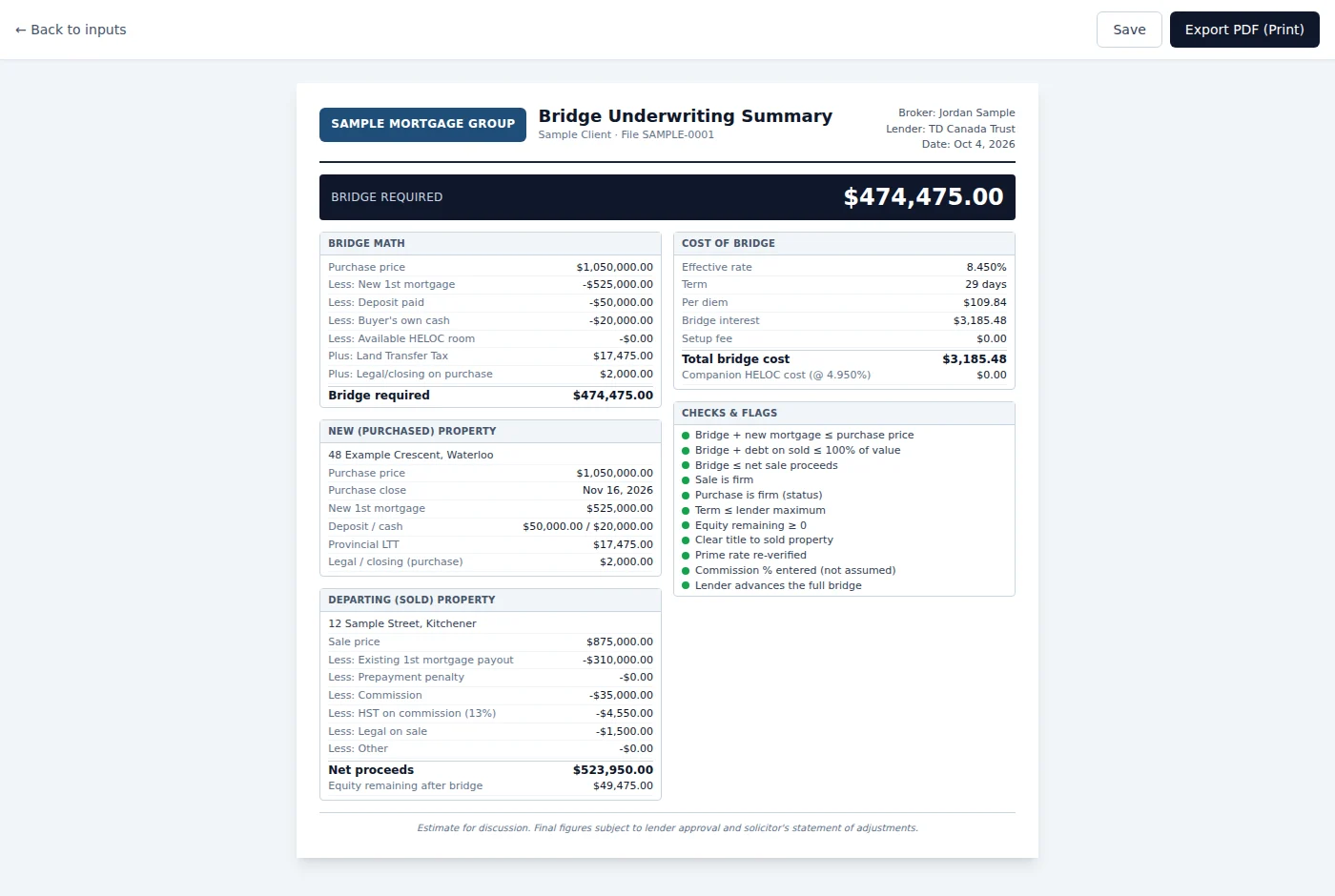
The Bridge Underwriting Summary with the broker's logo. The page for your client
Client Summary explains the bridge in plain language: what it covers, what it costs and what is left after the sale. It carries your colour, your photo, your contact details and your licence line.
Export Excel makes a workbook of the whole file for your records. Attach either to your own email; nothing is sent from the calculator.
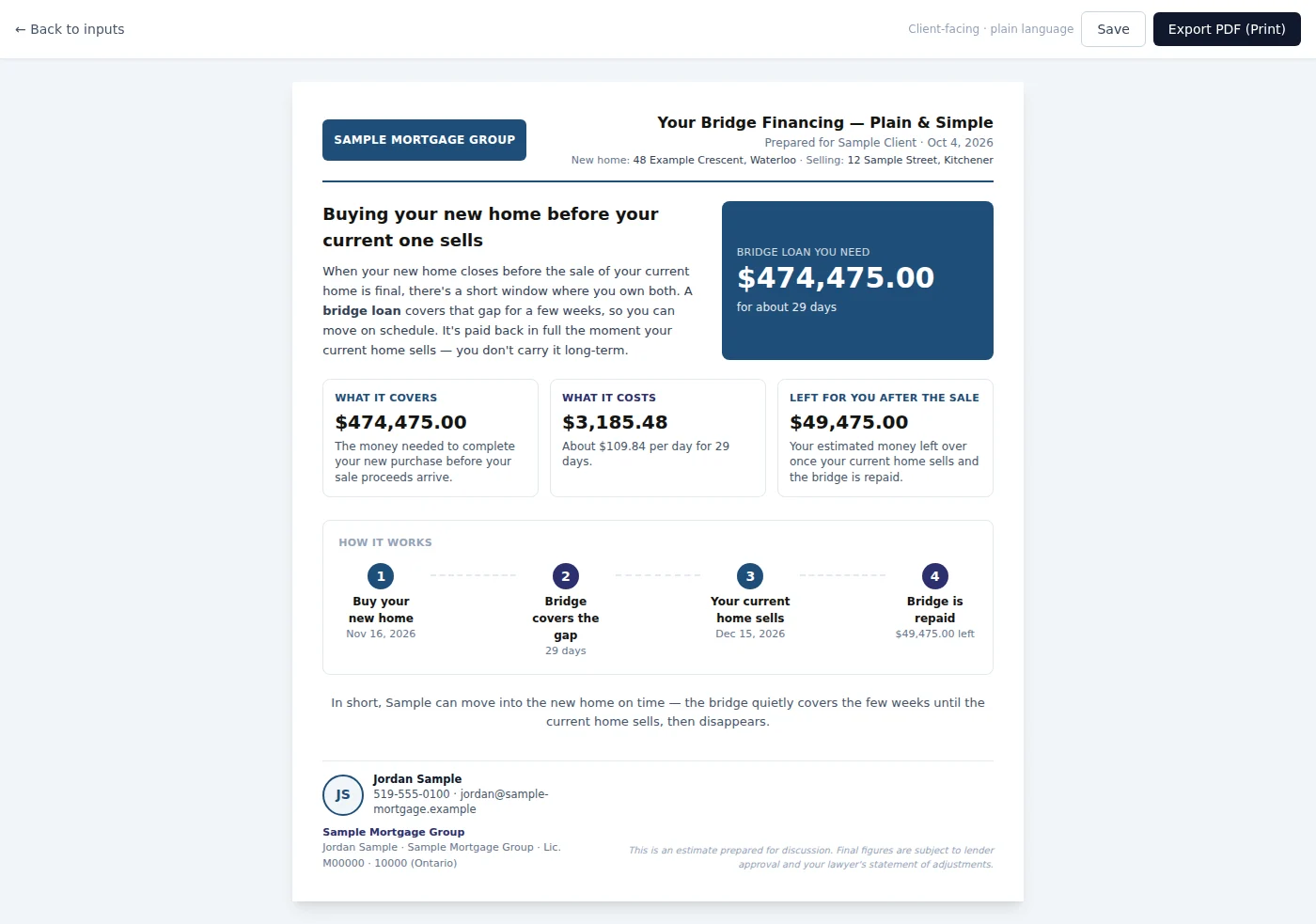
The client summary in the broker's colour, with their photo, contact details and licence line. Keep a copy, or move to a new computer
Your clients are saved on this computer only. Spreadsheet downloads all of them as a file that opens in Excel.
Moving to a new laptop: press Export JSON on the old one to save a backup file, then open the Bridge Worksheet on the new one and press Import JSON. Every client comes back.
If the link stops working
A copied link on its own shows this page. Open it from your portal instead.
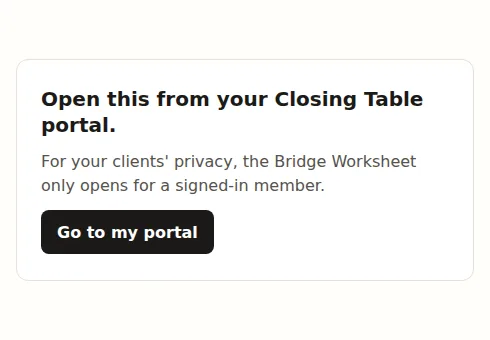
The page a copied link shows: open this from your Closing Table portal. If your membership ends
The calculator shows that the link is no longer active, and still lets you download your saved clients as a backup and as a spreadsheet.
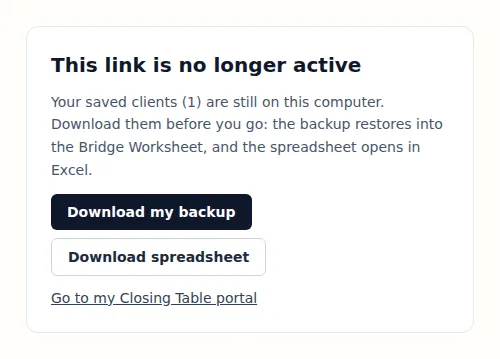
No longer active, with Download my backup and Download spreadsheet.
Refinance Analysis
Compare a refinance, a second mortgage, a renewal and a blend side by side, then walk your client through it or send them their own review.
For mortgage brokersOpen it from your portal
Press Open on the Refinance Analysis card. It opens in a new tab under your brokerage.
It only opens from here. A copied link on its own asks the person to open it from their portal, which keeps your clients' figures private. You stay signed in to it for 12 hours.
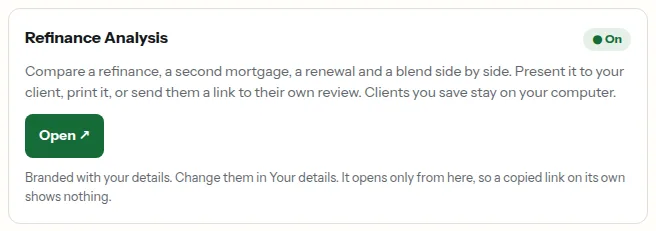
The Refinance Analysis card in the portal, with its Open button. Compare the options
Fill in today's mortgage and any debts to fold in, then each option you want to compare: keep the first and add a second, a full refinance (up to four lenders side by side), a straight renewal, or a blend and extend. Switch off any you don't need.
The table updates as you type. The lowest monthly payment and the lowest total cost are highlighted.
Name the scenario and press Save to keep it on this computer. Load brings it back.
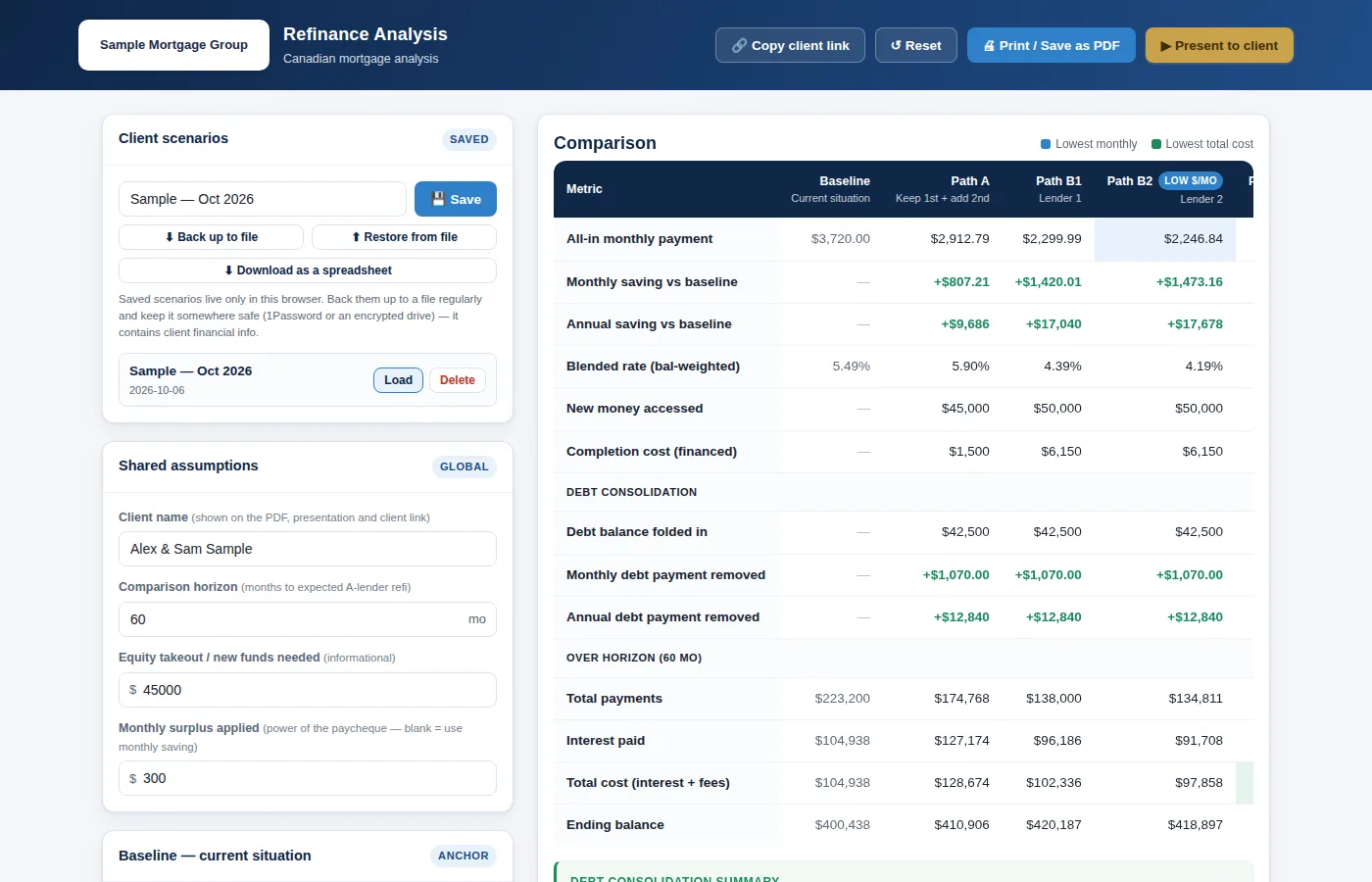
A comparison filled in, with the saved scenario on the left and the results table on the right. Present it to your client
Present to client turns the comparison into a scrolling review for a meeting or a video call: where they are today, the recommended option, the savings over time and how much sooner the mortgage is paid off. Your name is on it as their advisor, and your licence line is at the foot.
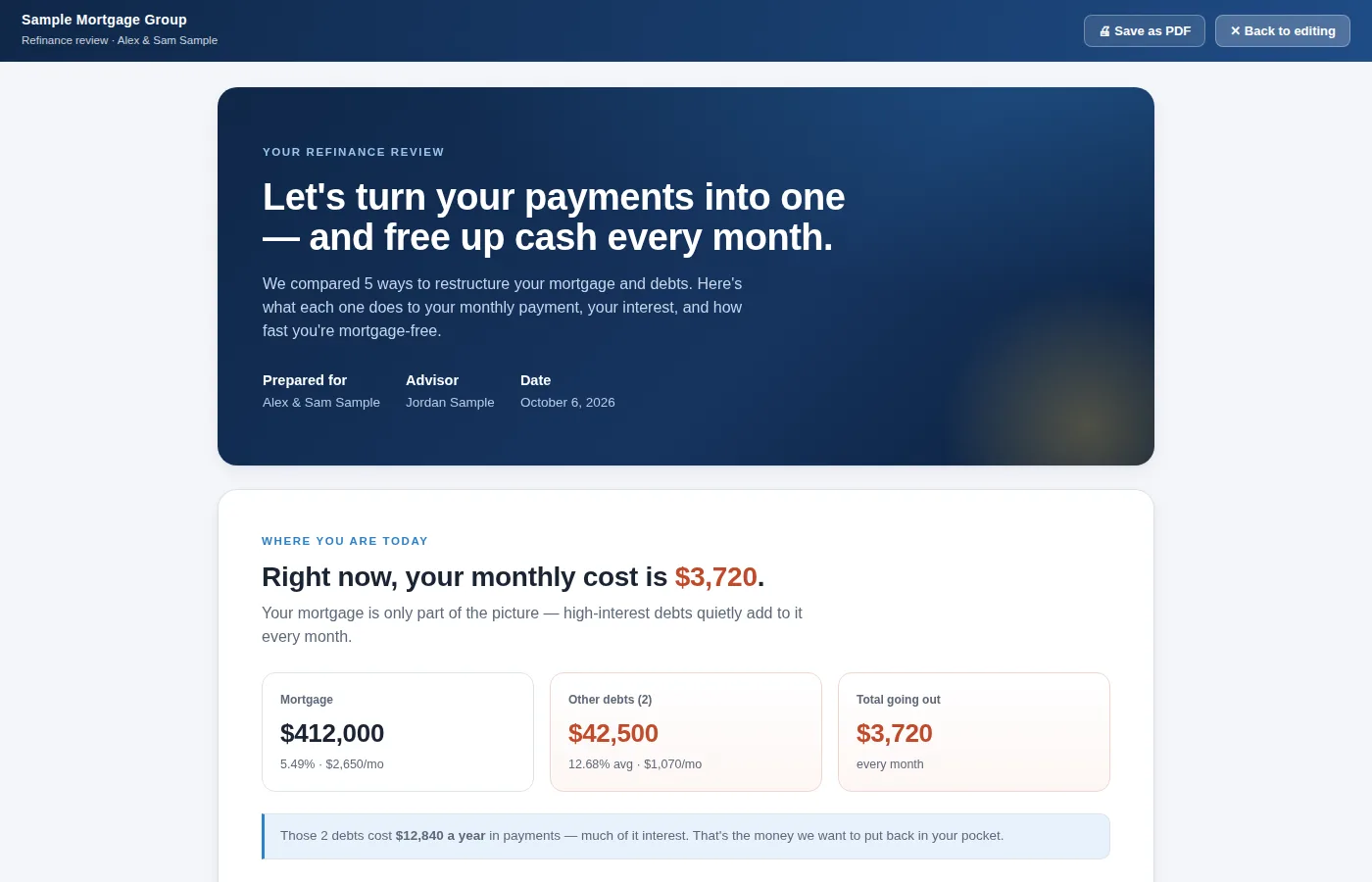
The client review under the broker's brokerage, with the broker named as advisor. Print it, or send them their own link
Print / Save as PDF makes a one-page sheet with your licence line, email and phone at the top.
Copy client link copies a link to a read-only review of the same figures. Your client can open it on their phone; they never see the calculator or your other clients. The figures travel inside the link, so send it only to that client.
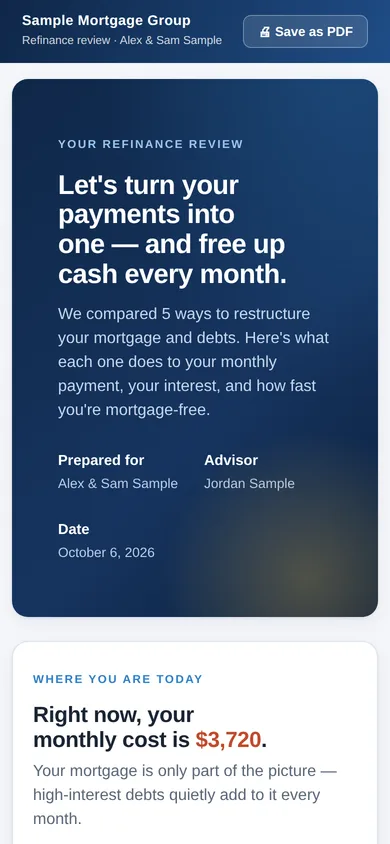
The review a client's link opens, on a phone. Keep a copy, or move to a new computer
Your saved scenarios stay on this computer only. Download as a spreadsheet saves all of them as a file that opens in Excel.
Moving to a new laptop: press Back up to file on the old one, then open the Refinance Analysis on the new one and press Restore from file. Every scenario comes back.
If the link stops working
A copied link on its own shows this page. Open it from your portal instead.
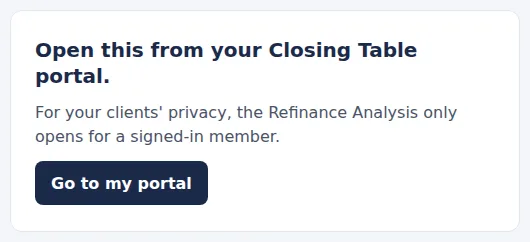
The page a copied link shows: open this from your Closing Table portal. If your membership ends
The calculator shows that the link is no longer active, and still lets you download your saved scenarios as a backup and as a spreadsheet.
Links you sent to clients stop working too. They see that the link is no longer active.
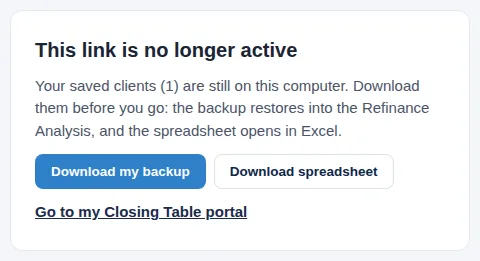
No longer active, with Download my backup and Download spreadsheet.
Investment Property Portfolio Analysis
Work out what a rental property earns and what it could return, then hand your client a report under your name and a lender a workbook.
For mortgage brokers licensed in OntarioOpen it from your portal
Press Open on the Investment Property Portfolio Analysis card. It opens in a new tab under your brokerage.
It only opens from here. A copied link on its own asks the person to open it from their portal, which keeps your clients' figures private. You stay signed in to it for 12 hours.
Its land transfer tax is Ontario's (and Toronto's), so it is switched on for brokers licensed in Ontario.
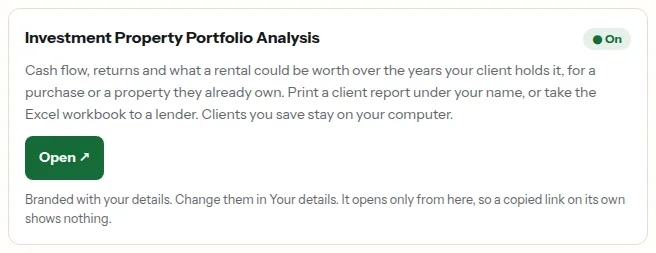
The Investment Property Portfolio Analysis card in the portal, with its Open button. Add a client, then a property
Press + New client and give them a name. On their page, press + New purchase for a property they are thinking of buying, or + Property they own for one they already have.
Work through the tabs: Property, Income, Operating costs, Financing and Growth & exit. The figures across the top update as you type.
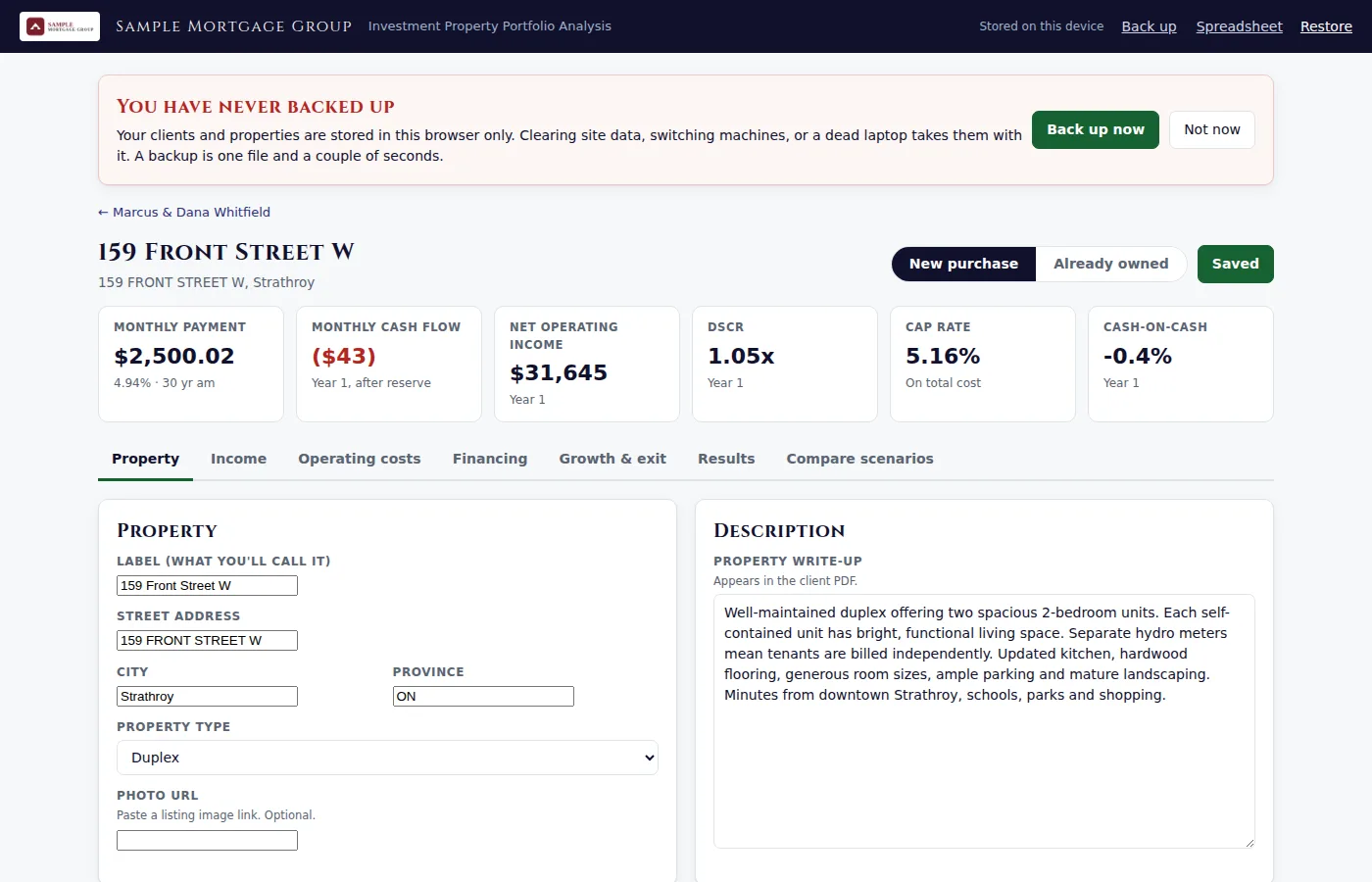
A property open on its first tab, with the monthly payment, cash flow and other figures across the top. Read the results
Results shows the return over the years your client plans to hold it, the cash needed on day one, what they would walk away with at the end, and charts of the cash flow and of value, debt and equity year by year.
Compare scenarios puts a few versions of the same property side by side. For a client who owns several, the Portfolio tab on their page adds them up.
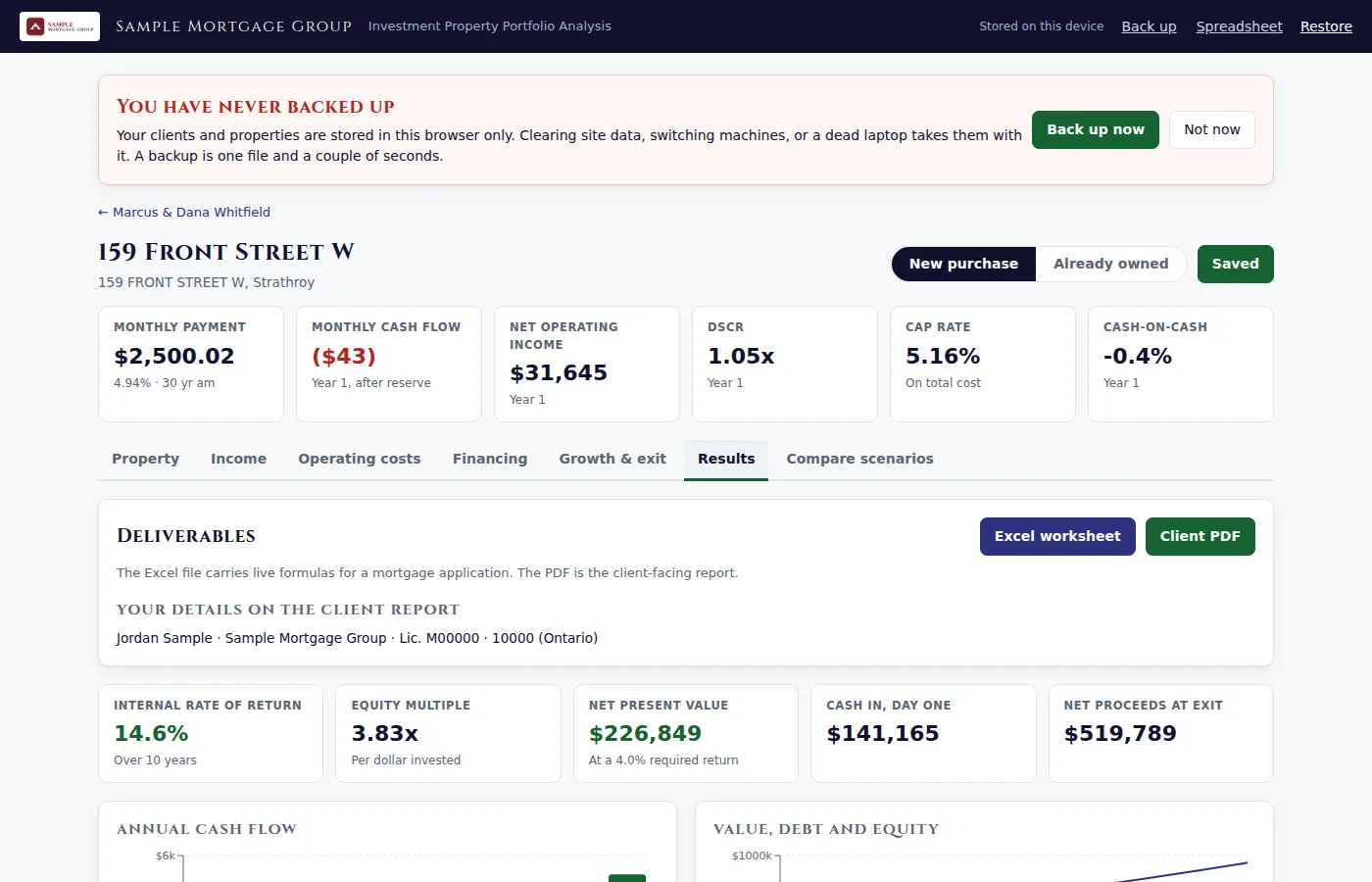
The Results tab: the deliverables, the broker's licence line, and the return figures. The client report and the workbook
Client PDF is the report for your client: your logo and brokerage on the cover, and your licence line, phone and email. Your licence line is at the foot of every page.
Excel worksheet is the same analysis with live formulas, for a mortgage application.
Both come from what is on screen. They are illustrations, not an offer of financing, and both say so.

The cover of the client report, with the broker's logo, brokerage and licence line. Keep a copy, or move to a new computer
Your clients and properties stay on this computer only. If you have not backed up for a week, a reminder appears at the top.
Back up saves one file that restores into the Portfolio Analysis. Spreadsheet saves every client and property as a file that opens in Excel.
Moving to a new laptop: press Back up on the old one, then open the Portfolio Analysis on the new one and press Restore. Everything comes back.
If the link stops working
A copied link on its own shows this page. Open it from your portal instead.
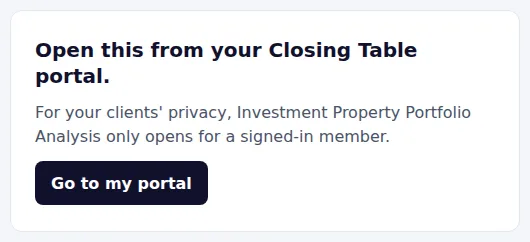
The page a copied link shows: open this from your Closing Table portal. If your membership ends
The Portfolio Analysis shows that the link is no longer active, and still lets you download your saved clients as a backup and as a spreadsheet.
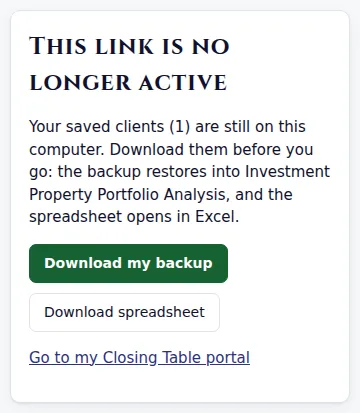
No longer active, with Download my backup and Download spreadsheet.
Mortgage Offset Strategy
Explain Manulife One to a client, model the offset strategy on their own numbers, and leave them a PDF and a link to their plan, all under your name.
For mortgage brokersOpen it from your portal
Press Open on the Mortgage Offset Strategy card. It opens in a new tab under your brokerage.
It only opens from here. A copied link on its own asks the person to open it from their portal, which keeps your clients' figures private. You stay signed in to it for 12 hours.
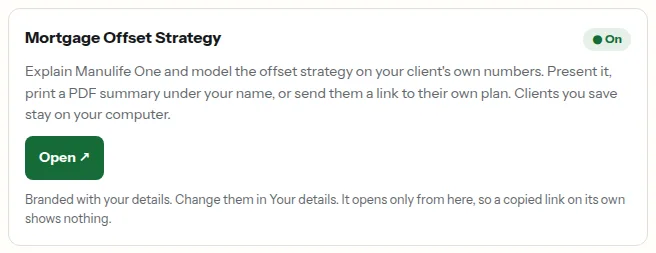
The Mortgage Offset Strategy card in the portal, with its Open button. Walk your client through it
The top half explains Manulife One and how the daily offset works, in plain language, with your logo and brokerage beside Manulife One's.
Book a Consultation uses the booking link in Your details. With no booking link, the button is simply left off.
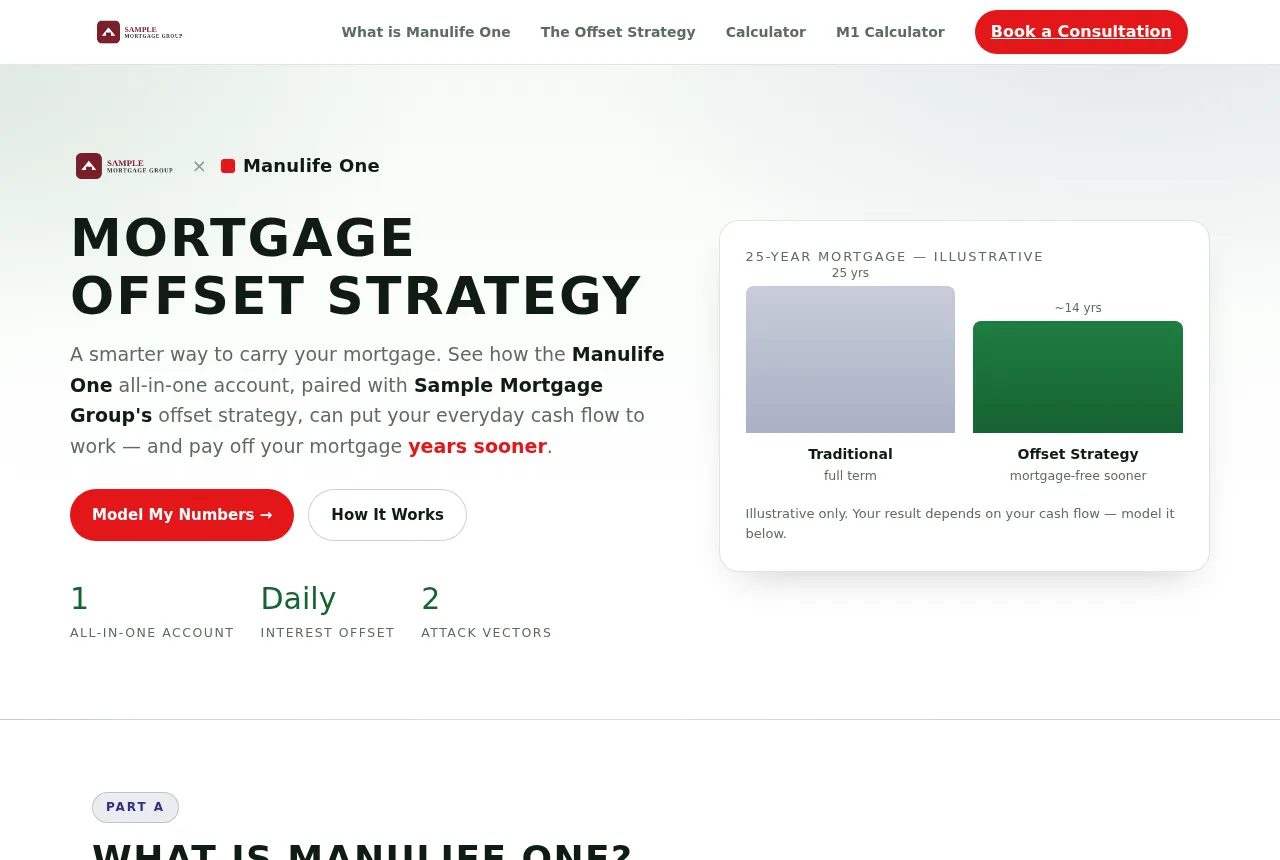
The top of the page: the broker's logo beside Manulife One, Mortgage Offset Strategy, and Book a Consultation. Model their numbers and save them
Scroll to Model your own numbers and work through the tabs: Account, Sub-accounts & LTV, Income, Expenses, Strategy and Comparison. The results update as you type.
Under Report & save, type the client's name and press Save current. Their numbers stay on this computer, and you can open them again any time.
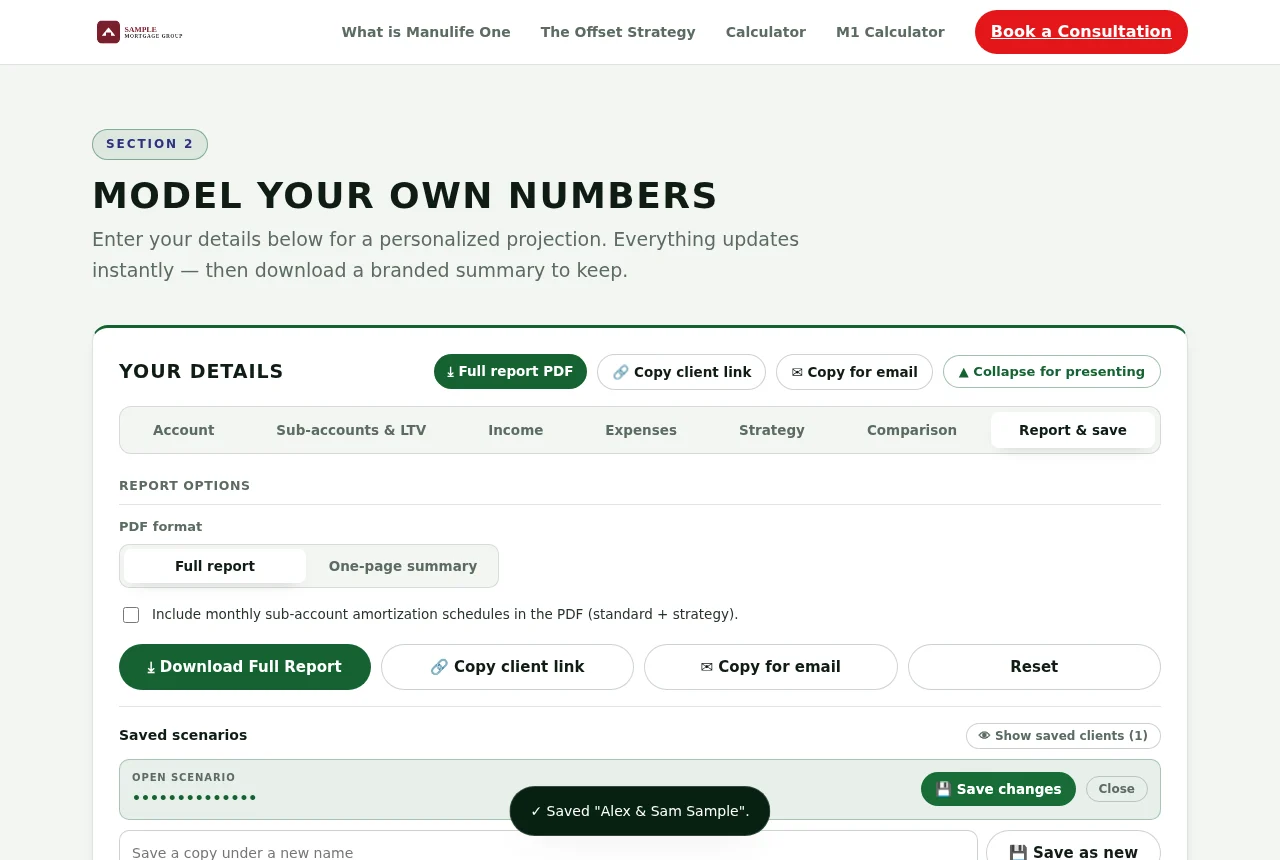
The calculator's Report & save tab with a client's scenario saved. Leave them a PDF, a link or an email
Download Full Report (or the one-page summary) makes a PDF with your logo and brokerage at the top and your licence line, phone and email at the foot of every page.
Copy client link copies a link to a read-only copy of their plan. They can open it on their phone and download the same PDF. The figures travel inside the link, so send it only to that client.
Copy for email gives you a ready-to-paste email with View and Download buttons, signed with your first name and your licence line.
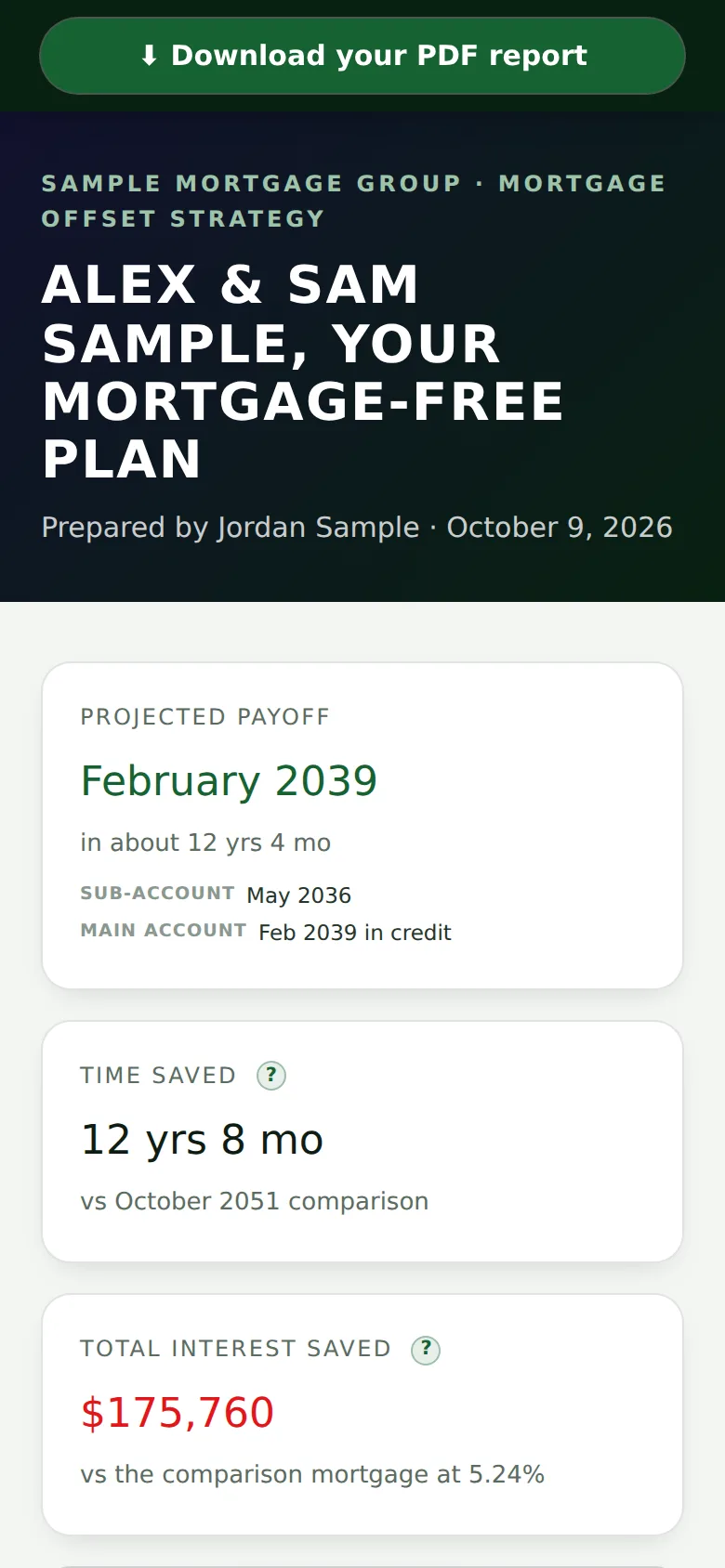
The plan a client's link opens, on a phone, prepared by the broker. The PDF
The same eleven-page report the calculator has always made, with your details in place.
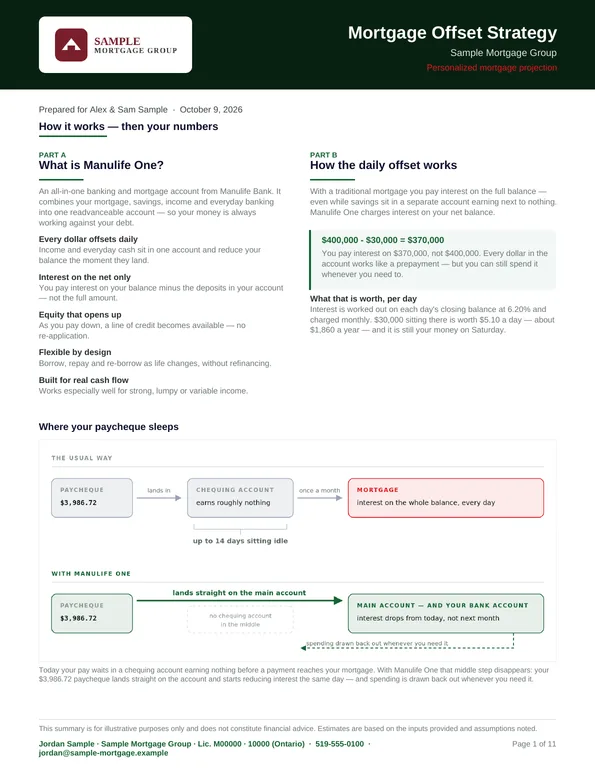
The first page of the PDF, with the broker's logo, brokerage and licence line. Keep a copy, or move to a new computer
Your saved clients stay on this computer only. In Report & save, Back up to a file saves them all as one file; Restore from a file brings them back, on this computer or a new one. Download as a spreadsheet saves a copy that opens in Excel.
If the link stops working
A copied link on its own shows this page. Open it from your portal instead.
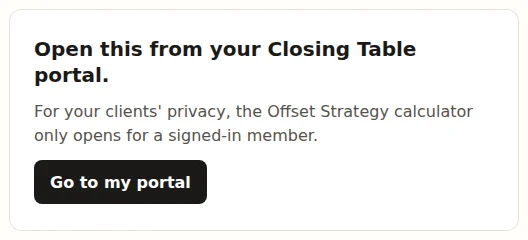
The page a copied link shows: open this from your Closing Table portal. If your membership ends
The calculator shows that the link is no longer active, and still lets you download your saved clients as a backup and as a spreadsheet.
Links you sent to clients stop working too. They see that the link is no longer active.
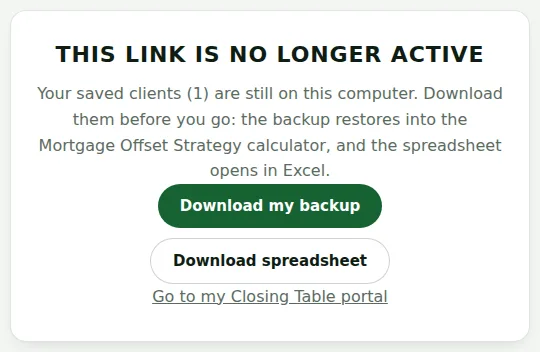
No longer active, with Download my backup and Download spreadsheet.
Client Journey
Run your discovery, strategy and closing meetings on screen, then send each client a recap under your name: a PDF, an email and a link to their own plan.
For mortgage brokersOpen it from your portal
Press Open on the Client Journey card. It opens in a new tab under your brokerage.
It only opens from here. A copied link on its own asks the person to open it from their portal, which keeps your clients' details private. You stay signed in to it for 12 hours.
The Client Journey card in the portal, with its Open button. Set your links first
In Your details, under Your Client Journey links, give the address of anything you want your clients to reach from the meeting: your Google reviews, your own guides, your app and your calculators. Name each one however you like.
Leave an address blank and that tile or button is simply left out. Your booking link and website come from How clients reach you, as they do everywhere else.
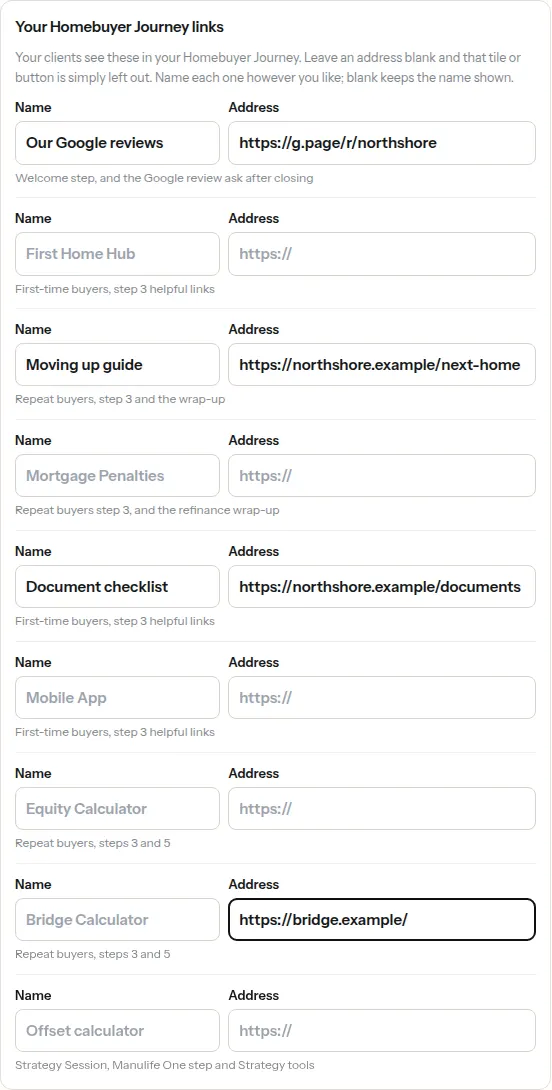
Your Client Journey links: a name and an address for each link, with where clients see it. Run the meeting
Pick the meeting from the home page: Discovery Session (first-time, repeat or refinance), Strategy Session, or Closing Appointment. Type your client's first names, then step through it with them on screen.
The first step introduces you, with your photo, brokerage, licence line and, if you have set one, your Google reviews link.
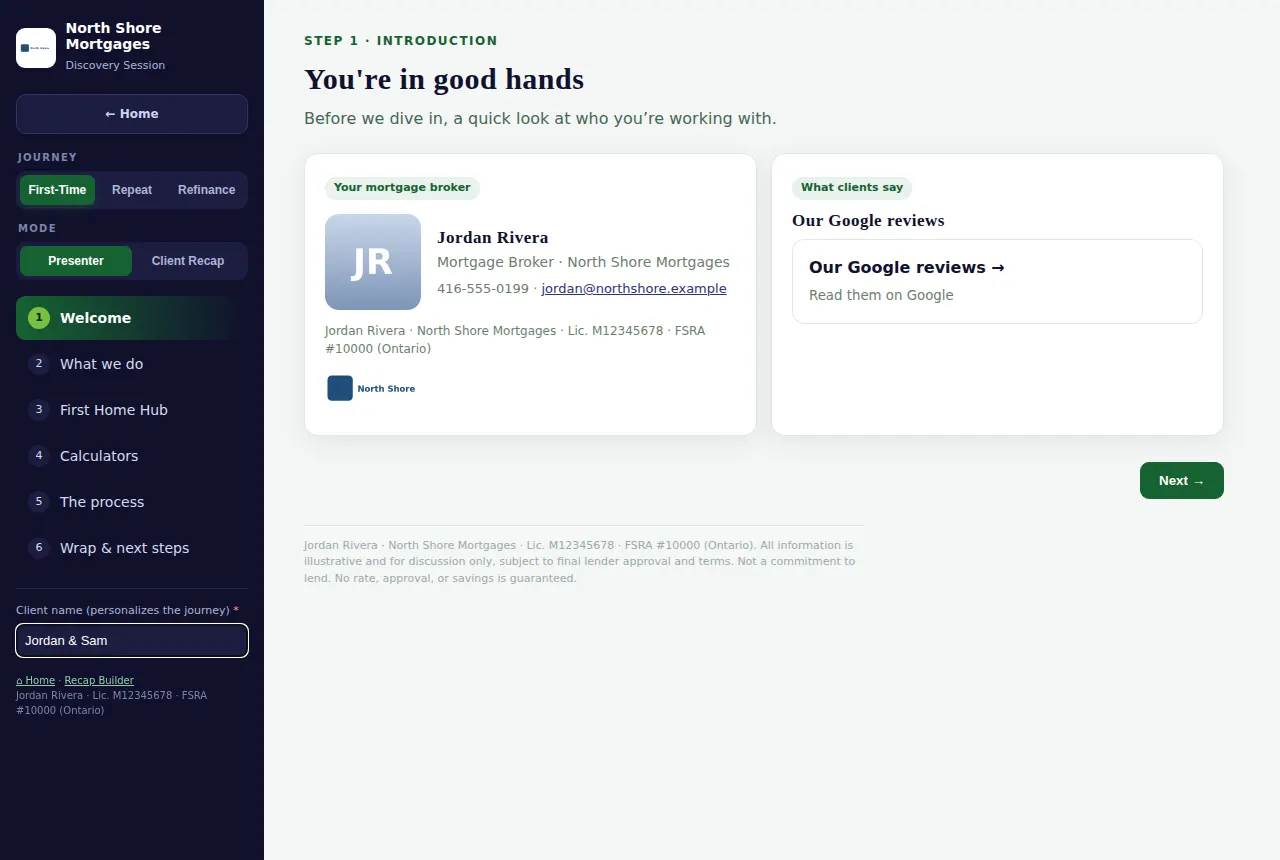
The Discovery Session's first step: the broker's photo, name, brokerage, licence line and Google reviews link. Your links, where clients meet them
Each helpful-links tile and calculator button shows the name you gave it and goes to your address. A link you have not set does not appear at all.
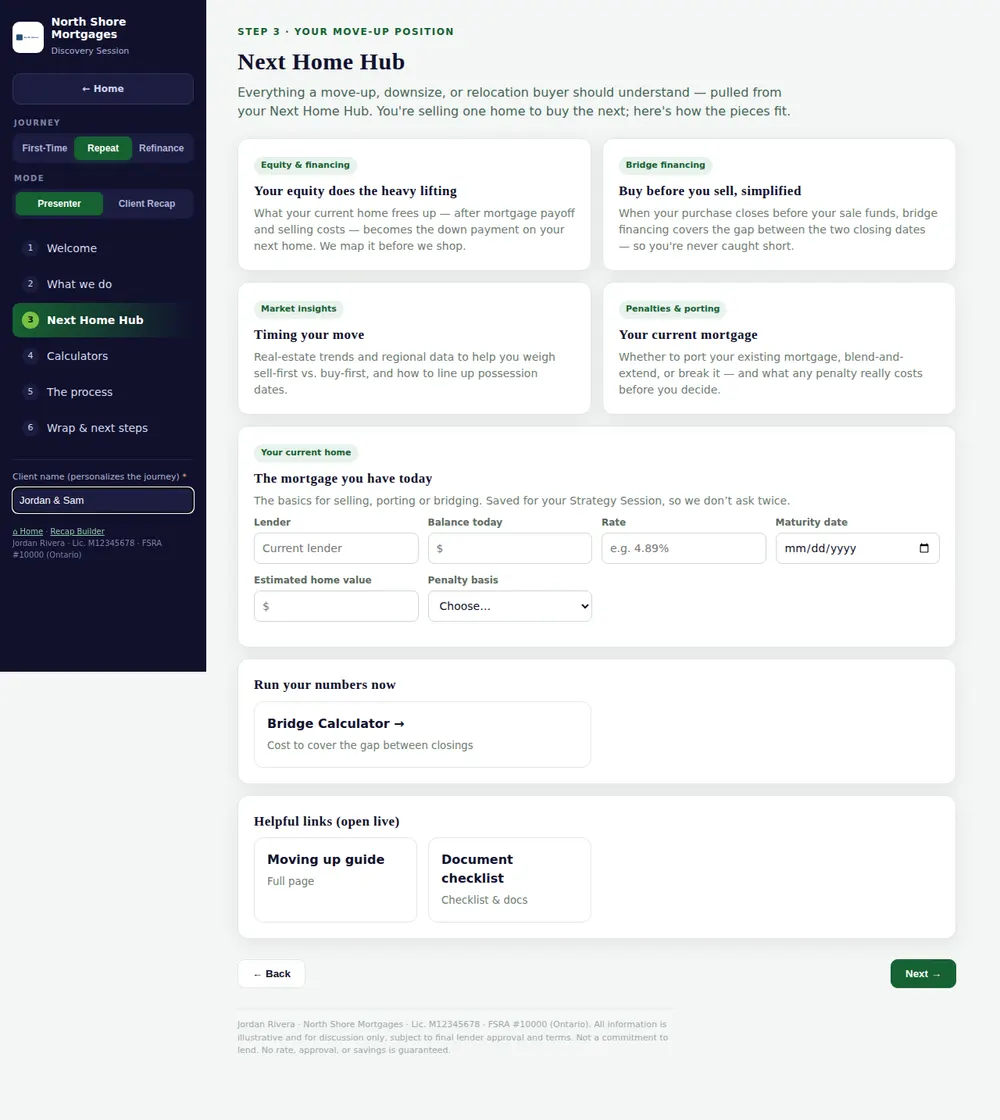
Next Home Hub step with the broker's own named links, and a Bridge Calculator button under the name the broker gave it. Build the recap
Open the Recap Builder for the meeting you held. Drop in the calculator PDFs, paste your meeting notes, and press Build recap.
The summary and action plan are written from your notes: lines under an action-items heading become steps, and steps that start with Broker, I or I'll go to your list. Read it through and edit anything before you send it; every highlighted block can be changed.
You can add a referral partner to the recap and save them for next time. Your saved partners are yours alone.
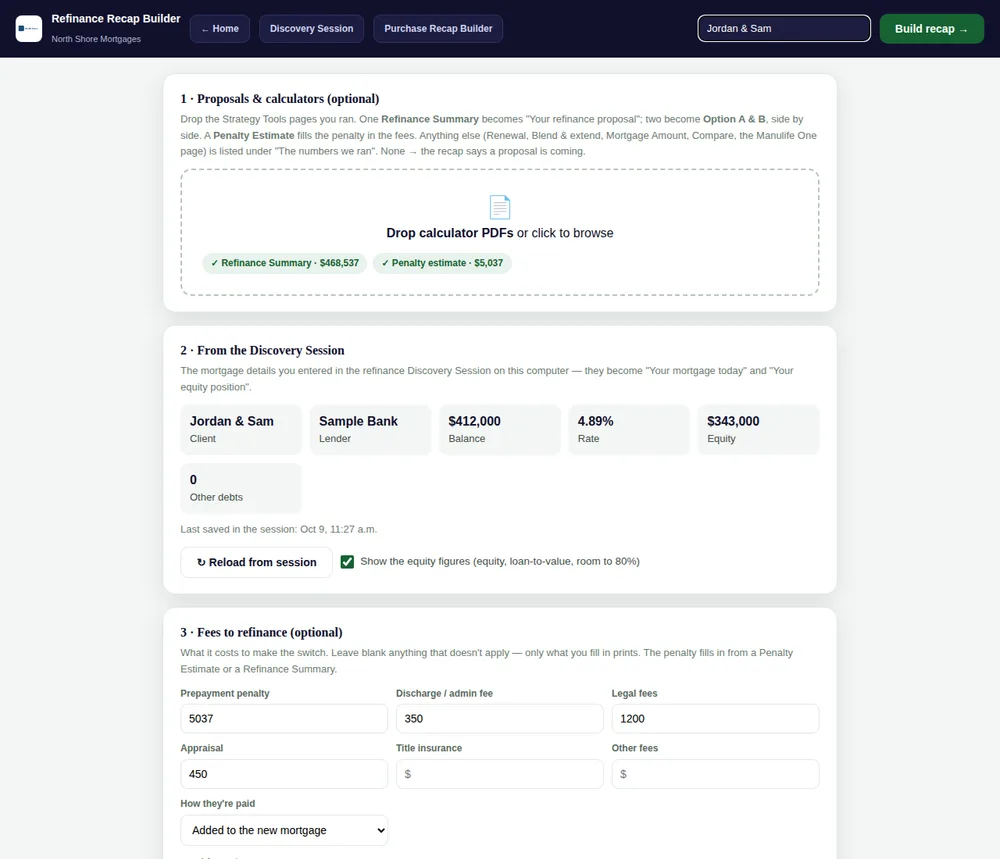
The Refinance Recap Builder: the dropped Refinance Summary and Penalty Estimate, the client's mortgage from the Discovery Session, and the fees to refinance. Send it: PDF, email or link
PDF file makes a report with your letterhead at the top and your licence line, phone and email at the foot of every page. Copy for email gives you the recap ready to paste into an email.
Copy client link copies a link to the client's own read-only copy, which they can open on their phone and download as the same PDF. The details travel inside the link, so send it only to that client.
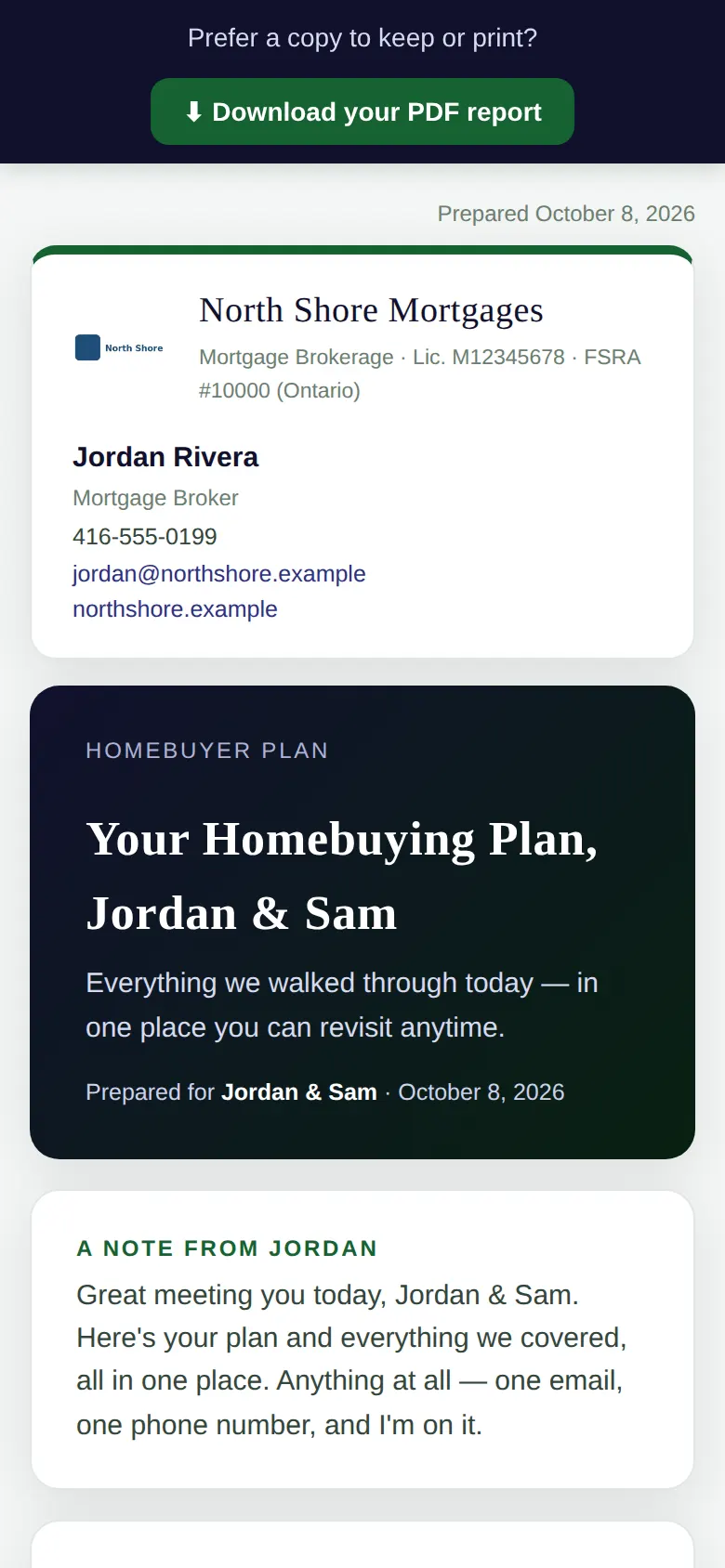
The plan a client's link opens, on a phone, with the broker's letterhead and note. The PDF
Every page carries your letterhead or your footer, with your licence line.
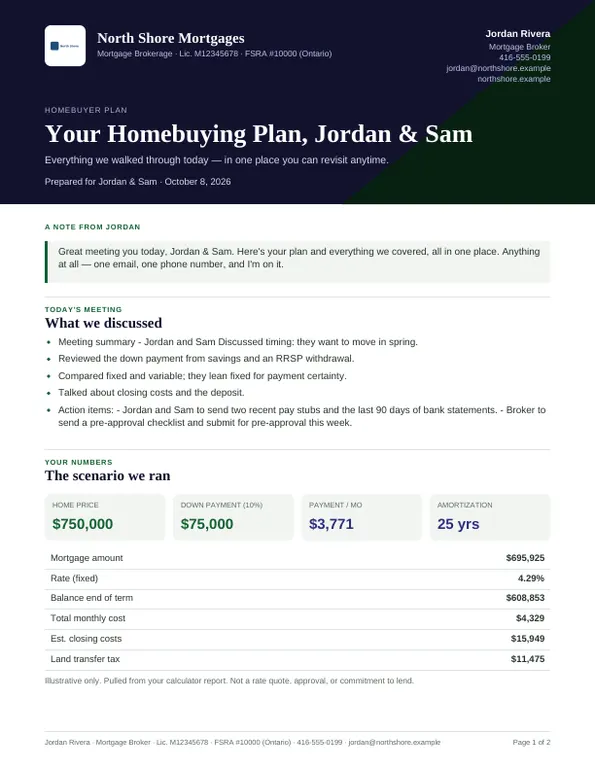
The first page of the recap PDF, with the broker's brokerage, name, phone, email and licence line. Where your sessions are kept
Meeting details and saved partners stay in this browser on this computer. Nothing about your clients is sent anywhere until you send the recap yourself.
If the link stops working
A copied link on its own shows this page. Open it from your portal instead.
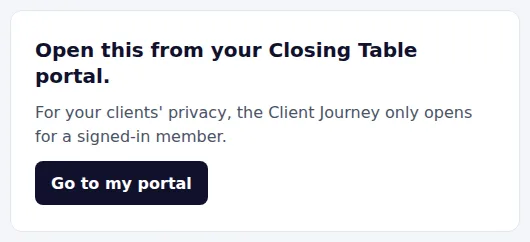
The page a copied link shows: open this from your Closing Table portal. If your membership ends
The Client Journey shows that the link is no longer active. Links you sent to clients stop working too; they see that the link is no longer active and are asked to contact you.
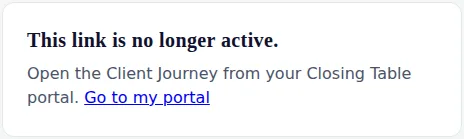
This link is no longer active, with a link back to the portal.
Mortgage Investment Planner
Show a client, side by side, what a paycheque-offset mortgage and the Smith Manoeuvre could do.
For financial advisorsOpen it from your portal
Press Open on the Mortgage Investment Planner card. It opens in a new tab, signed in for 12 hours.
It opens only from here. A copied or bookmarked link sends you back to your portal first, so a client file on your screen is never one link away from a stranger.
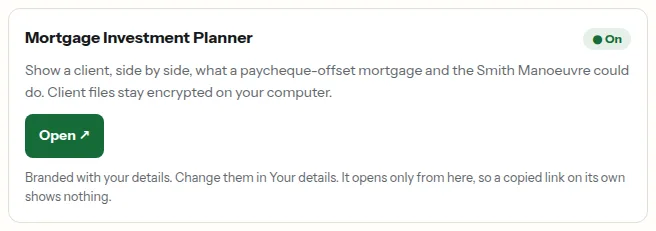
The Mortgage Investment Planner card on an advisor's portal home, with its Open button. Present to a client
Enter the client's province, income, spending and mortgage on the left. Today's path and the three strategies sit side by side, and the charts and the year-by-year table update as you type.
Every screen carries the illustration-only statement, the licence line of the mortgage brokerage you refer to, and your dealer's compliance line. It is an illustration for a conversation, not advice.
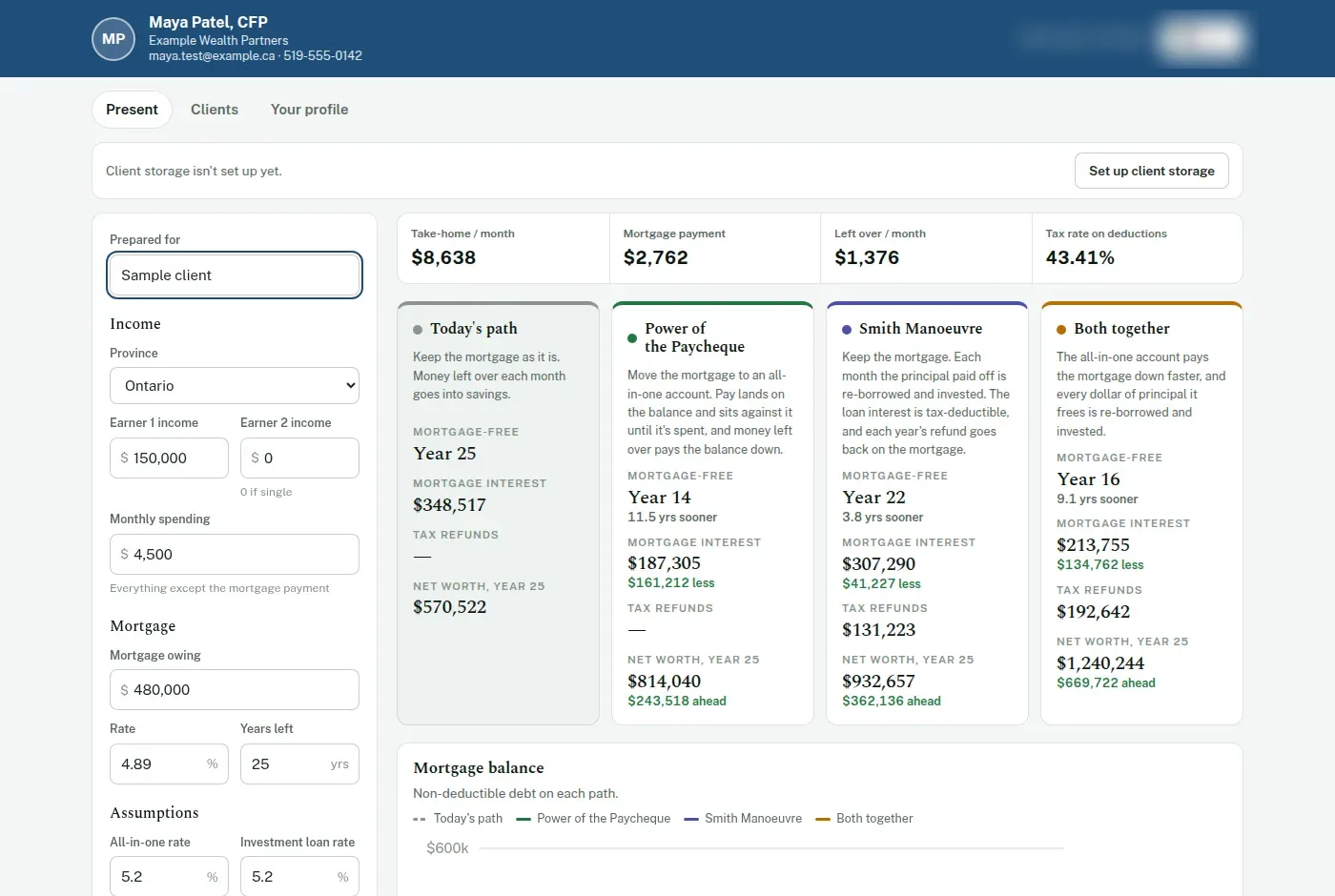
The Present screen: the client's figures on the left, four paths side by side, and a chart below. The mortgage partner's mark is blurred in this picture. Save clients on your computer
Clients keeps the clients you save on this computer, encrypted with a passphrase you choose. Nobody can recover that passphrase, so pick one you will remember.
Lock clients when you step away; it also locks itself after 15 minutes. A weekly reminder asks you to download a backup, which opens on any computer with the same passphrase.
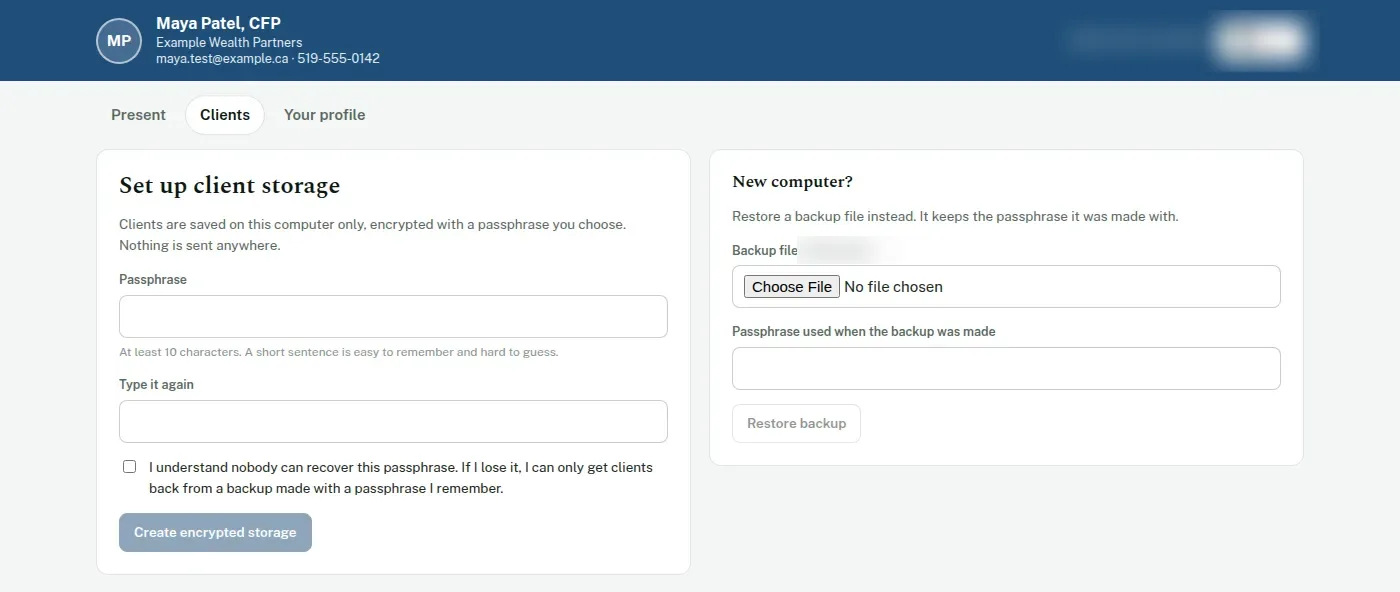
Setting up client storage: a passphrase, typed twice, and the option to restore a backup instead. Your details
Your name, firm, photo, colour and your dealer's compliance line come from Your details in this portal. To change them, change them there; the Planner shows the new ones the next time it opens.
Your dealer's compliance line is required. Without it the card says it needs one, and the Planner stays off.
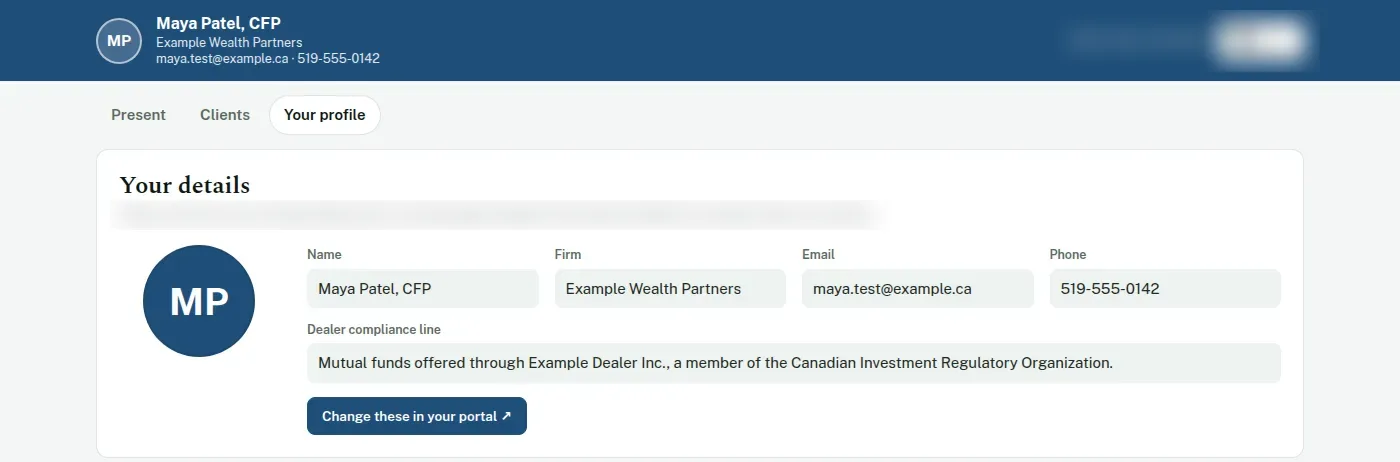
Your profile in the Planner: read only, with a button back to Your details in the portal. A link on its own opens nothing
Anyone who has your Planner's address without signing in to your portal sees this page, and none of your clients.
If your access ends, the Planner says it is no longer active. Client files already on your computer stay there, and it still offers you the backup file.
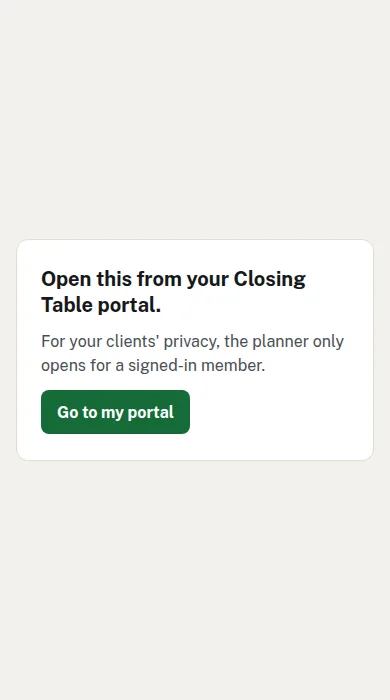
On a phone, the Planner's address without signing in: a page pointing back to the portal.
Articles to share
Plain explanations of renewals, the stress test, closing costs and the market, each one opening with your name on it.
Find Articles to share on your portal
It sits under Share on your portal home. New articles arrive every few days, and the list updates itself.

The Share section of the portal home, with the Articles to share tile. Copy a link, or your whole reading page
Each article has its own link: press Copy link and paste it into a text or an email. Open it shows you exactly what your client will see.
Your reading page, at the top, lists every article in one place. It suits an email signature or a page on your website.
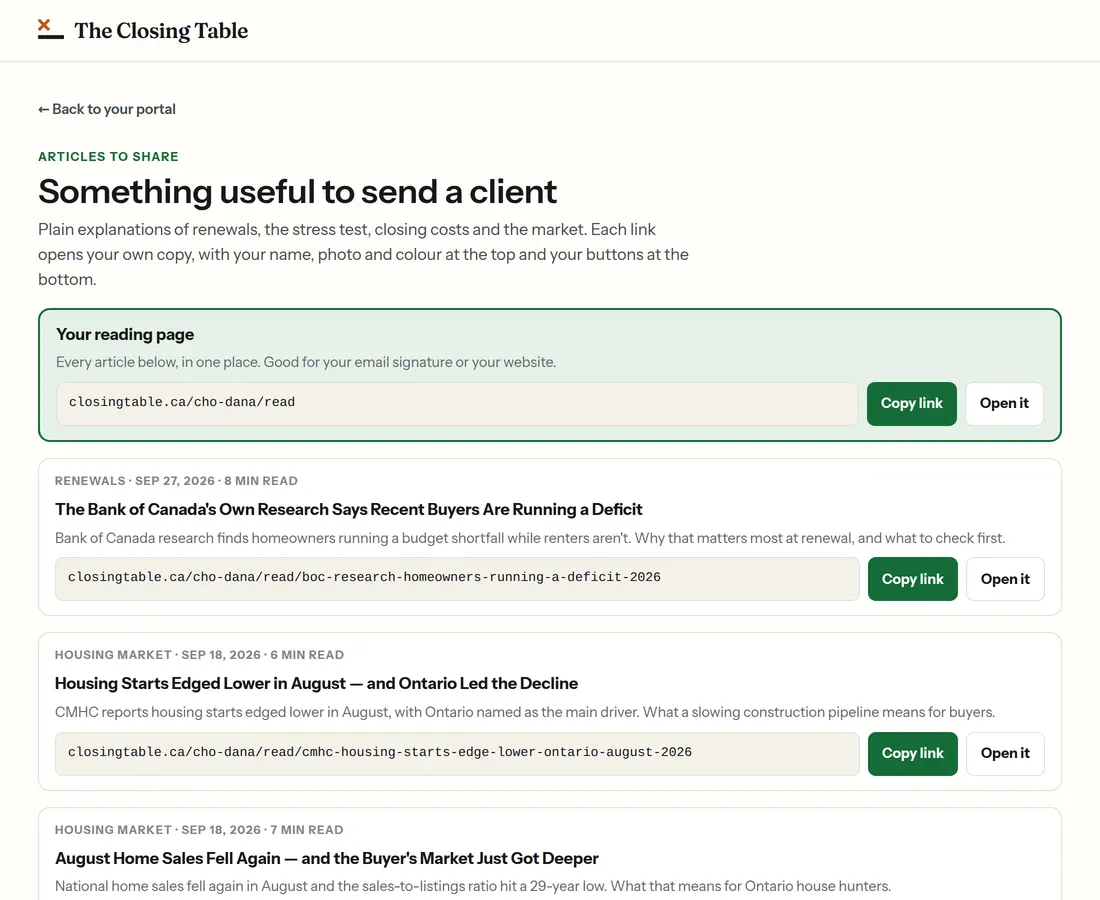
The Articles to share page: Your reading page with its link, then each article with Copy link and Open it. What your client sees
Your photo, name and brokerage across the top, in your colour, then the article.
You share it; you are not presented as its author. The foot of every page says the article is supplied by closingtable.ca and is general information, not advice.
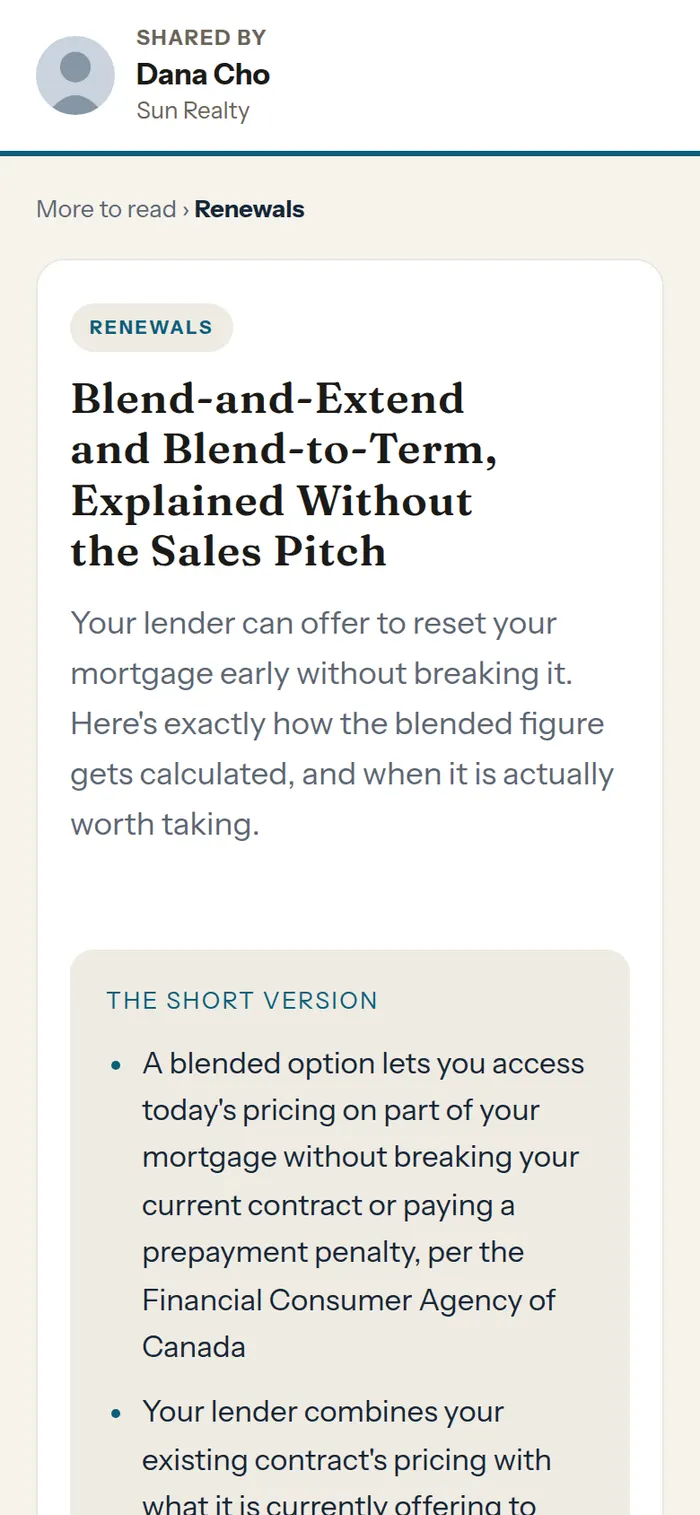
An article on a phone, headed Shared by Dana Cho, Sun Realty, with the article title below. Every button comes to you
Book, Call and Email at the foot of every article are yours, and so is the link to your app if you have one. Links inside an article either open another article on your page or are plain text, so your client is never sent elsewhere.
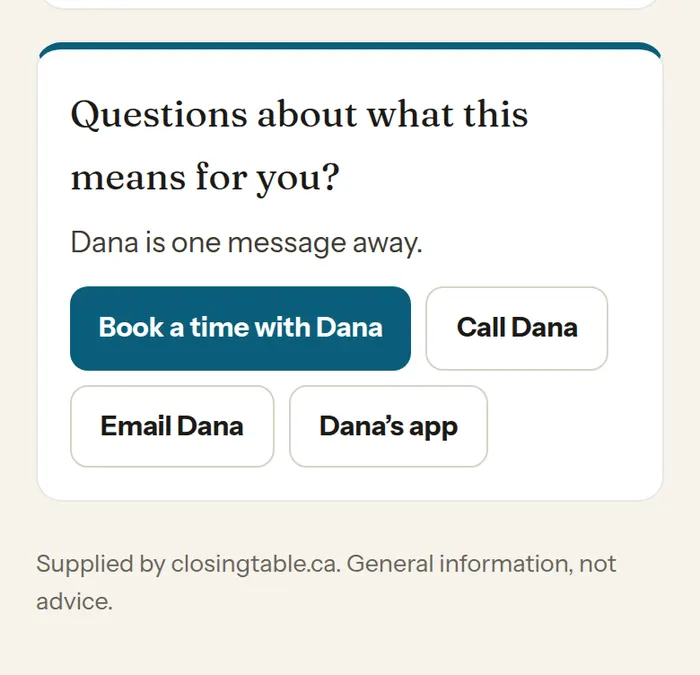
The foot of an article: Questions about what this means for you? with Book a time, Call, Email and app buttons. In your client app, under Learn
Realtors with the client app get a Learn tab listing the same articles. Nothing to set up: it appears on its own.
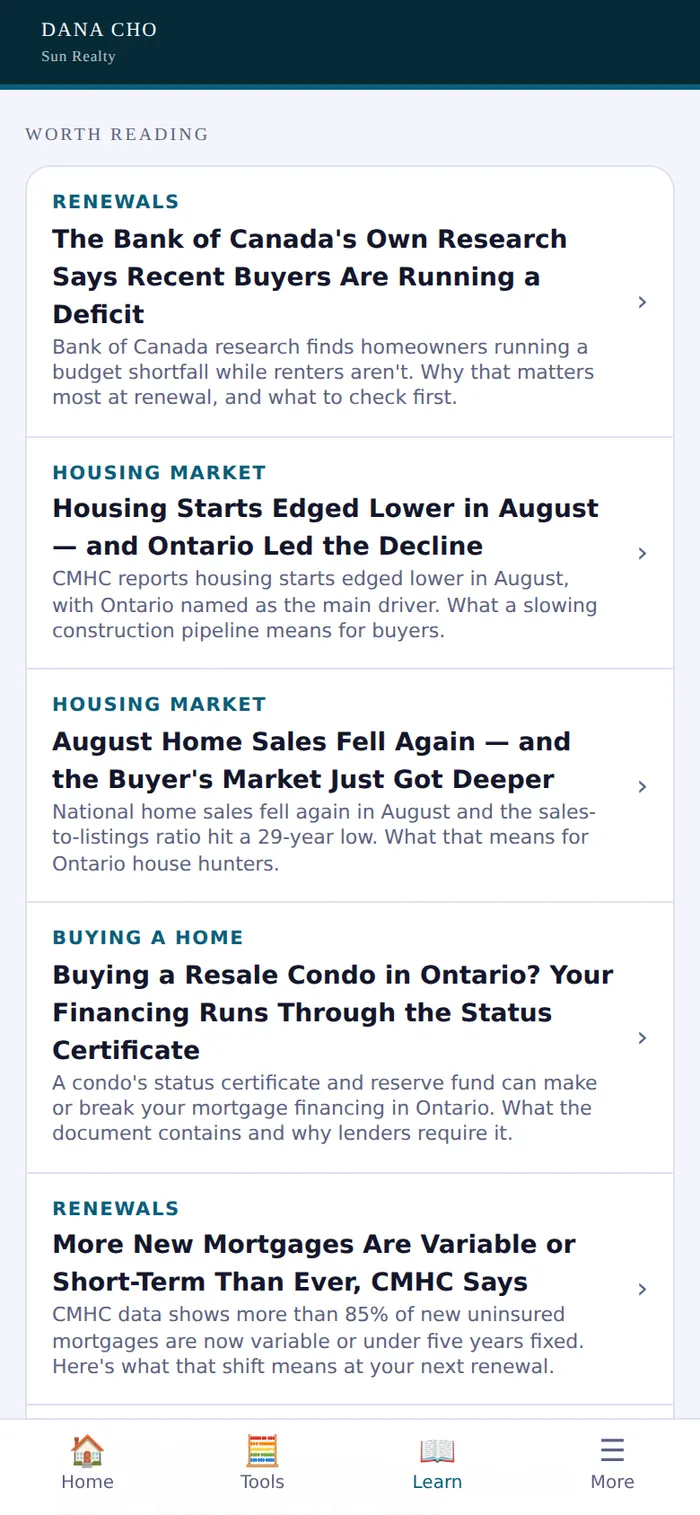
The client app's Learn tab, listing articles under Worth reading, with Home, Tools, Learn and More along the bottom. Which articles appear, and why
Only articles written so that they read naturally on your page appear here. Some articles are written in one firm's voice or name a particular firm, and those are left out automatically.
Open house sign-ins
A QR code for the table. Visitors sign in on their phone, and each one comes straight to you.
RealtorsFind Open house sign-ins on your portal
It has its own section on your portal home, under Share.

The Open houses section of the portal home, with the Open house sign-ins tile. Set up the open house
Press Set up an open house. Type the address, the city and the date. The asking price is optional and shows on the sign-in page.
Press Create and get the QR code. The sign-in closes itself the night it runs, so a code left on an old sign can't keep collecting names.
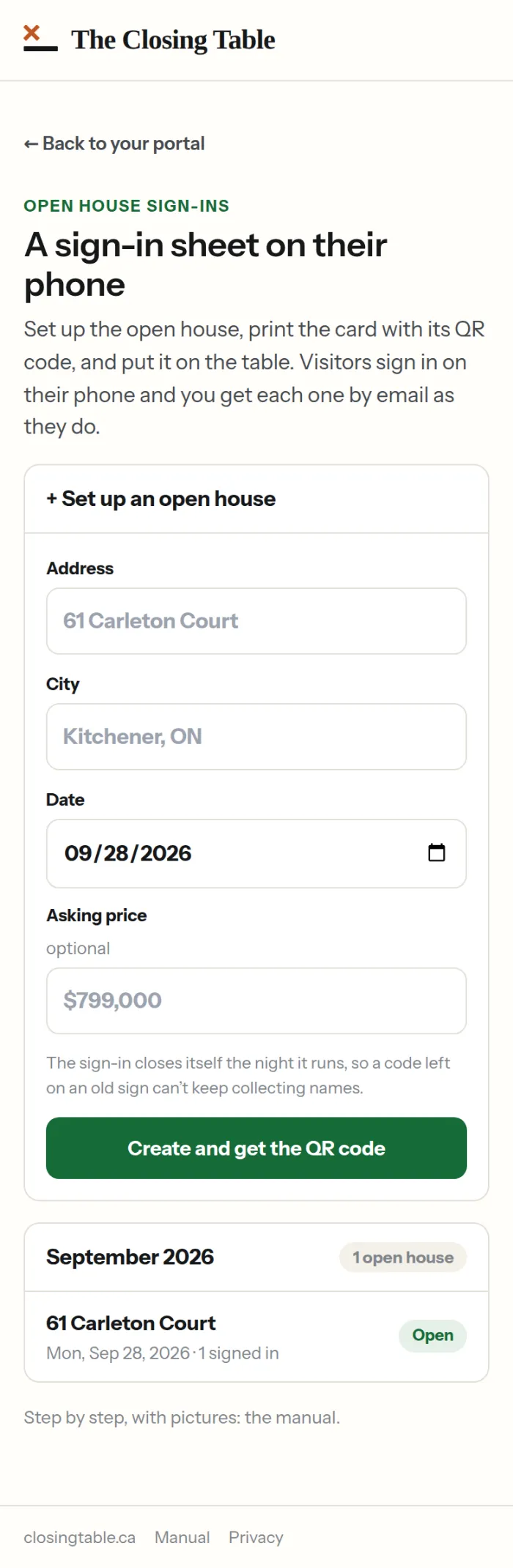
The form: address, city, date and an optional asking price, then Create and get the QR code. Print the card and put it on the table
Press Print the sign-in card. It prints on plain letter paper with a large QR code, your name, your brokerage and your phone number.
You can also copy the link and text it, or put it in a listing email.
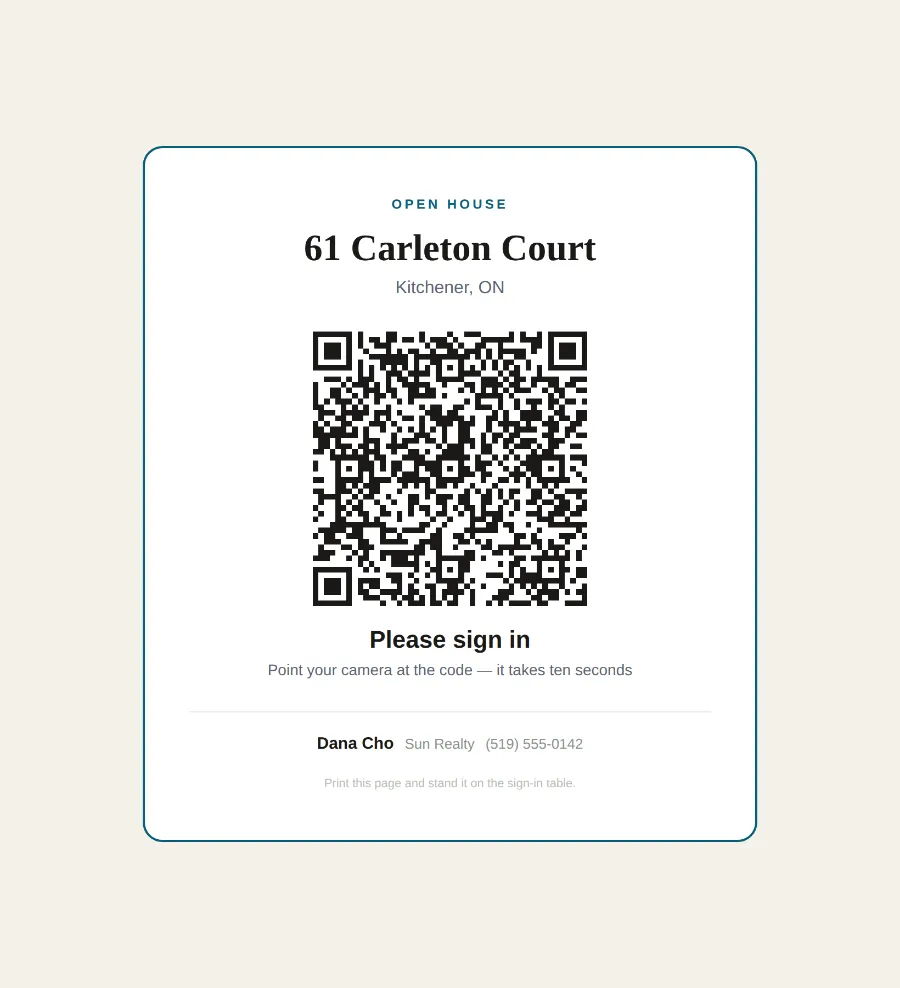
The printed sign-in card: the address, a large QR code, Please sign in, and your name, brokerage and phone. What your visitors see
Your name, photo and colour at the top, then a short form: name, email, an optional phone, whether they're working with an agent and when they hope to buy.
The box to hear from you is never ticked for them. It names you and your brokerage and tells them how to unsubscribe. Whether they tick it or not, you can follow up about this property.
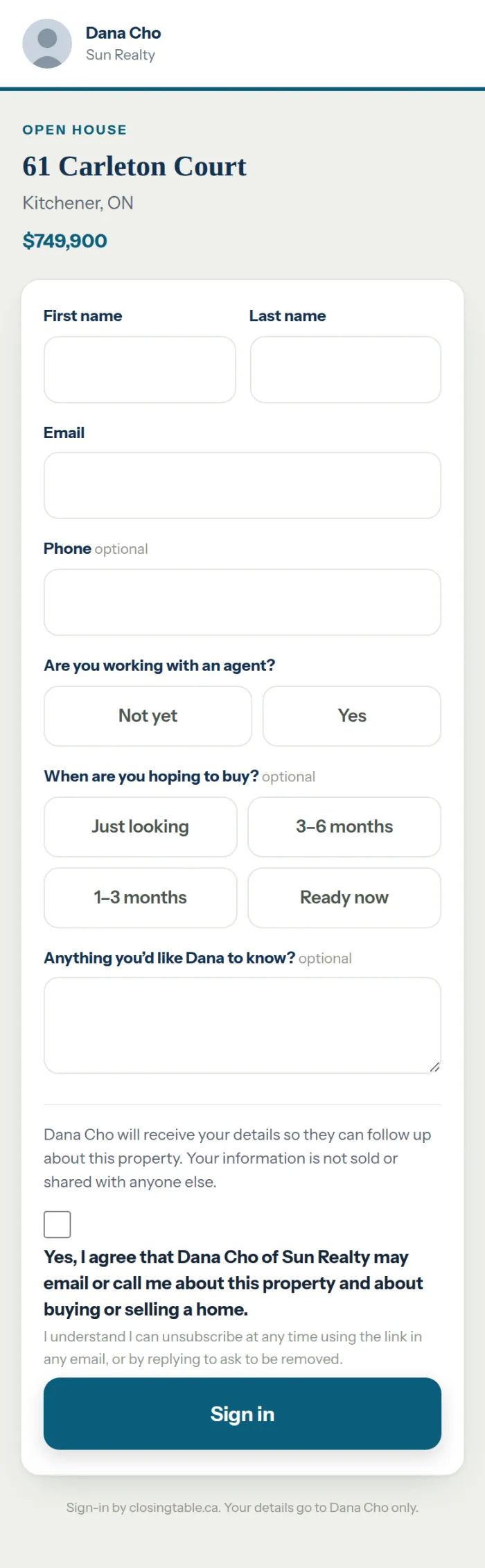
The sign-in page on a visitor's phone, with your name at the top and the consent box naming you. Each sign-in comes straight to you
You get an email from closingtable.ca the moment someone signs in. Anyone not working with an agent is flagged at the top.
Open the house on your portal to see everyone so far. Email me the sheet sends you a spreadsheet you can import into your CRM, with a column saying who agreed to hear from you.
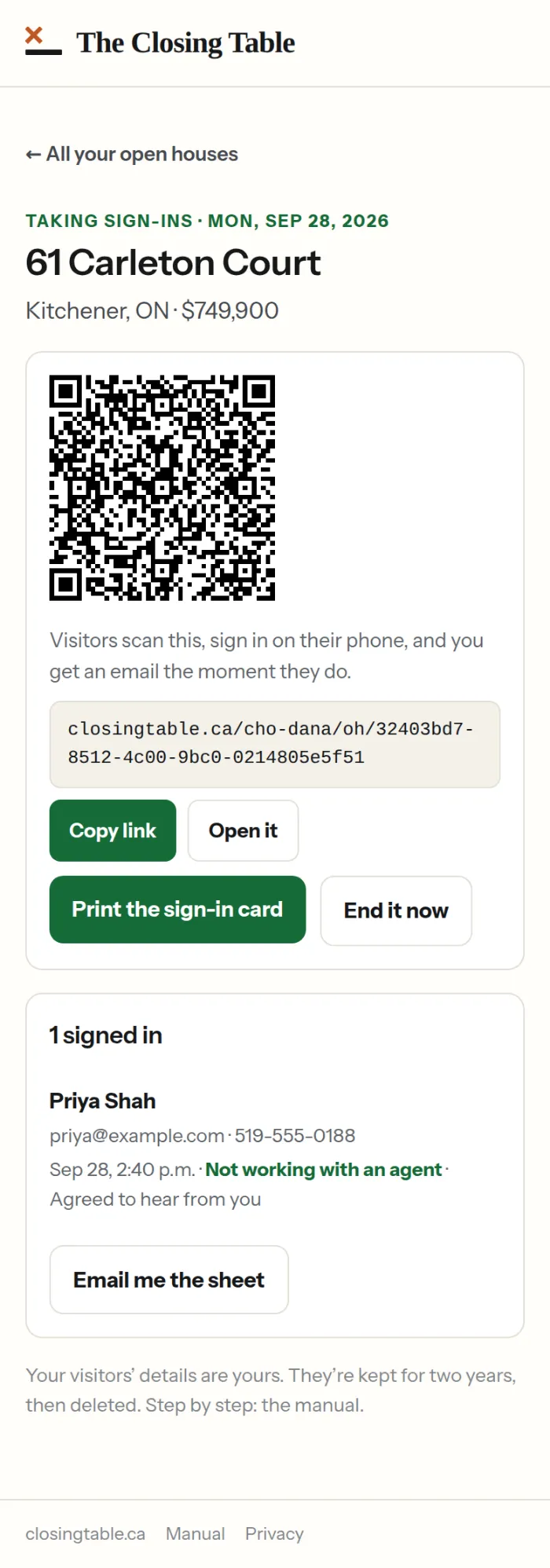
One open house: its QR code and link, Print the sign-in card, End it now, and the list of who signed in. Your open houses, by month
Every open house you've run is listed by month. End it now closes one early. Once closed, the QR code shows visitors a way to call or email you instead of the form.
Your visitors are yours. Nobody else is sent their details, and they are deleted after two years.
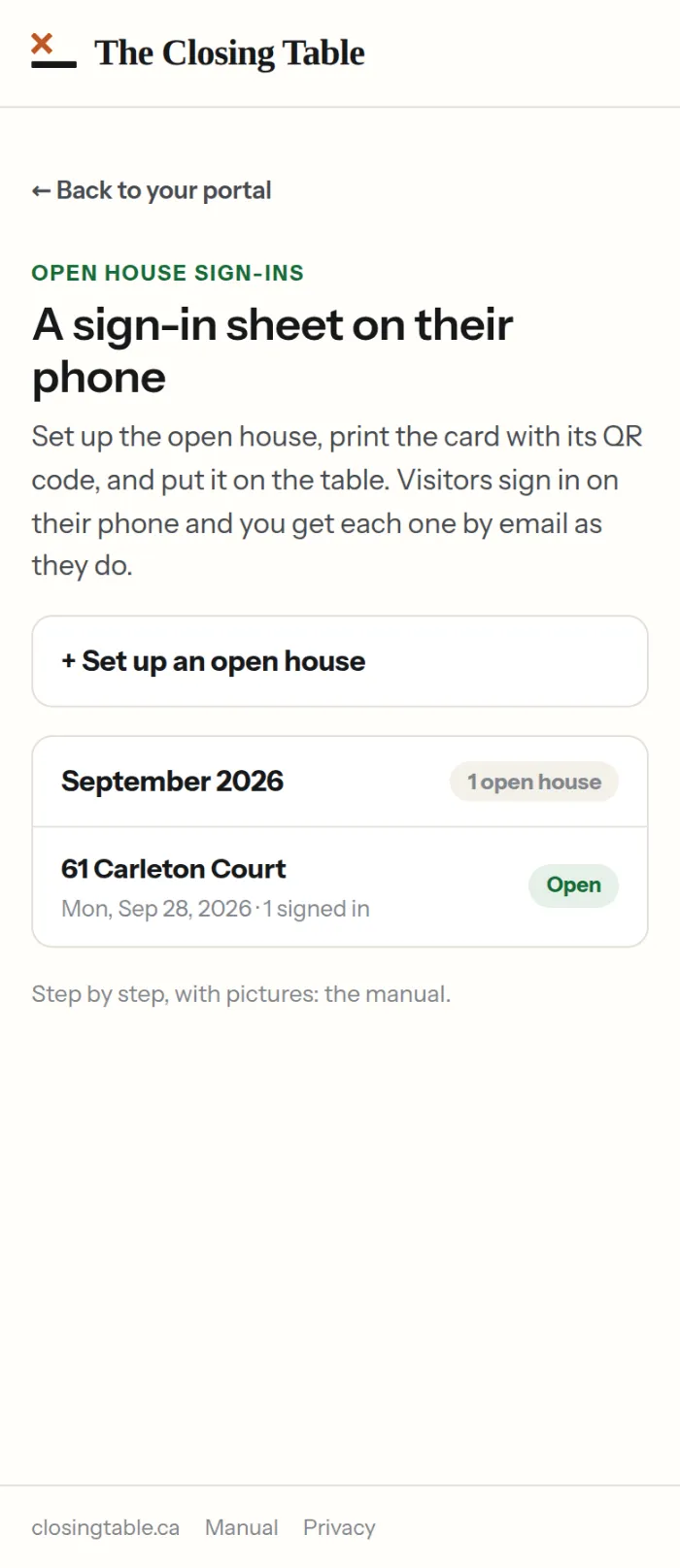
The list of open houses, grouped by month, each with its date, how many signed in, and Open or Finished.
Billing
Your plan, a code if you were given one, and paying by Interac e-Transfer.
Find Billing on your portal
Billing is the third tile in the Account row at the foot of your portal home.
It stays open after a trial ends, so it is always the way back in.

The Account row on the portal: The manual, Your agreement, Billing and Get help. Your plan
The page shows how long your free time runs and what your plan costs, monthly or yearly. Yearly is two months free.
Realtors and financial advisors: $99 a month or $990 a year. Mortgage brokers: $149 a month or $1,490 a year. Realtors can add the client app for $99 a month or $990 a year. Prices are in Canadian dollars, before tax.
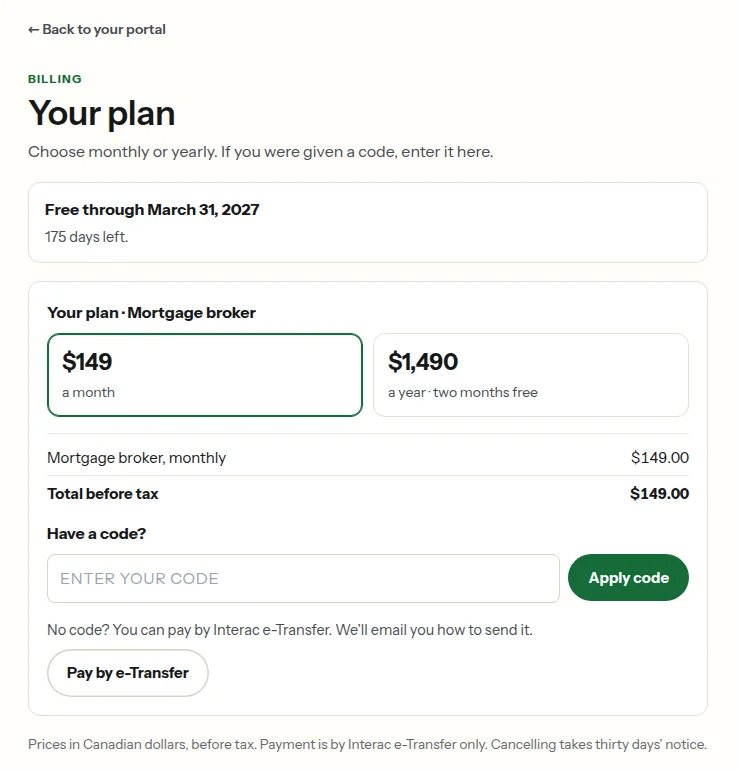
The Billing page: free through a date, monthly and yearly prices, a code box and Pay by e-Transfer. Have a code? Enter it
Type the code you were given and press Apply code. It takes effect straight away: the free months count from the day you enter it, and the page shows the date you are free through.
Each code works once per member. Every use is listed under History.
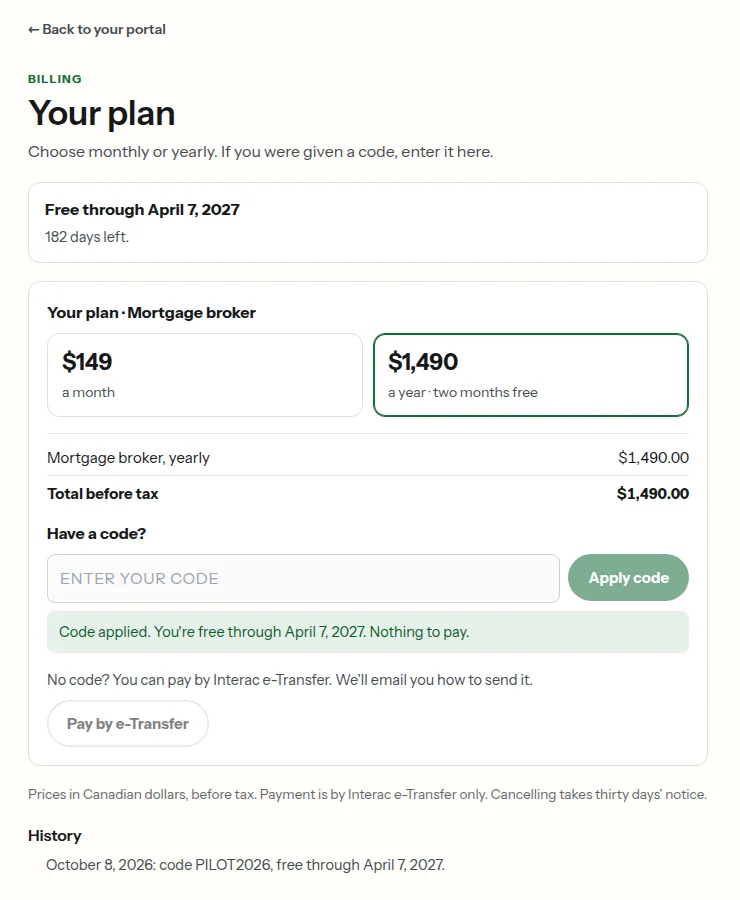
A code applied: Code applied. You're free through April 7, 2027. Nothing to pay. Pay by Interac e-Transfer
Choose monthly or yearly, then press Pay by e-Transfer. Nothing is charged and no card is asked for. We email you how to send it.
Once your payment arrives, your access runs on for the month or year you paid for. Nothing renews by itself: you send each payment.
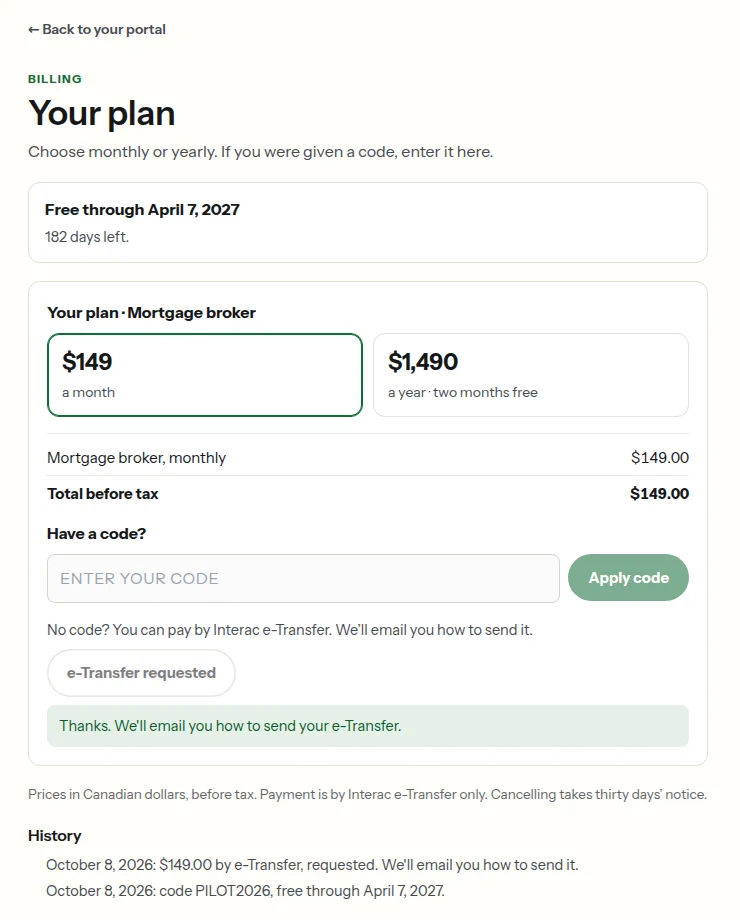
After Pay by e-Transfer: Thanks. We'll email you how to send your e-Transfer. If your free time has ended
Billing says so at the top. Enter a code or choose how to pay, and your tools come back on, with your saved work where you left it.
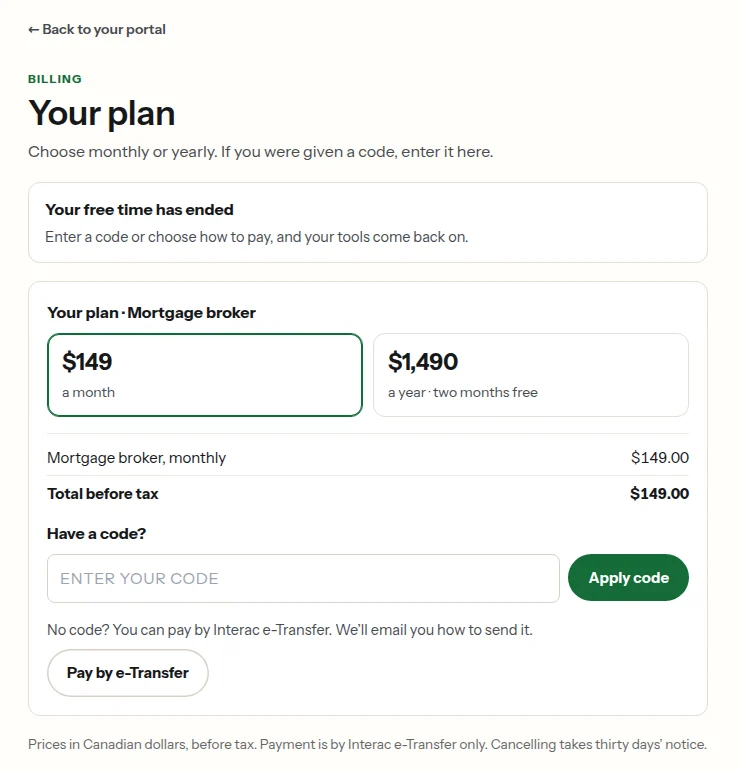
The Billing page after a trial ends: Your free time has ended. Enter a code or choose how to pay.
Your data
What is kept, where, and how to take it with you.
Asset Tracker keeps nothing
Your client's answers go straight into the email to you. Nothing is stored on their phone or by us.
Equity Calculator clients live on your computer
Saved clients are kept in the browser on the computer you saved them on — not online. A different computer or browser, or clearing your browser data, will not have them.
Back up all (download) saves every client in one file; Restore from backup puts them back, on any computer. Make one regularly.
Download as a spreadsheet gives you the same clients as a file that opens in Excel, Numbers or Sheets — yours to keep whatever you decide.
Back up all, Download as a spreadsheet, and Restore from backup, under the saved clients list. Your other desk tools keep your clients on your computer too
The Bridge Worksheet, the Refinance Analysis, the Investment Property Portfolio Analysis, the Mortgage Offset Strategy and the Client Journey all save what you enter in the browser on the computer you saved it on — not online. A different computer or browser, or clearing your browser data, will not have it.
Bridge Worksheet: Export JSON saves a backup and Import JSON restores it; Spreadsheet downloads every client as a file that opens in Excel.
Refinance Analysis: Back up to file and Restore from file; Download as a spreadsheet saves every scenario for Excel.
Investment Property Portfolio Analysis: Back up and Restore in the top bar, and Spreadsheet for Excel. A reminder appears if you have not backed up for a week.
Mortgage Offset Strategy: under Report & save, Back up to a file and Restore from a file, and Download as a spreadsheet.
Client Journey: meeting details and saved partners stay in this browser on this computer. Nothing about your clients is sent anywhere until you send the recap yourself.
Mortgage Investment Planner clients are encrypted on your computer
Clients you save are kept on the computer you saved them on, encrypted with the passphrase you chose. Nobody can recover that passphrase.
A weekly reminder asks you to download a backup. It opens on any computer with the same passphrase.
If your trial or plan ends
Every link you shared says it is no longer active — your articles, your open-house cards, the calculators on your website, your client app and any client links from your desk tools. None of them ever shows anyone else in your place.
You can still sign in at closingtable.ca/login. Your portal becomes one page. If you ran open houses, Download my sign-ins gives you every visitor as a spreadsheet, with the exact words each one agreed to.
To come back, press Enter a code or choose a plan: it opens Billing, where a code or a payment switches your tools back on. Or email support@closingtable.ca.
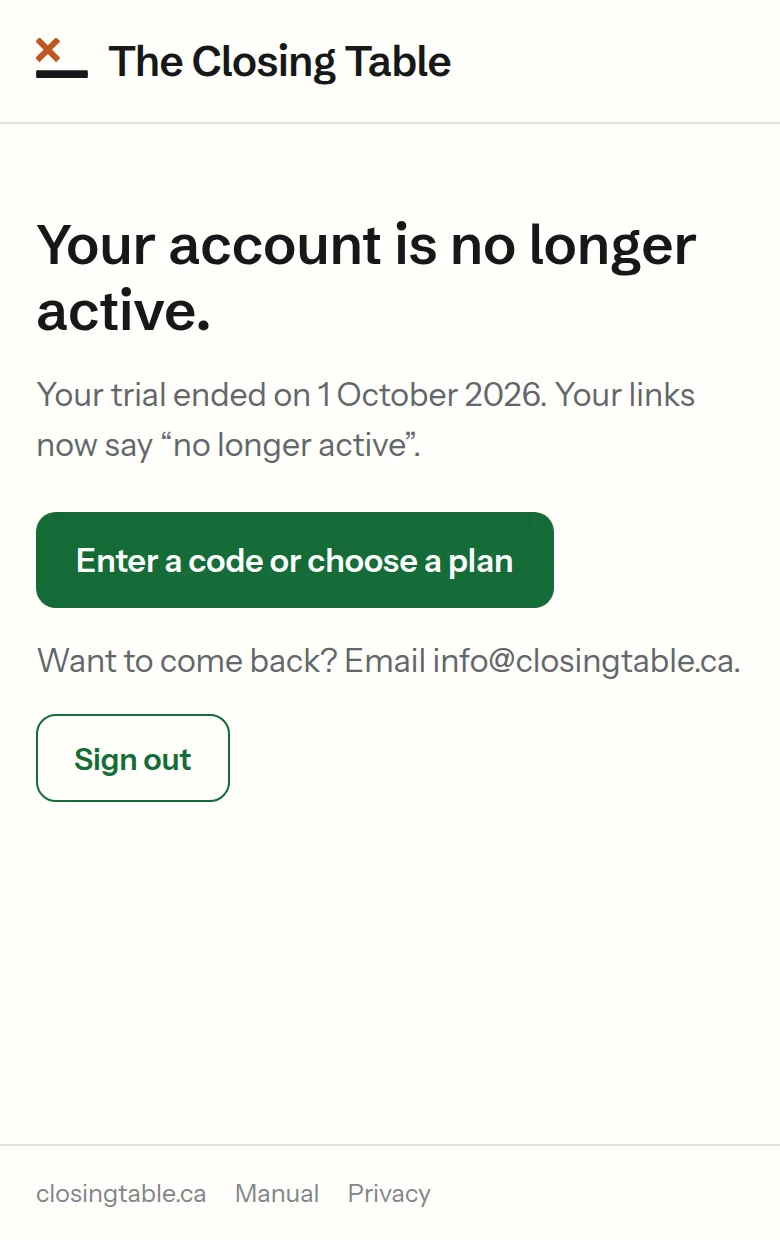
The one-page portal after a trial ends: Your account is no longer active, and the Enter a code or choose a plan button. What people see on a link you shared
A plain notice in the Closing Table's look. It does not name you, and it does not name anyone else.
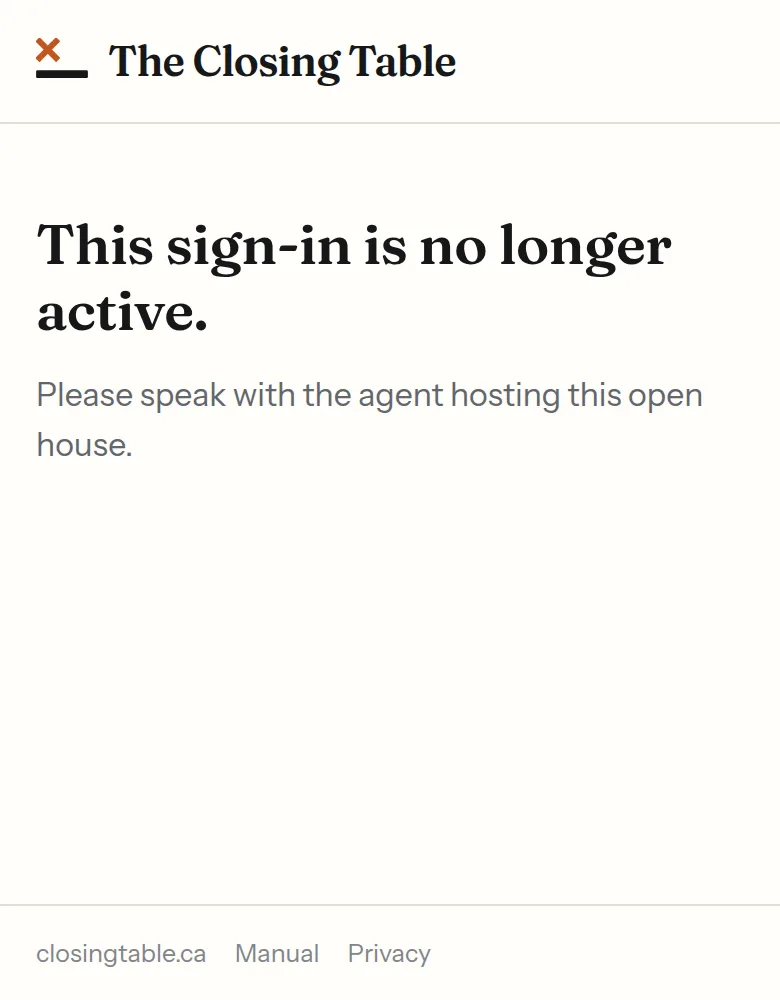
An open-house card scanned after the trial ended: This sign-in is no longer active.
Getting help
A person answers.
Press Get help
Get help is the last tile in the Account row at the foot of your portal home. It opens your own email app with a message to support@closingtable.ca: your name is already in the subject, and your practice and plan are at the top of the message.
Say which app and what you were doing. A screenshot helps.
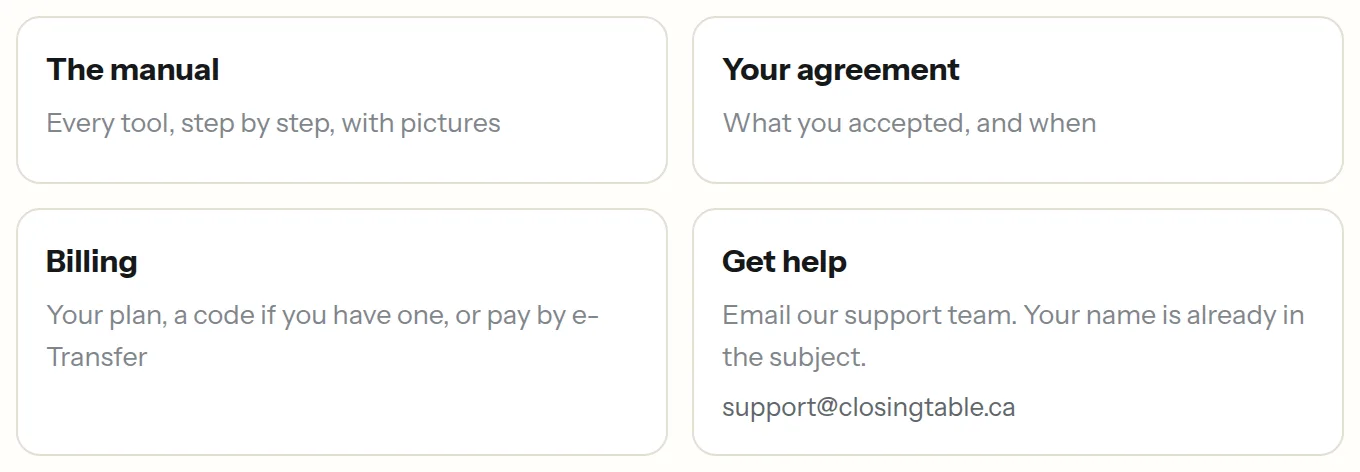
The Account row on the portal home: The manual, Your agreement, Billing and Get help, with support@closingtable.ca under Get help. Or Support, at the foot of any page
Every portal page ends with closingtable.ca, Manual, Privacy and Support. Support opens an email to support@closingtable.ca as well.
No email app on this computer? Write to support@closingtable.ca from any email account.
The Closing Table is software — calculators and applications. Questions: support@closingtable.ca · Privacy
The social kit
Captions, stories, short messages and video scripts, with your name and your link already filled in.
Find the Social kit on your portal
It sits under Share on your portal home, beside Articles to share.
Pick a piece
The newest month opens by itself; earlier months sit folded underneath. Each piece says what it is for — a feed post, a story, a paragraph for your client email, a text to one person, or something to say at an open house.
Your first name is already in it, and where it points people to a link, the link is your own reading page on closingtable.ca.
Read it, then copy it
Read it over first — it goes out under your name. Change anything that does not sound like you.
Press the button under the text to copy it, then paste it into Instagram, Facebook, LinkedIn, your email or a text message. Where a piece has a graphic, Open the graphic sits under it.
Film a video script
Under To film, each month brings short video scripts: one idea each, roughly how long it runs, read straight to camera. A closing line for your practice is already on the end.
The note above the script is for you and is not copied with it — usually what not to claim. Press Copy the script to copy the words, read them over, and film it on your phone.
On your phone
The social kit works the same on a phone, which is where most posts get made.
New pieces each month
New pieces and scripts arrive each month and show up here on their own. Earlier months stay underneath, folded, for a year, so you can come back to one you liked.